Affinity: Completely re-designed and absolutely free—forever—with a twist.

881 words; 5-minute read
Wow! Four weeks ago, Affinity put out a teaser that something big was on its way. We in the photographic community were fearful that a big, new, super-duper change would turn into subscription pricing. As it turns out, that’s only partially true.
A year ago, Affinity was (sadly) acquired by Canva, so subscription pricing seemed to be a certainty.
Guess what? The brand new Affinity Studio brings together Affinity Photo, Publishing, and Designer into one unified suite. And . . . “it is and always will remain completely free of charge”. That includes every update and new feature moving forward. This is truly significant!

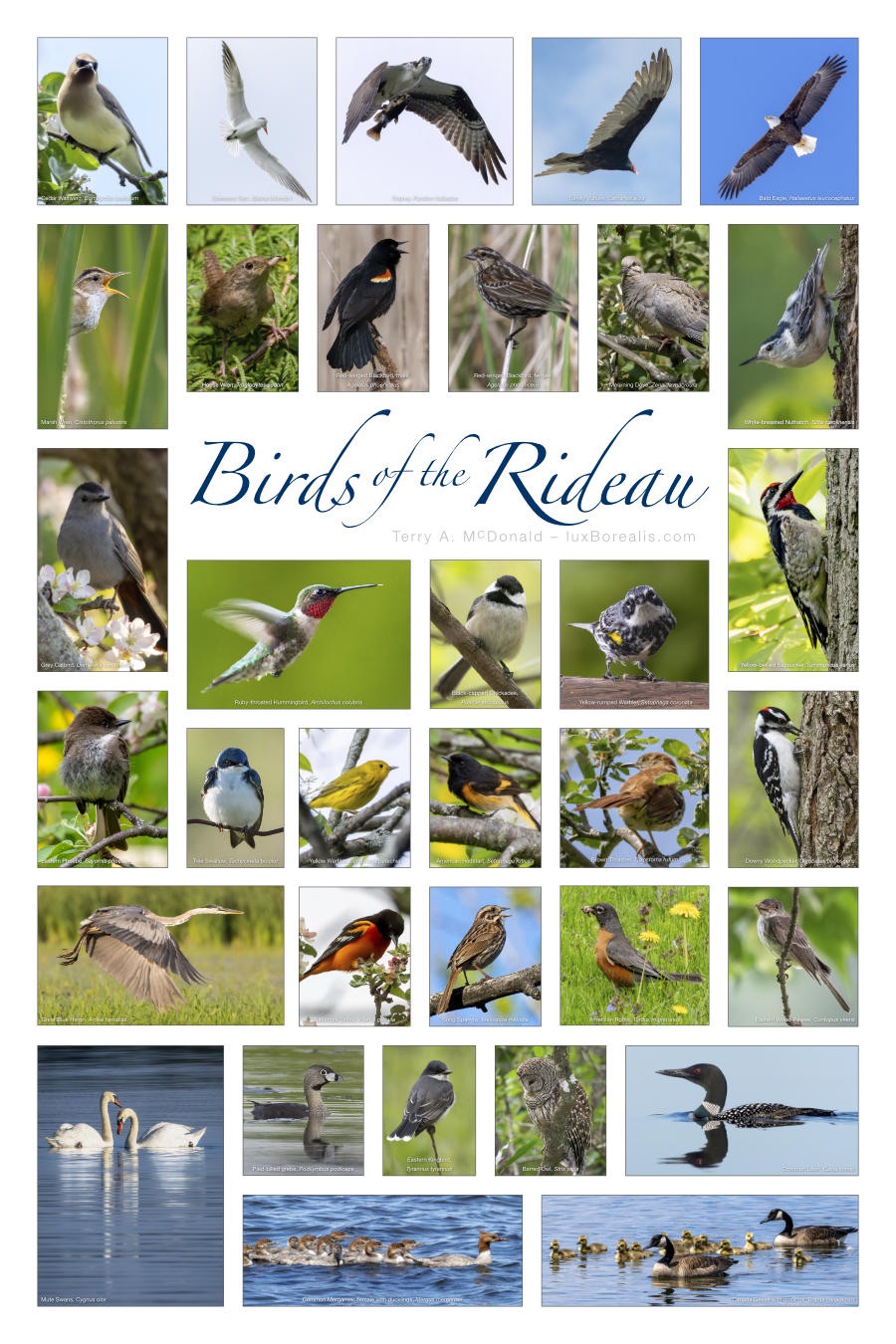
I’ve always liked Affinity. A year ago, I dropped Photoshop from my Adobe subscription saving about $10/month. Affinity Photo was a lot less expensive and does everything I need it to do. As well, I found it to perform better on iPad than Photoshop. I use the app for merging panos, HDR blending, and focus stacking, making composite images for blogs—all on iPad. Plus, it’s great when I need to create title graphics. I’ve also used Affinity Publisher to make multi-image posters, such as the Birds of the Rideau.
Now, the three Affinity apps—Photo, Publisher and Designer—have been amalgamated into one suite that offers Vector, Pixel and Layout workspaces. And it’s incredibly powerful, and free. It’s like getting a whole slew of Adobe apps—Illustrator, Photoshop, Acrobat, etc., etc.— all in one smooth and fast app. For free. ‘But,’ you say, ‘there’s no such thing as a free lunch!’ This time, there is.
If you’re not familiar with Affinity Photo, it is, arguably, the best Photoshop replacement. You can edit photos from raw in a dedicated workspace and output your images in just about any format, including Adobe Photoshop’s .psd files. You can do masking and filtering and all the amazing things you do in Photoshop, and more. For free! Users of Affinity Photo will find the upgrade to the Suite straightforward; just keep in mind that for photos, you’ll be working in the Pixel workspace.
Perhaps the one caveat is that Affinity Suite is being marketed to ‘creatives’ as opposed to ‘photographers’. If you watch the Keynote video or the Intro video, you’ll see what I mean. Photo editing is still a mainstay of the app, however, with everything Affinity Suite can do, it really is for those who are doing far more than editing raw files, including making posters, books, graphics of all inns and just about anything that uses photos, raster and vector graphics.
The other big difference, though, is AI. Like the old Affinity Photo, the new free version, Affinity Suite, does not include AI. This suits me fine as, for my work in #RealWorldPhotography, aka #AuthenticPhotography, I’ve made the conscious decision not to include any form of generative AI. (Read my article Navigating the AI Juggernaut here.)
If you want to use Affinity and have AI available for generative fill, generative expand and generative remove, you will need to subscribe to Canva AI Studio. But, at $150/year, if AI is that important, you are better off using Photoshop with your Lightroom package. Not only is the integration seamless, but the price point is better.
I think Canva’s decision to price its Studio app as high as $150/year (= CAD 12.50/mo) is a bit surprising. Canva Studio AI will not draw Lightroom users away as, let’s face it, Lightroom is the de facto industrial-strength photo editing suite. And, adding Photoshop to Lightroom is only another $10/month, which makes it cheaper than Canva and includes 1TB of cloud space and Portfolio website design.
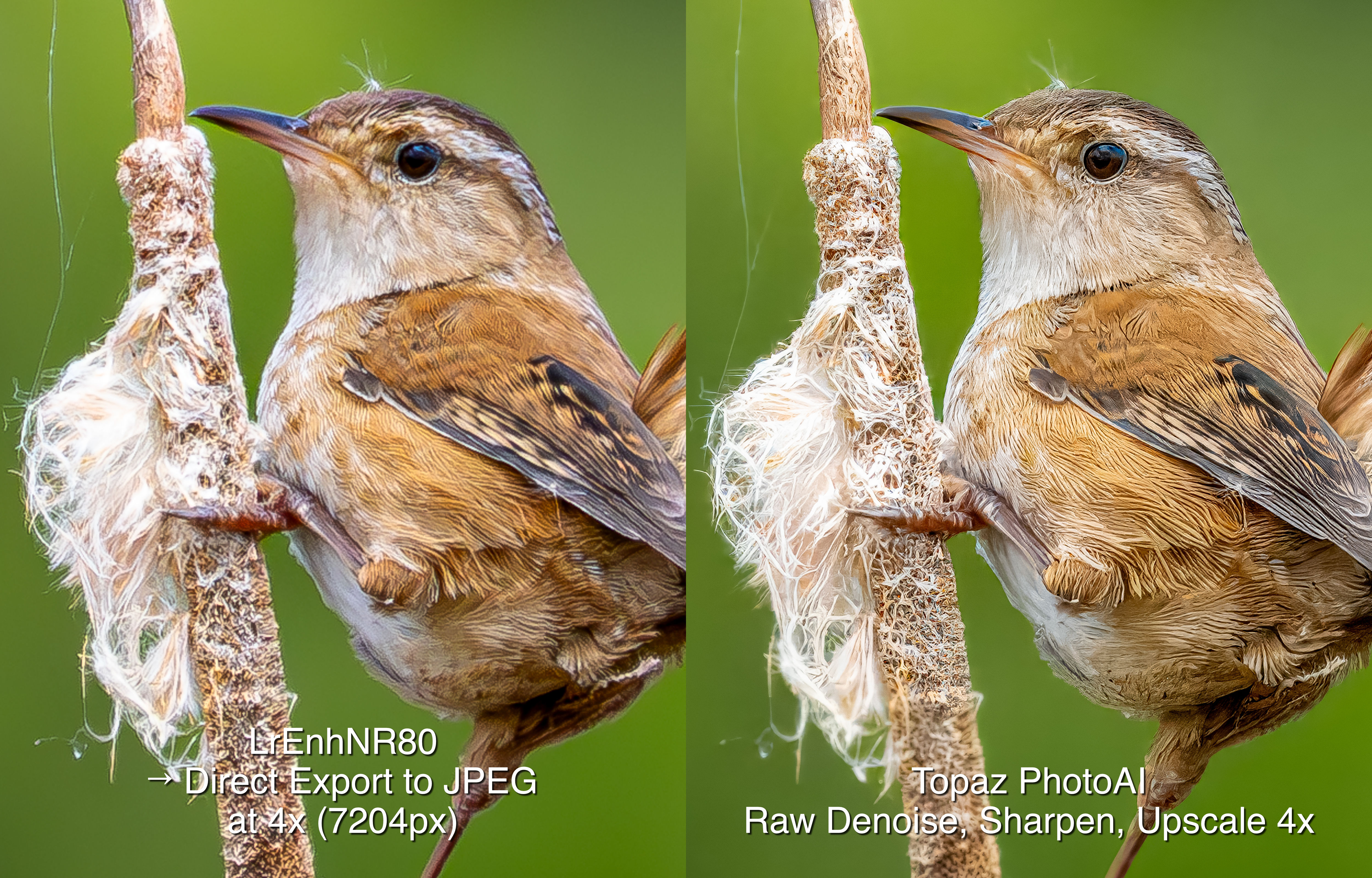
This seemingly high pricing is similar to Topaz’s decision to price its PhotoAI subscription as high as they do. Photo AI is about CAD $24/mo; Topaz Studio, which includes all their apps, is over $50/mo. I don’t understand the thinking behind this, as neither Canva nor Topaz have the same ‘industrial strength’ as Lightroom+Photoshop. DxO PhotoLab (reviewed here), which also carries a comparatively high price at about $28/mo or USD $239/yr, is also over-priced. Why have these companies priced their software higher than Adobe? I have no crystal ball, but my concern now is that Adobe will be jacking up their prices. Yikes! Let’s hope not.
So, what to do? First of all, Affinity Suite is only available for macOS and Windows; the iPad version is ‘coming soon’. If you’re happy with Affinity Photo, then upgrading to the free Affinity Suite may not be needed. However, if you are convinced AI is your route to better photography, then I suggest using Lightroom+Photoshop. At CAD $26/mo it’s also the most complete and the most competitively priced photo editing suite. If you have a Lightroom subscription and you’re happy doing #RealWorldPhotography with no generative IA, then stick with Lightroom plus Affinity Photo or upgrade to Affinity Suite, which is what I’ll be doing.
Thanks for reading. This blog is completely free and I do not include affiliate links. To help keep it free, consider buying me a coffee.

Be sure to SHARE with your photog friends and/or continue the discussion with a COMMENT or QUESTION.
Update: Bird Photography in Costa Rica
2113 words; 17 photos; 11-minute read
Clicking on images will enlarge them.
Although it’s the rainy season, we’ve had more than our fair share of sunny weather. Up in the Central Valley and highlands, it was actually pleasant, with just enough cloud to soften shadows. But down here on the southeast Caribbean coast, just a few kilometres north of Panama, the sunny skies bring heat and humidity. The past two days have been scorchers!
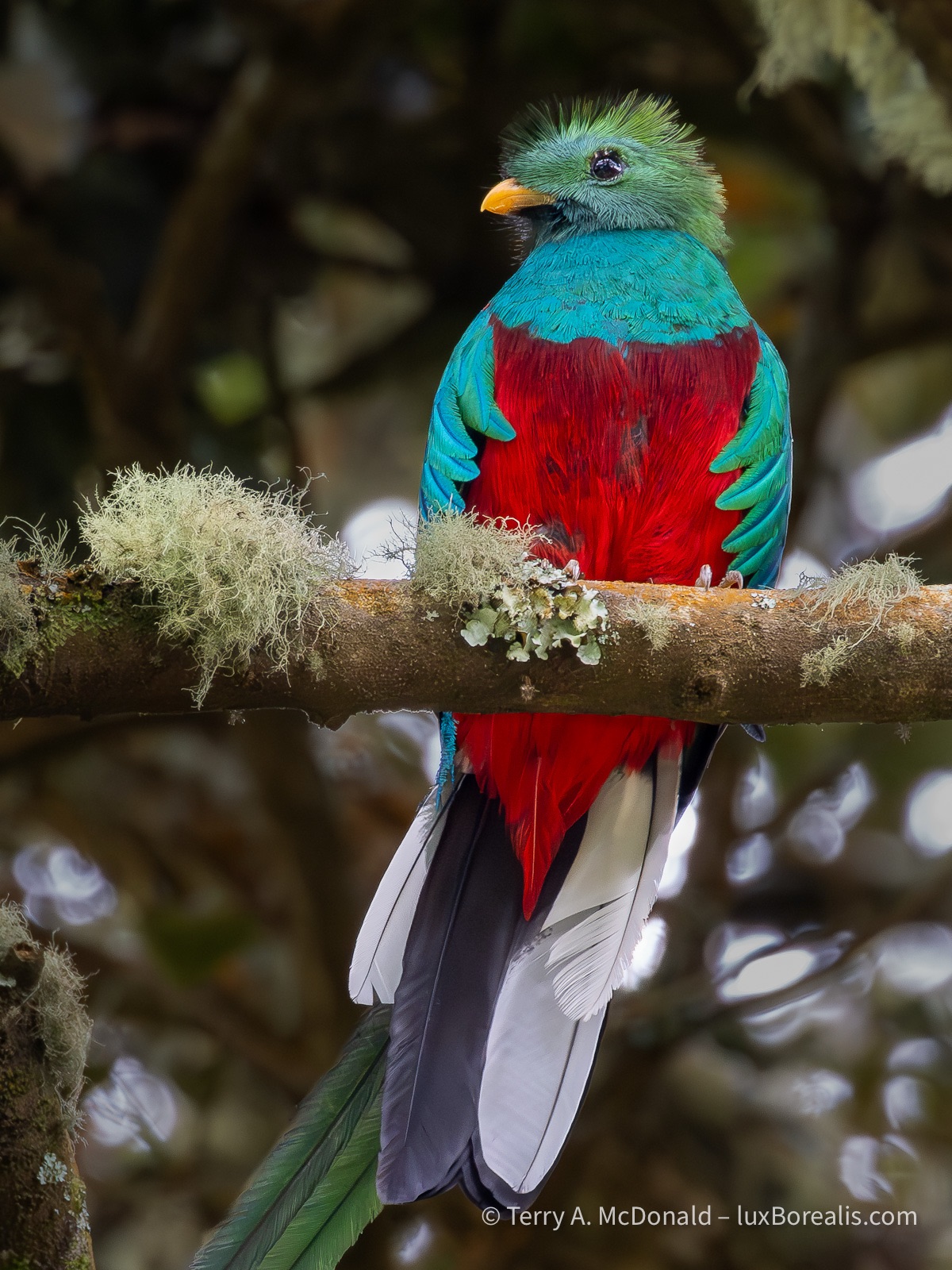
OM-1 | M.Zuiko 100-400mm at 400mm (800mm efov) | ƒ11 @ 1/200 |ISO 6400 | Lightroom
This beauty is arguably the most sought-after bird in Central America. It feeds on wild avocados, swallowing the plum-sized fruit whole, then regurgitating the pit before retreating back into the canopy.
The birds here in Costa Rica are simply stunning. Our guides from Eagle-Eye Tours are on top of everything that moves or calls, with instant identifications. Ernesto Carman is from Costa Rica and knows not just the birds but is an encyclopaedia of natural and cultural history. Jody Allair, from Birds Canada, is amazing with the IDs, and both are quick on the scopes, providing us with clear views of distant birds. Even our driver Ricardo is a birder with a keen eye.
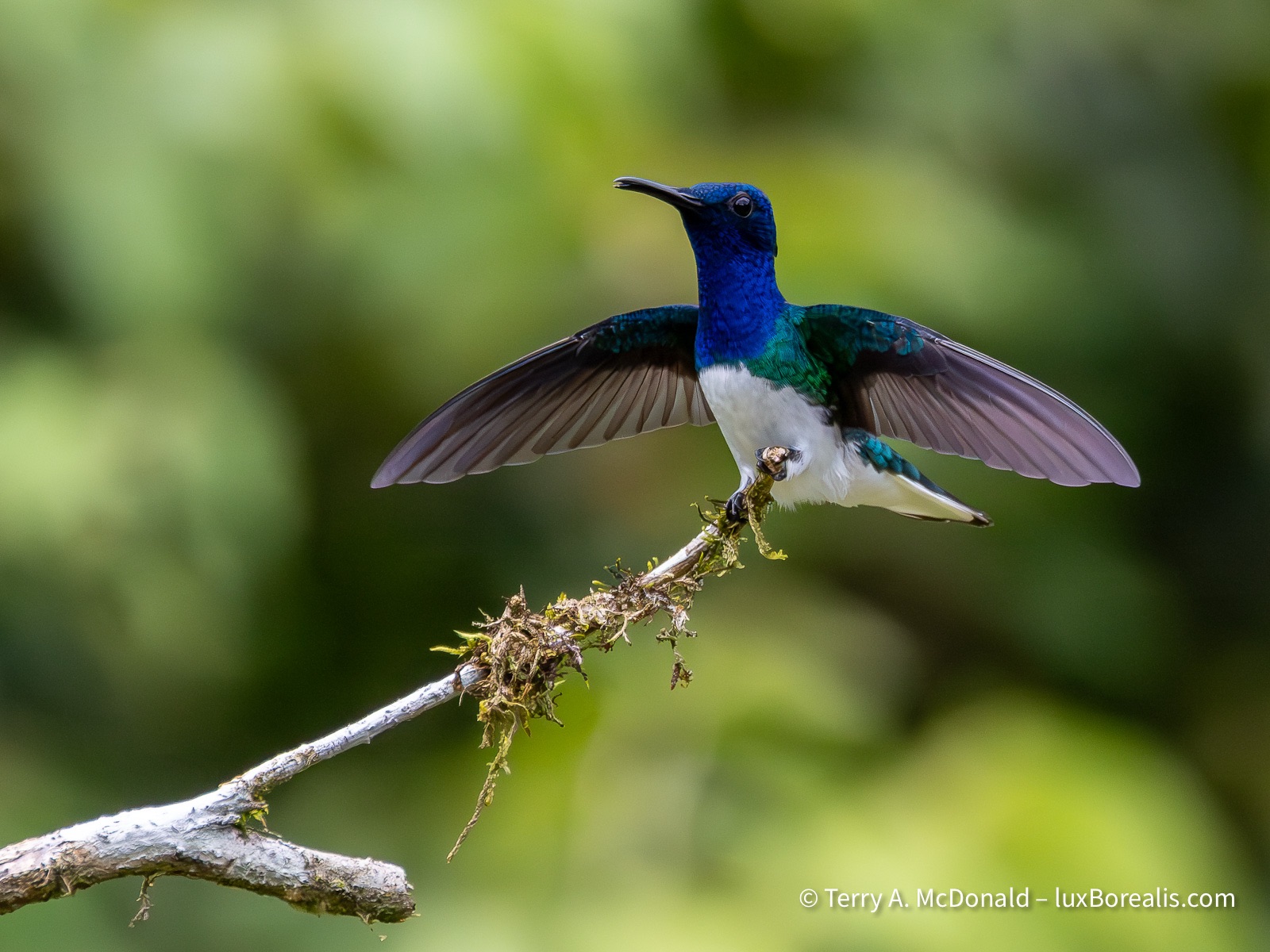
400mm | ƒ8 @ 1/5000 | ISO 6400 | Lightroom
The hummingbirds are nothing short of magnificent and most of the time, predictable. They either have perches they return to, like this Jacobin, or like the Violet Sabrewing below, they hover away from the feeder for a brief second before and after feeding.
The folks we’re travelling with—a total of 12 —are also excellent birders. They are from across the continent from Vancouver Island to Toronto to south Texas and Arizona and bring with them a world of birding. It’s been great to share travel stories and experiences.
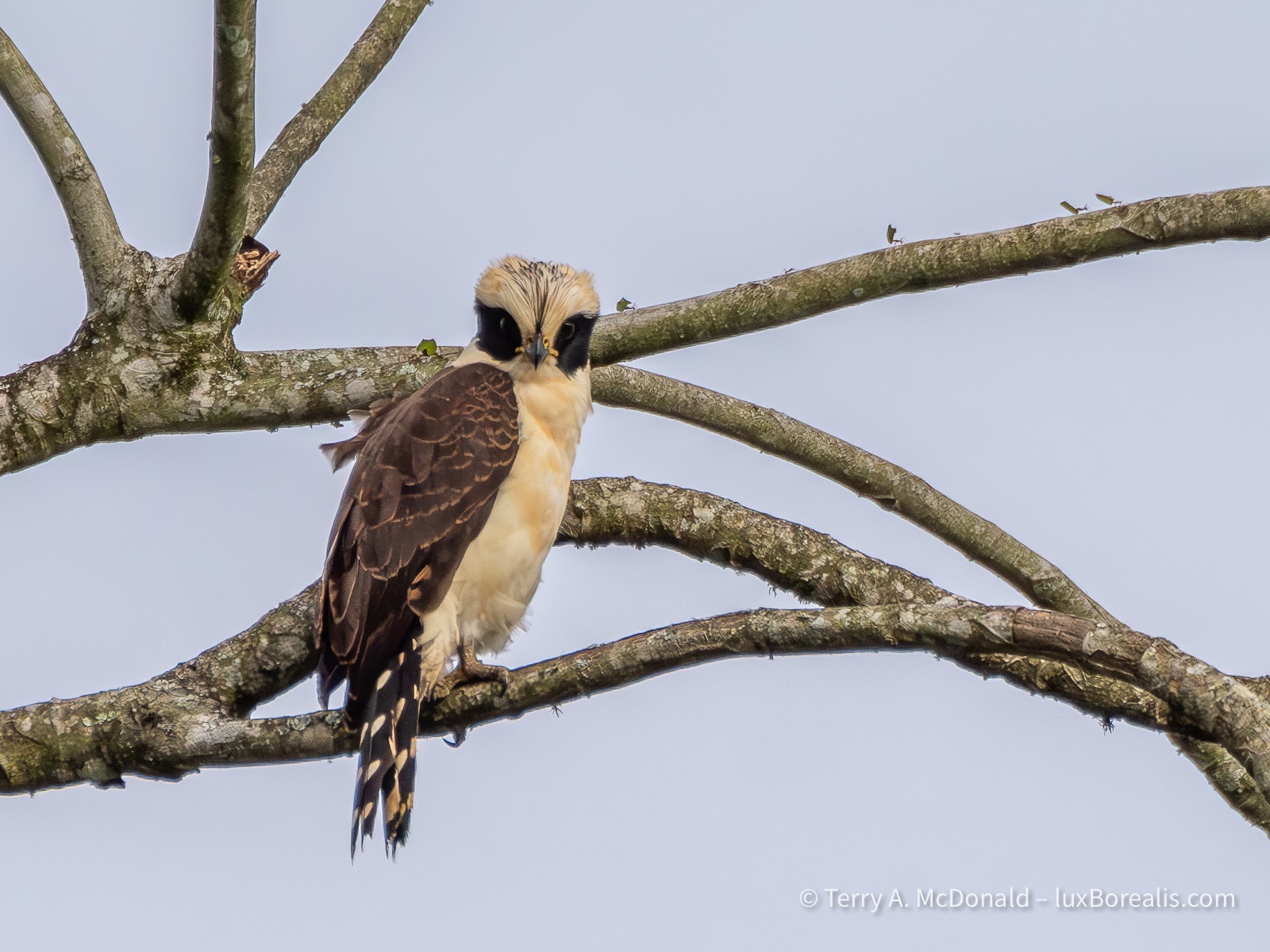
400mm | ƒ8 @ 1/2500 | ISO 1600 | Lightroom
And guess what? It really does make a laughing-like call. Note leaf cutter ants carrying pieces of leaves along the top edge of the branch.
From a photography perspective, I really can’t complain. I’ve had some excellent photo ops, most of which I’ve been able to take advantage of. However, I’ve also noticed that birders are satisfied with seeing a bird half a kilometre away, provided they can ID it. How they can see the leg-colour or a flash of whatever at that distance is beyond me!
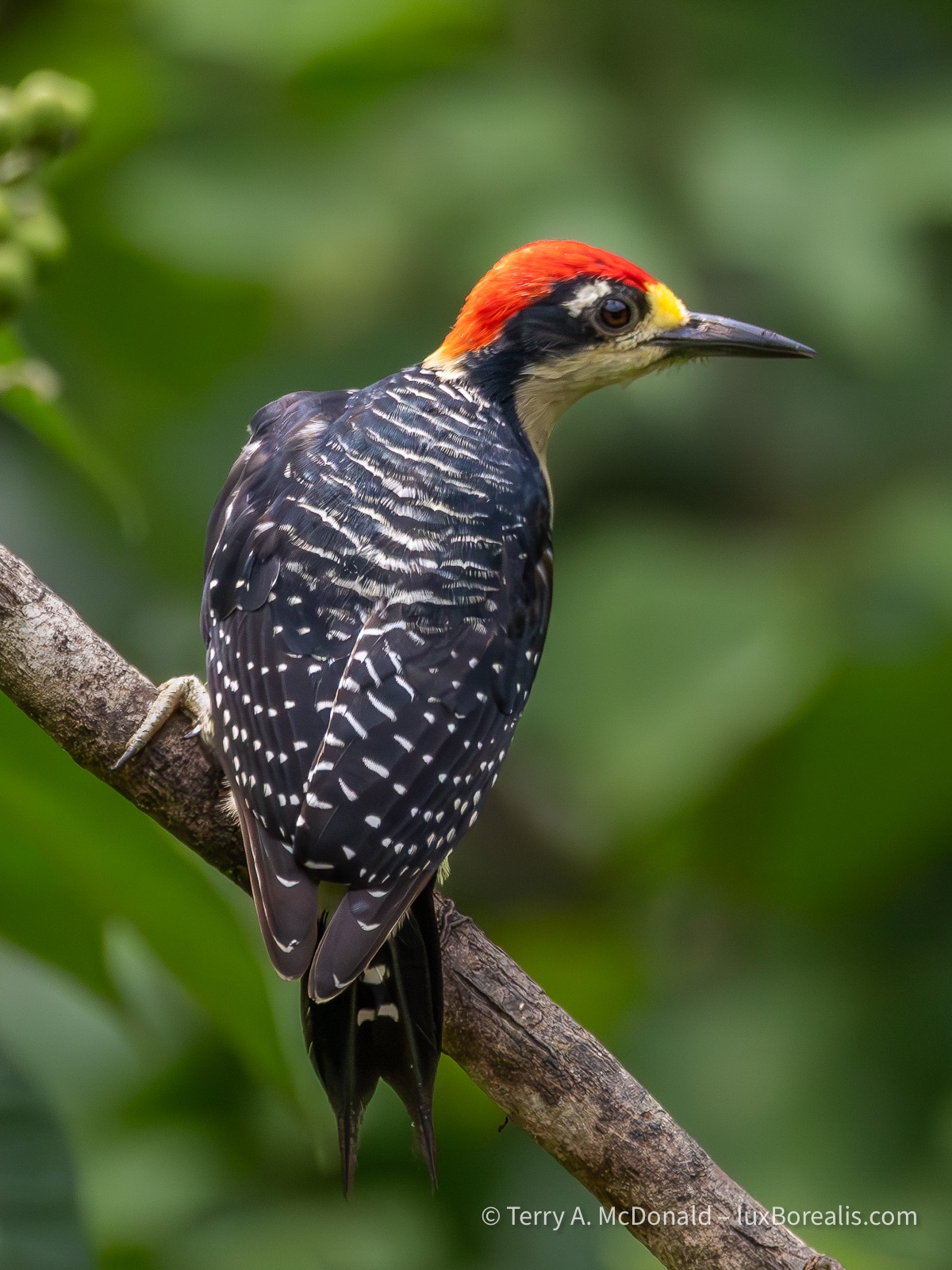
400mm | ƒ8 @ 1/5000 | ISO 6400 | Lightroom
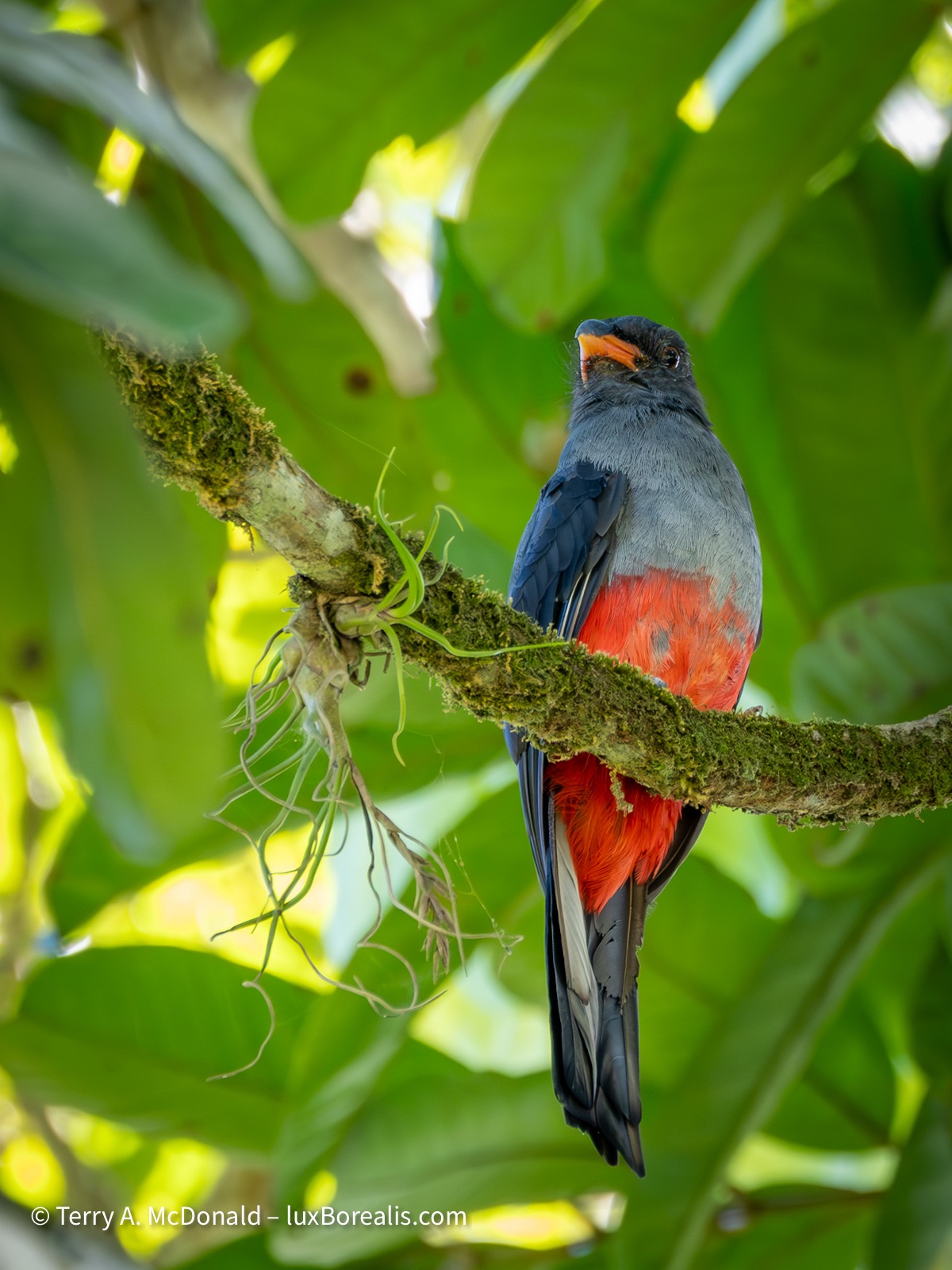
400mm | ƒ8 @ 1/200 | ISO 3200 | Lightroom
Field Equipment
On my OM-1, I’m using the M.Zuiko 100-400/5-6.3 (200-800mm efov). For me, even with an 800mm equivalent lens, I need the bird within 20m for what I would consider a successful photo. The Olympus Big White or the 150-600mm would have allowed a greater number of successes, though the added weight would have its own consequences. For ease of vertical shooting and near limitless battery power, I’ve added the HLD-10 vertical grip.
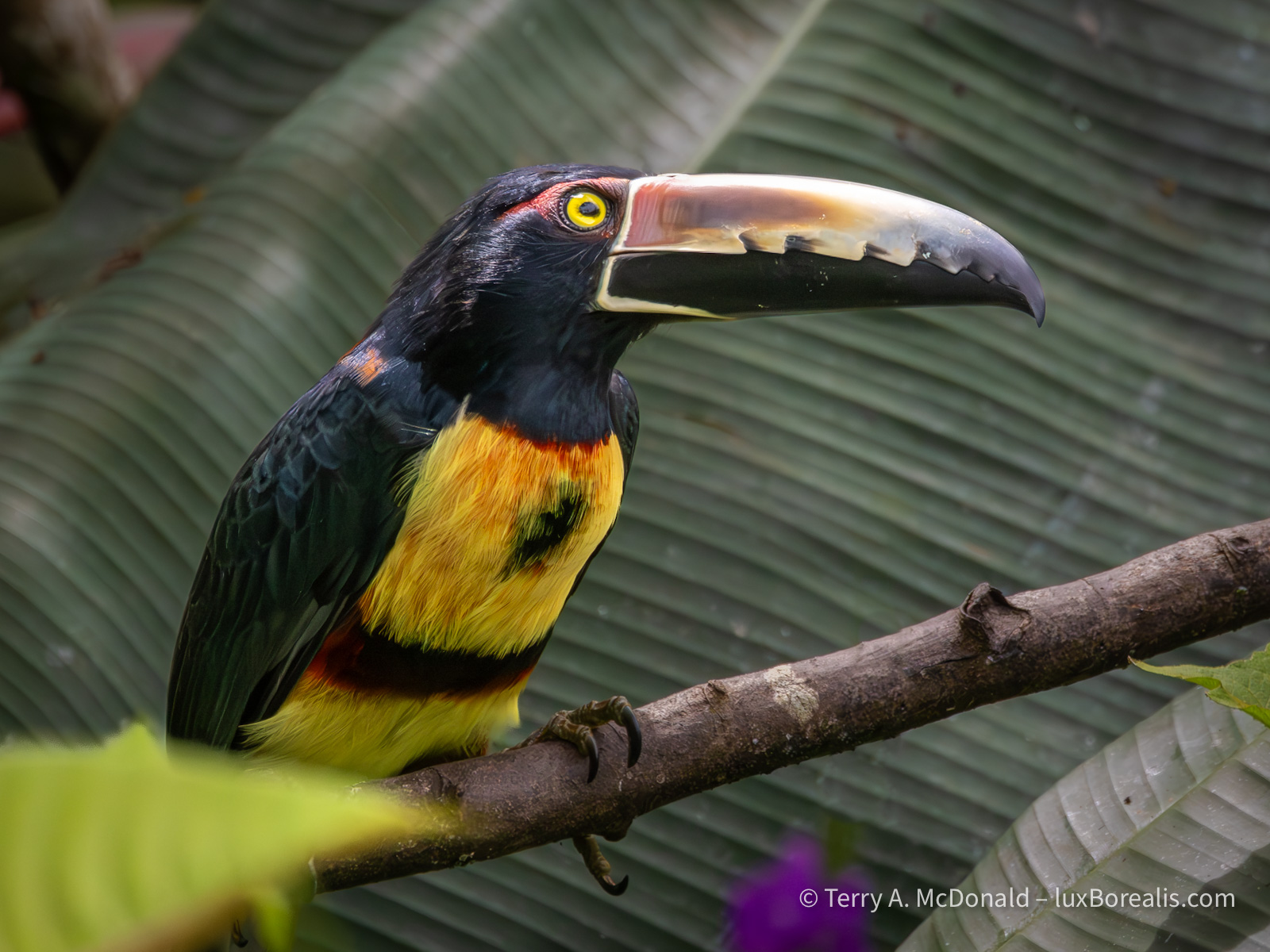
400mm | ƒ8 @ 1/5000 | ISO 6400 |Lightroom
The massive bill on this toucan is actually quite light as it is constructed with a thin skin of keratin over internal structural supports, like an airplane.
Another addition I’ve made to my set-up is a monopod. I know how Olympus/OM System users love to boast about handholding such light equipment with great stabilization, almost as a badge of honour, to the point where even on the OM System website, you’ll rarely see a tripod and never a monopod.
Holding a 2+kg system of body and lens for minutes on end while watching a hummingbird or scanning the canopy for a tell-tale flash of colour simply became uncomfortable when repeated over the course of the day, in 30° heat at 100% humidity. I’m used to a monopod from my years of shooting sports, so using one in these conditions was a no-brainer.
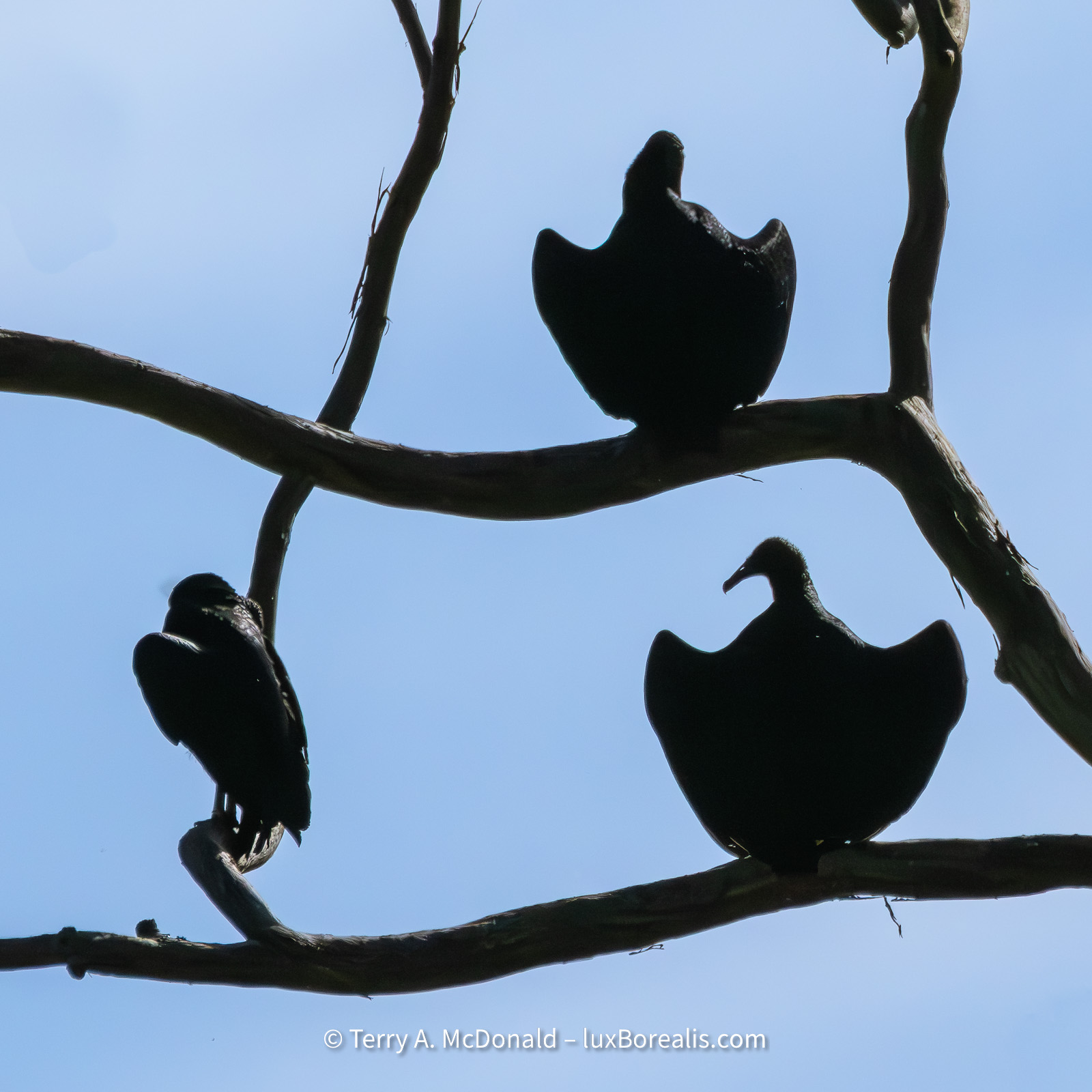
400mm (800mm efov) | ƒ8 @ 1/32000 | ISO 3200 | Lightroom
Silly settings for a static, sunlit silhouette. Just before this, I had been photographing birds in the shaded, dim forest canopy and failed to switch on the fly.
Two of our trip-mates are getting some great results from the Nikon P950, considered to be one of the best birding cameras within financial reach. It’s a super-zoom bridge camera that sports a 2000mm lens (efov), which is great for most sunny and bright conditions. Having a smaller sensor, it is limited to ISO 1600 and even that’s a stretch.
Another thing I’ve learned about birders is that they are happy if they can ID a bird through the leaves or branches of tree. This doesn’t really work for photographs. I have lots of photos of parts of birds seen through the leaves (mostly the butt end) that have now seen the trash bin. They ask me, “Did you get that Shining Honeycreeper?” Well, I did, but only the yellow legs!
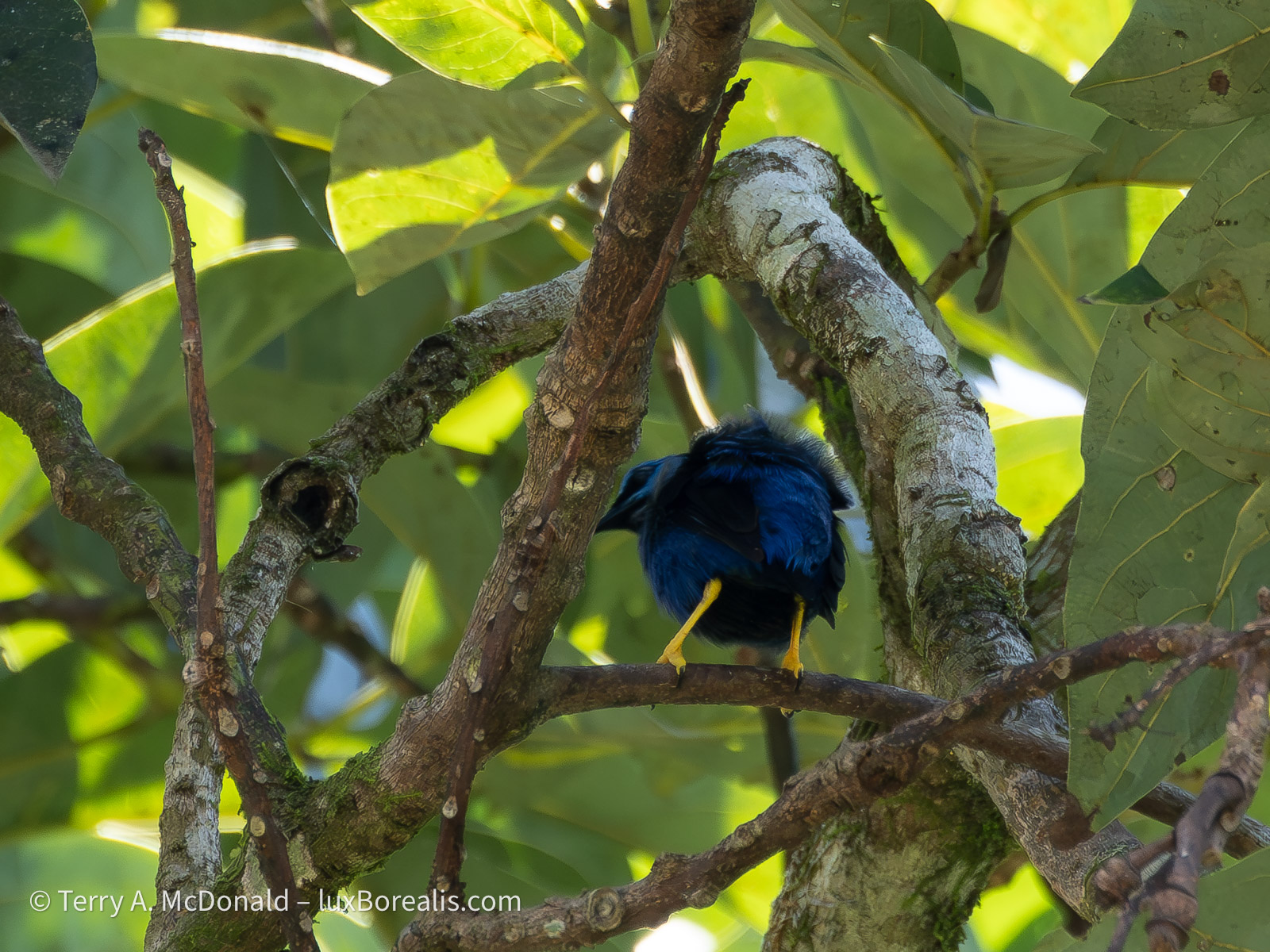
Most of our birding has been along road sides, places Ernesto has flagged as being productive. A few great successes have resulted from patiently waiting around feeders and flower gardens set up to attract birds, especially hummingbirds. It’s fine to see the hummers on the feeder, but catching them on the wing or on flowers is a great deal more difficult, again with plenty of misses. The OM-1’s subject tracking allows me to focus on the bird while on the feeder, then track it when it backs off.
One of the most significant features of a good wildlife photo is having a clear background, free from distractions. This has been difficult in the chaotic jumble of a rainforest and tropical plants. With vines, glossy leaves and spots of sunlight through the canopy, it has been especially important to find shooting positions that provide as neutral a background as possible.
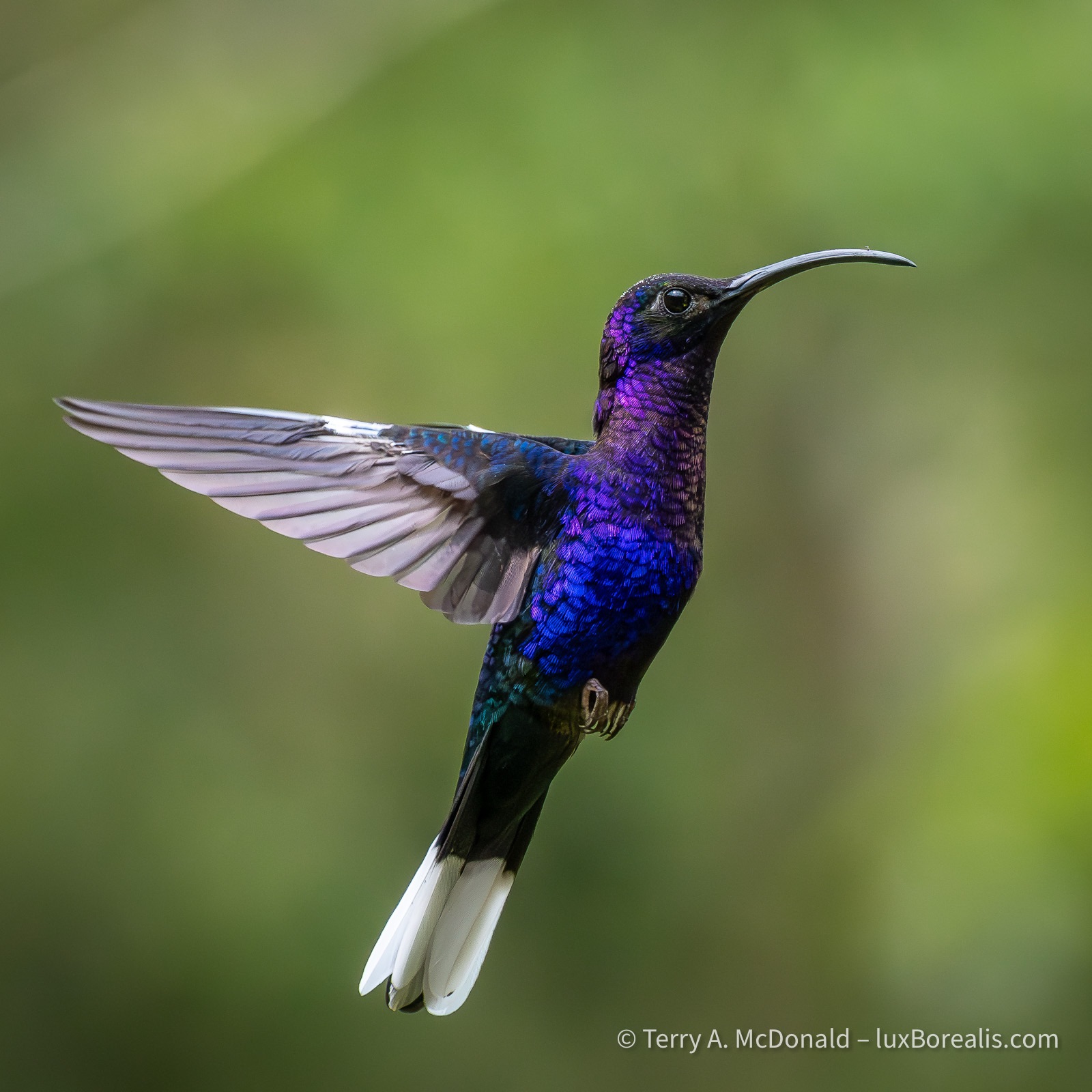
300mm (600mm efov) | ƒ8 @ 1/4000 | ISO 6400 | Lightroom
Culling & Processing
At the end of each day, I’ve had between 200 and 500 image files to wade through—the most I’ve 3ver had to deal with on a daily basis. I’m glad I brought my MacBook Air with me. Not only does it make culling faster, it provides full processing capability with Lightroom, with noise reduction and batch processing. On our Tanzania trip last year, I had only my iPad, on which Lightroom is still a bit limiting.
Using the MBA has sped things up, but with hundreds of files each day, it is still a bit of trial keeping up. I enjoy the editing side almost as much as the field work, so it’s doable. What I don’t enjoy is wading through countless rather similar photos of the same subject. But duplicates are unavoidable.
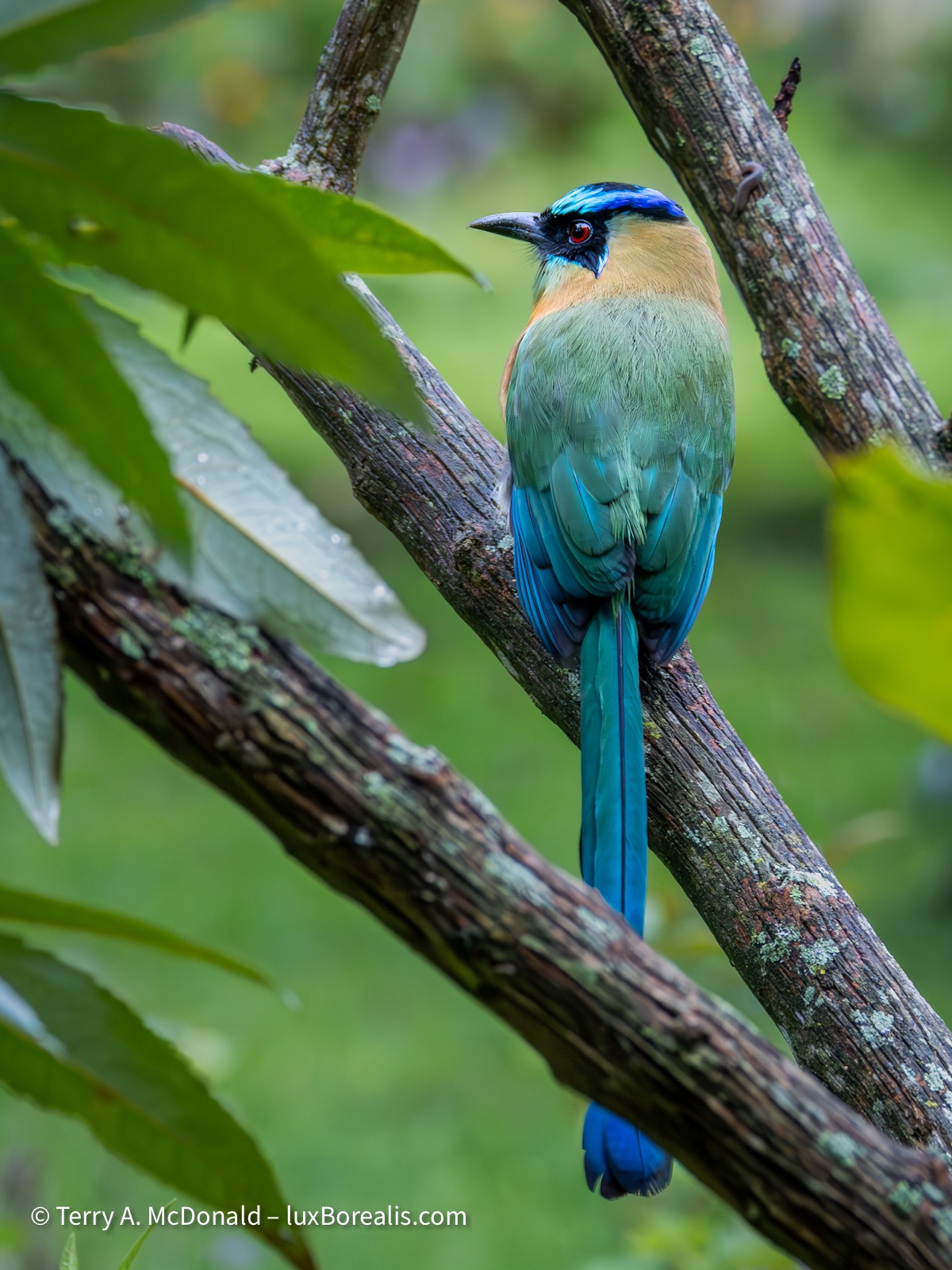
227mm (454mm efov) | ƒ8 @ 1/15 | ISO 6400 | Lightroom
The slow shutter speed and high ISO indicate that this photo was made at 6:11pm almost 45 minutes after sunset. At this point, I hadn’t started using the monopod, so it’s a good example of how good the stabilization is.
I prefer shooting in single-shot mode, but with birds in near constant motion, I find that continuous AF and burst shooting allows me to capture subtle movements resulting in better facial expressions and body position. It also means multiple near duplicates which require scrutiny.
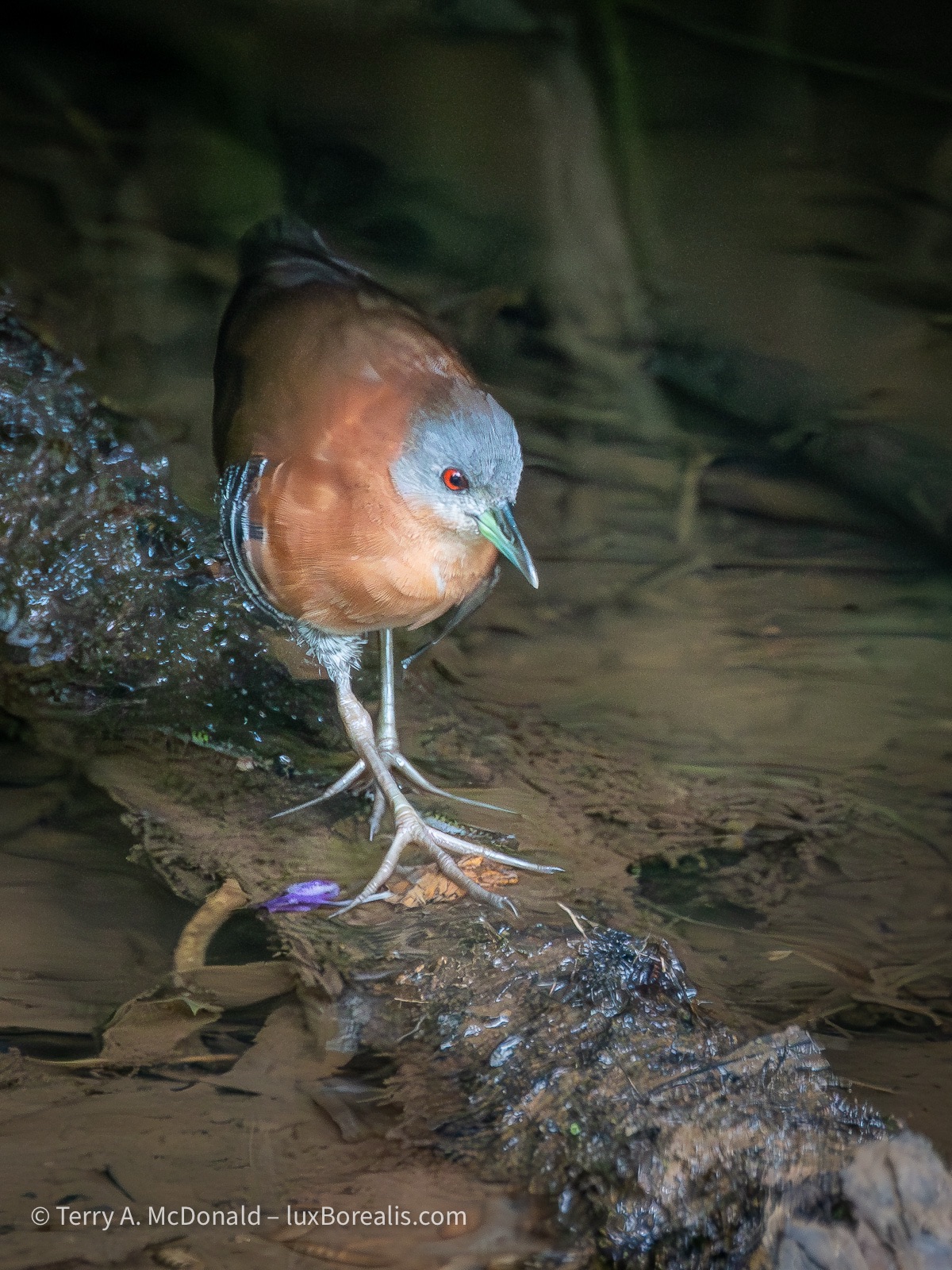
400mm (800mm efov) | ƒ8 @ 1/1000 | ISO 12800 | Lightroom
This elusive and rarely-seen marsh bird skulks amongst the overgrown vegetation, coming out only to feed.
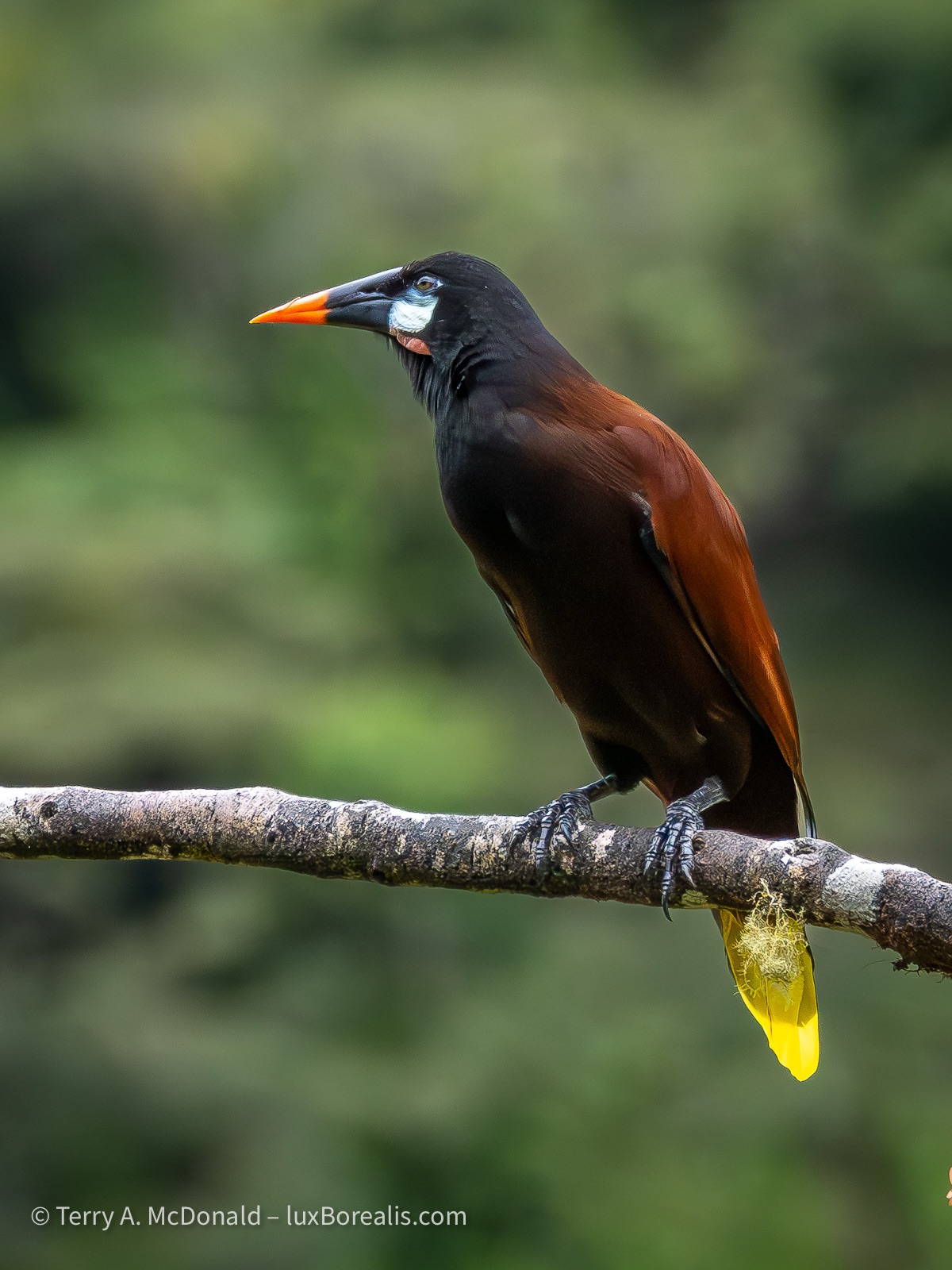
307mm (614mm efov) | ƒ8 @ 1/2500 | ISO 6400 | Lightroom
I start by flagging the best of the lot. As I scroll through I quickly flag potentials, X the definite out-takes and leave the duplicates of something I’ve flagged. As I’m working, I’m paying close attention to sharpness, body position, duplicates and overall design.
With over 50% of files culled in the first pass, I then check and double-check focus and facial expressions. I find the 100-400 great up to about 20m, but beyond that it noticeably softens, even at ƒ8. Some of the photos I was hoping would be production quality, simply don’t make the cut. This is disappointing. Other than investing in a different lens, I’m not sure what to do, except to be aware of the shortcomings and work within them.
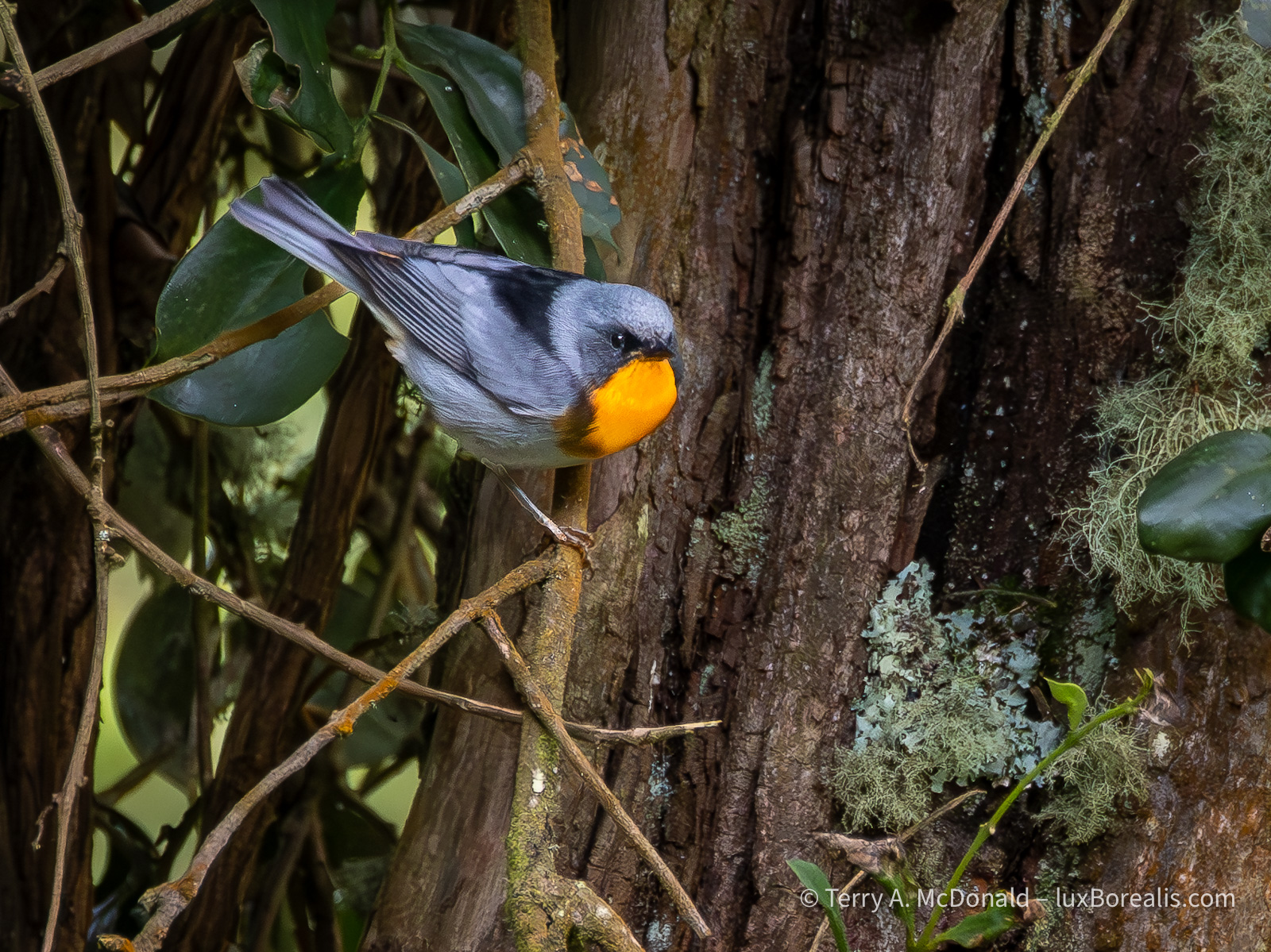
400mm (800mm efov) | ƒ8 @ 1/400 | ISO 6400 | Lightroom
We must have spent 30 minutes on a grey, slightly drizzly day up in the highlands, trying to track this fellow. With its distinctive orange chest, the birders had immediately ID’d the bird, but getting a clear photograph of it was a challenge/
With flagged images identifies, I then concentrate on finding the best of them. I don’t want to waste time processing sub-standard images, so I’m really critical at this stage. If it has great potential, I give it three stars.
Initial processing includes denoising as ISO is often in the 3200 to 12800 range. I find that a Denoise value of 50 to 65 works well with 80 to 100 in Detail Sharpening, plus 30 in Masking. I built these into a preset which also includes +10 in Clarity. If I had time, I might consider running some of the troublesome files through DxO PureRAW or, to correct slight camera movement, Topaz Photo AI. I might still do so once I’m home and have the t8me, but not here.
Next, the file is off to cropping and the various Exposure adjustments. Raising shadows is always important, as well as having an accurate value for ‘White’s to lift the overall colour and presence.
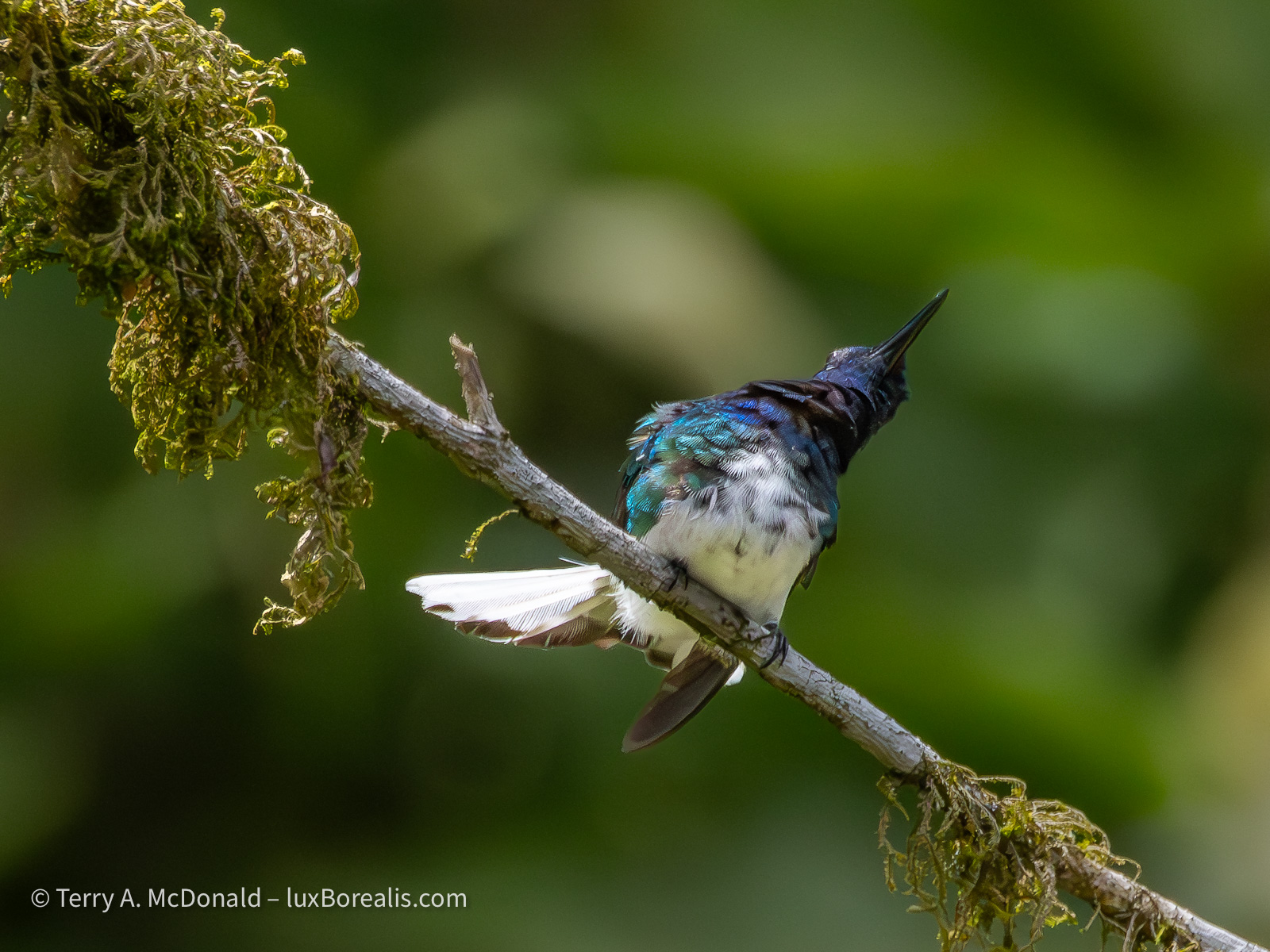
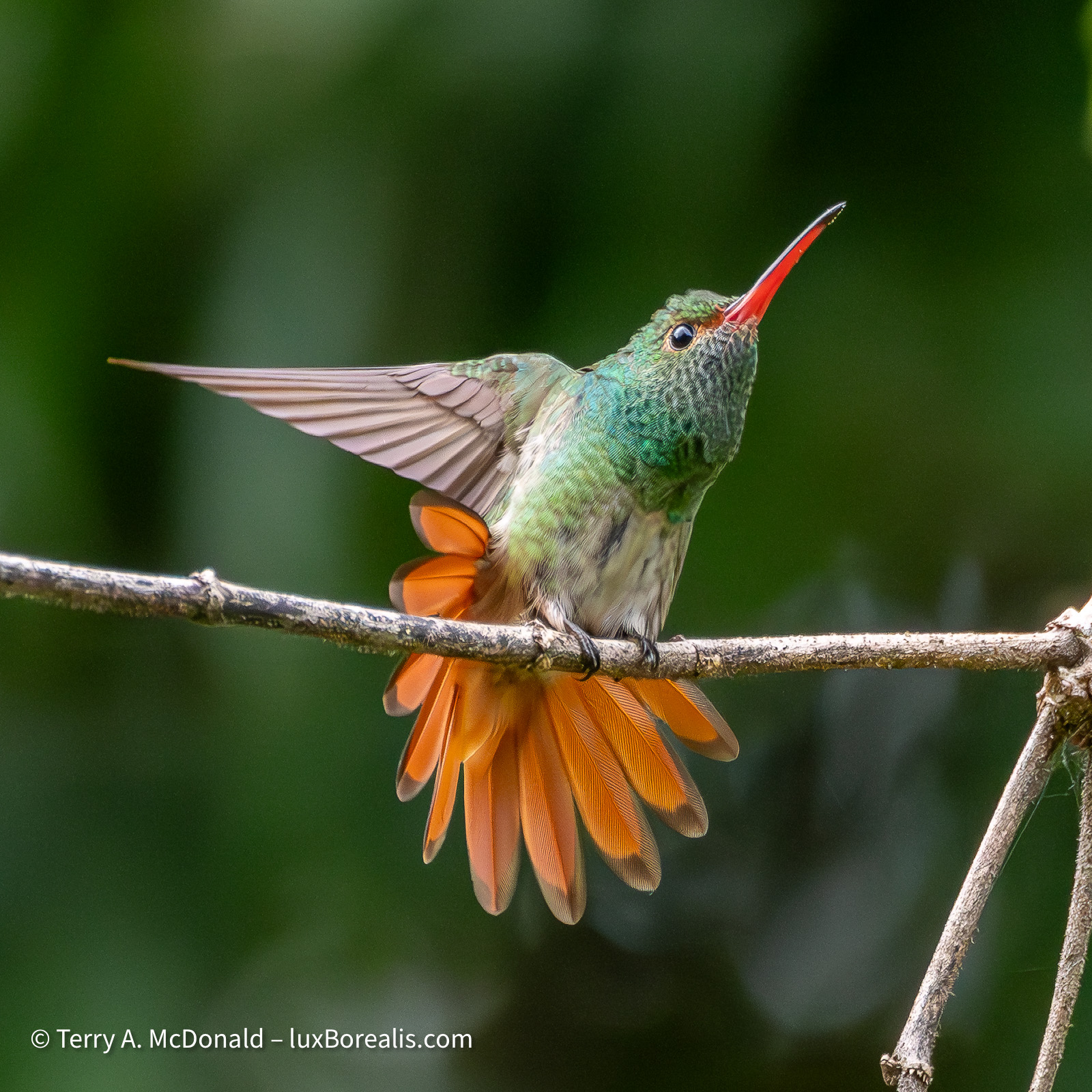
400mm (800mm efov) | ƒ8 @ 1/12800 | ISO 6400 | Lightroom
Watching the behaviours of these hummingbirds—some skittish, some bold, others downright aggressive to each other—was entertaining, especially when they were displaying like this..
At this stage, I begin masking. With birds, I use two masks: Subject and Background. Once the subject mask is tweaked to include just the subject (or anything else I want lit equally, such as the branch they are on), I ‘Duplicate and Invert’ to create a background mask.
The background mask is important for reducing the visual distraction of background elements. I also find that when the exposure of the background is slightly reduced, the subject itself stands out more clearly. Again, this is done in a way that maintains the natural look of the scene. Typically, I will decrease Exposure by 0.3 to 0.5, and reduce Contrast, Highlights and Whites by 30 to 50.
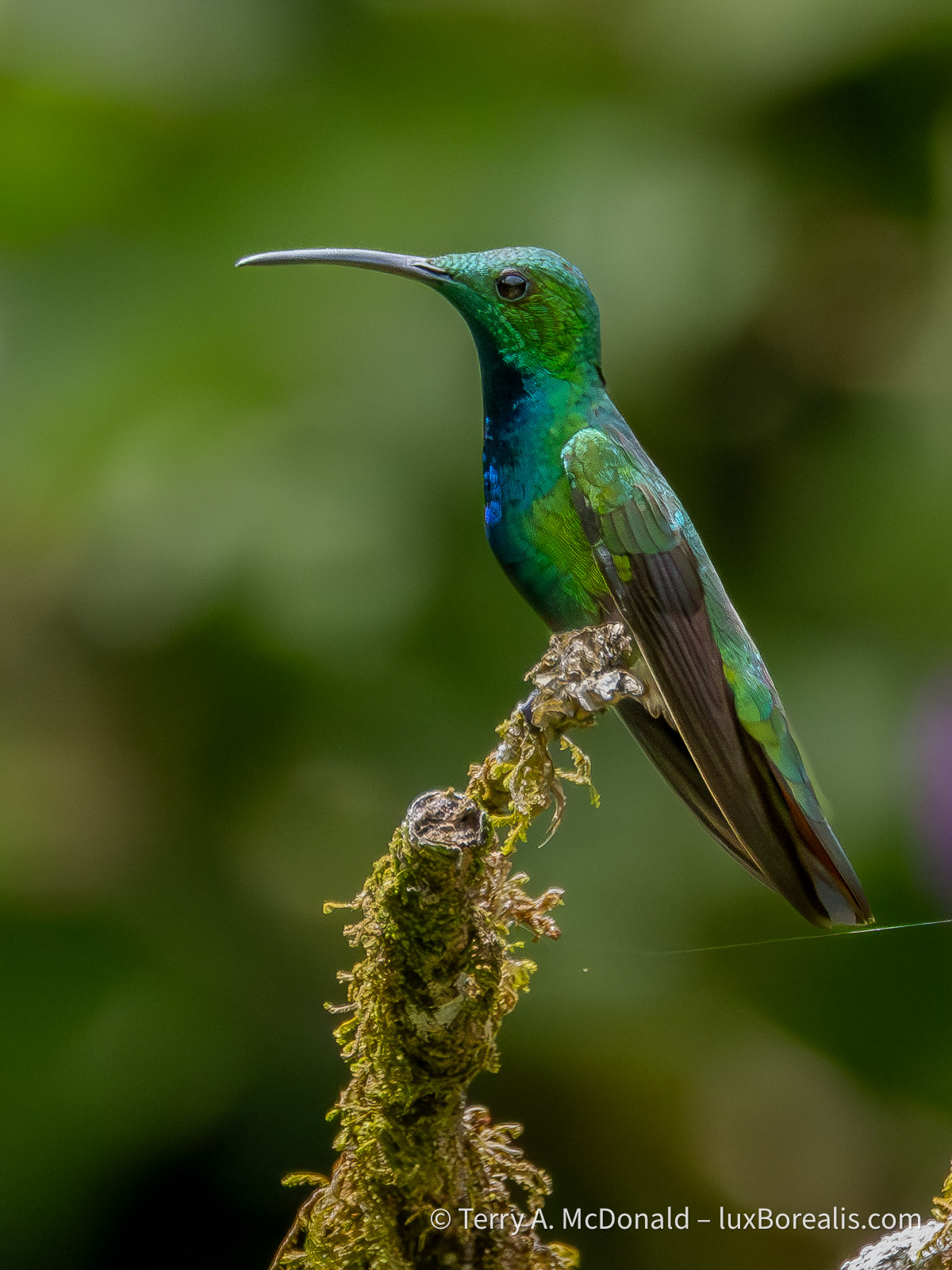
400mm (800mm efov) | ƒ8 @ 1/8000 | ISO 6400 | Lightroom
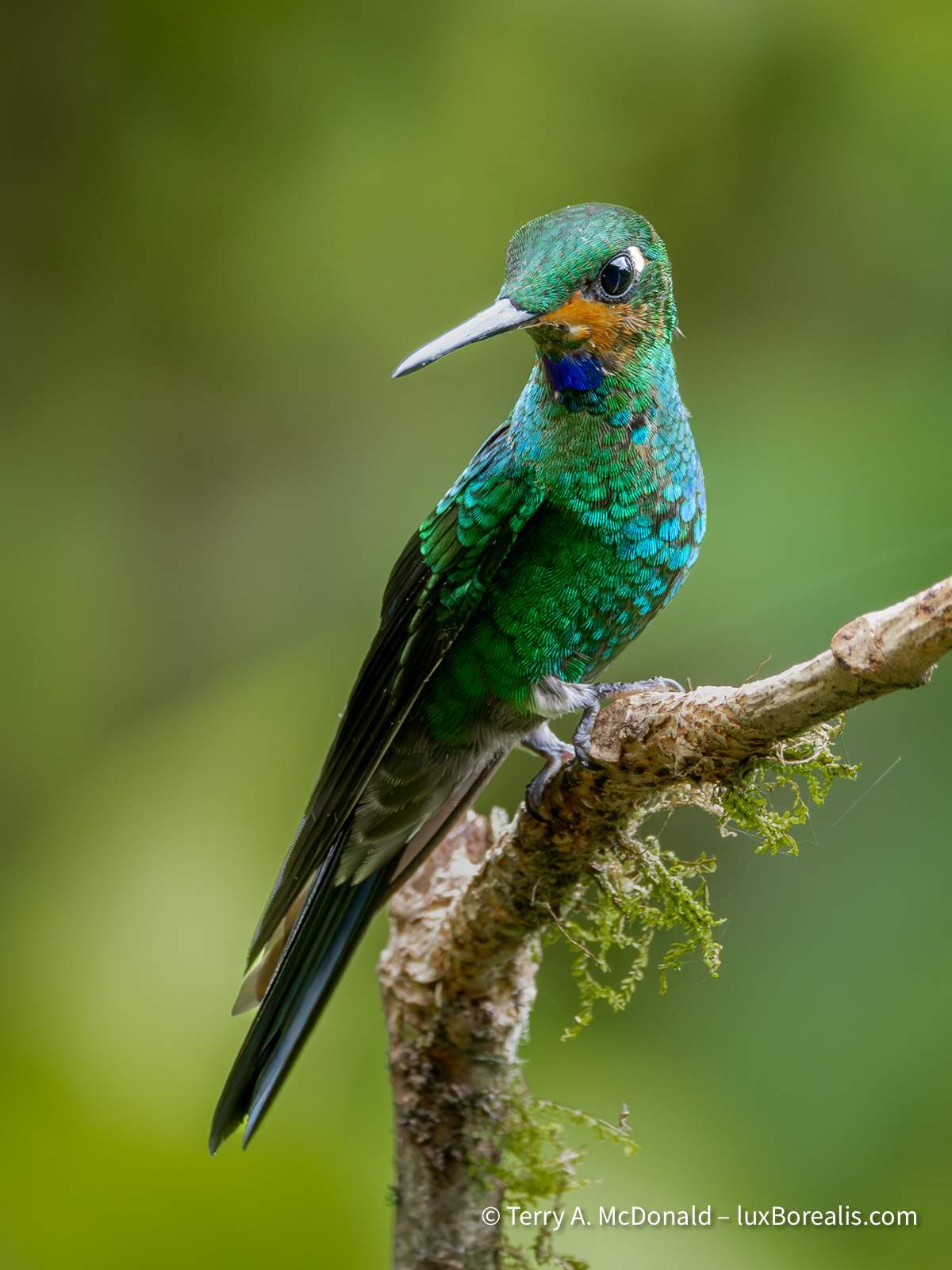
300mm (800mm efov) | ƒ8 @ 1/400 | ISO 6400 | Lightroom
At this point, the file will earn an additional star, the fourth star indicating it has been processed, but is an image with high visual quality. ‘5 stars’ is reserved for only the best of the best.
So this is how I spend my downtime. Culling and editing takes time and I’m always conscious of finding the balance between being ‘in the moment’ with the group and finding that personal space I need. Laura and I just aren’t used to travelling in a group so, for me, the downtime is essential. Everyone is very understanding. Some are also doing some selecting and editing, others are leaving it all to when they get home. There’s no right way to approach it; I just find that if I’m faced with a couple thousand images at home, all of birds that are totally new to me, I would feel completely overwhelmed. So I continue to chip away at it.
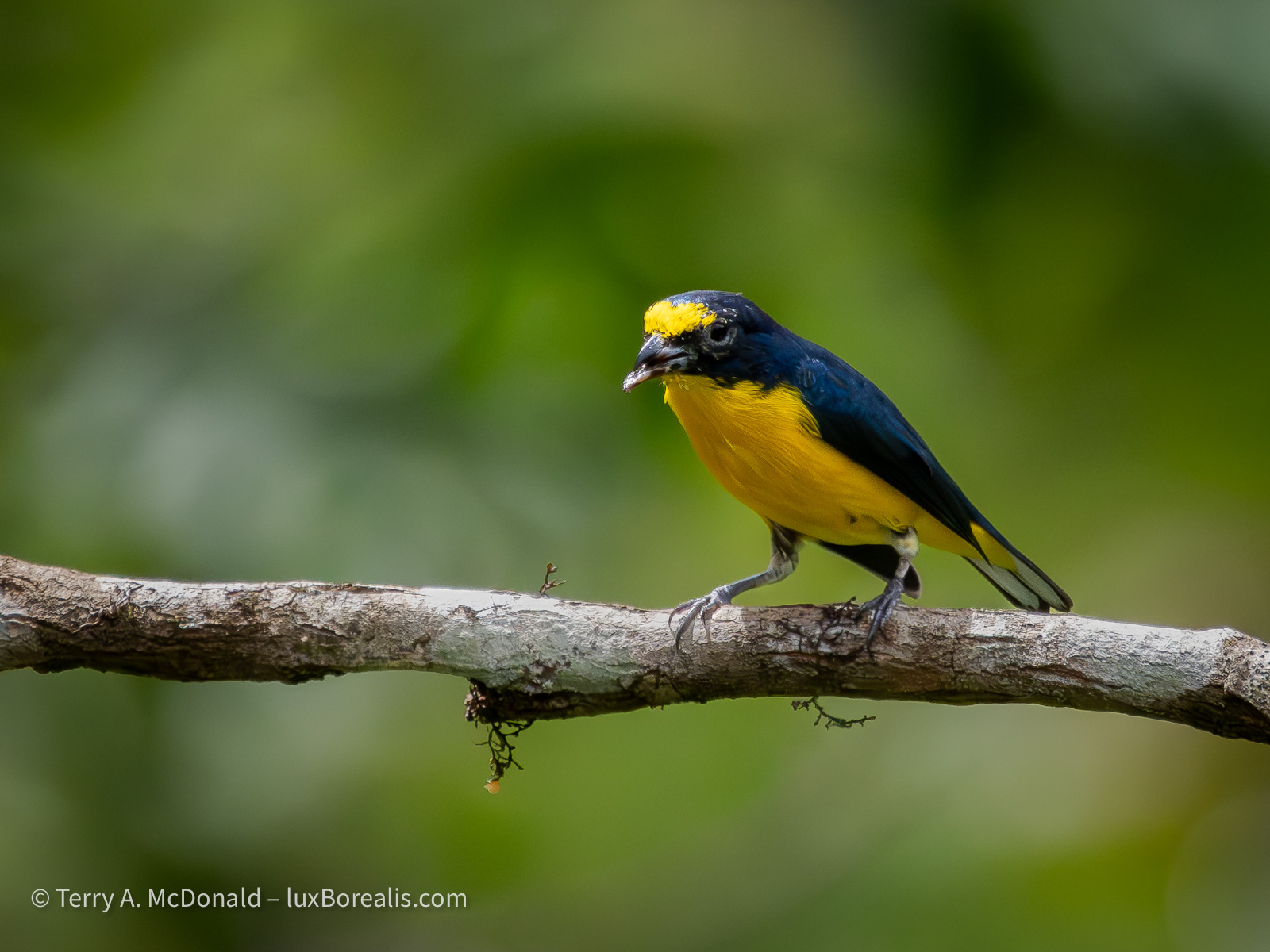
400mm (800mm efov) | ƒ8 @ 1/6400 | ISO 6400 | Lightroom
Identifying the birds is the most difficult part for me. Our guides are great at calling out the names in the field as we see each bird, but my brain just. cannot retain all that new data. Once I have decided a photo is worth editing, I use the Cornell Labs Merlin Bird ID app to identify the bird and Wikipedia to look up and copy the Latin or scientific name. It is an essential tool, not just for IDing brids after the fact, but for use in the field. The Identify by Sound feature is game-changer, alerting you to what’s out there that you can’t yet see.
Stay tuned from more! Now that we’ve been down to the southeast the country and visited Cahuita National Park, I’ll be sure to post at least once more from Costa Rica.
Thanks for reading. Be sure to SHARE this with other birders and photographers and feel free to SUBSCRIBE and COMMENT. Note, this is not a commercial blog. The links are not afflicate links and I earn no kickbacks from having you read and share.
Photographing in the rainforest is bloody difficult, but oh so satisfying!!
1795 words; 28 photographs; 9-minute read
My wife Laura and I have travelled to Costa Rica to join a ’12-day’ bird-watching tour offered by Birds Canada through a Canadian company called Eagle-Eye Tours. Laura’s the birder (though not a ’ticker’!!), and I just try to keep up with her idents with photographs. However, we’re more interested in the complete spectrum of species found in various habitats, hoping to experience all that nature has to offer, so Costa Rica seemed like a good fit. We decided to come early to check out more of Costa Rica.
And guess what? It’s the rainy season, and we’re in a rainforest!
OM-1 | 400mm | ƒ8 @ 1/1000 | ISO 3200 | Lightroom
These settings are the basic ’formula’ used for many of the shots below, so I’ll not repeat it, except to say shutter speeds varied widely depending on light, as did the ISOs, going as high at ISO 25600.
Rainforests are somewhat new to us. Despite our time in Tanzania and Southeast Asia, we haven’t spent more than a few hours in an actual rainforest. You see, we melt in the heat, preferring the cooler climes of Iceland and Ontario in the Fall, Winter and Spring. However, we’re also game to try most things.
1/320 at ISO 6400
So why did we come to the rainforest in the rainy season? Well, that’s when the tour was scheduled. Eagle-Eye Tours and Birds Canada are not fly-by-night organizations, so I’m putting my trust in their knowledge. Apparently, the Caribbean side is not as rainy as the Pacific side, where we are currently located. It’s rained everyday, but mornings to mid-afternoon have been spectacular, though hot!
Of all the travelling we’ve done to across Canada, to Africa, Asia and Europe, aside from the school trips we’ve organized, this is our first ‘organized tour’. Typically, we like to book a rental car and our own accommodations, usually with kitchen facilities, so we can experience a place more like the local people by shopping in grocery stores and driving ourselves around. ‘Hotelling it” is just not in our culture. But this trip is different.
1/50 at ISO 12800
Costa Rica itself is well-known as a place of nature. Yes, they have logging and vast plantations of oil palm, bananas, mangoes and pineapples, but they seem to have convinced the world that they are ’green’ or at least greener than other places. And they are. In fact, Costa Rica is one of the greenest countries on the planet.
The country comes across as a developing nation with some of the classic tells: a spaghetti plate of telecom wires up on poles; cement construction; tin roofs; and a number of ’fixer-up specials’. So I was surprised to learn that as of 2025, the World Bank declared Costa Rica a high-income country—and the prices show it! Although the car rental wasn’t too pricey, we’re paying Canadian prices for almost everything else such as accommodations and drinks. Dinners are easily more expensive here than in Paris! My seafood fettuccini was $50 and here we are beside the ocean! Our guess is the higher prices are due to the number of American tourists here.
We began in the capital San José, at the Hotel Robledal, and are now in the village of Manual Antonio, just outside the National Park of the same name, at the Hotel Playa Espadilla. But I know, you’re more interested in the photography.
Hotel Robledal
I’m referencing the name of the hotel as it is a favourite for birding tours due to the nearly three hundred bird species identified on the property. The hotel has also made a commitment to maintaining and expanding biodiversity which includes a successful owl box programme. Although hotel-based tourism and biodiversity are at polar opposites, at least the hotel is making an attempt.
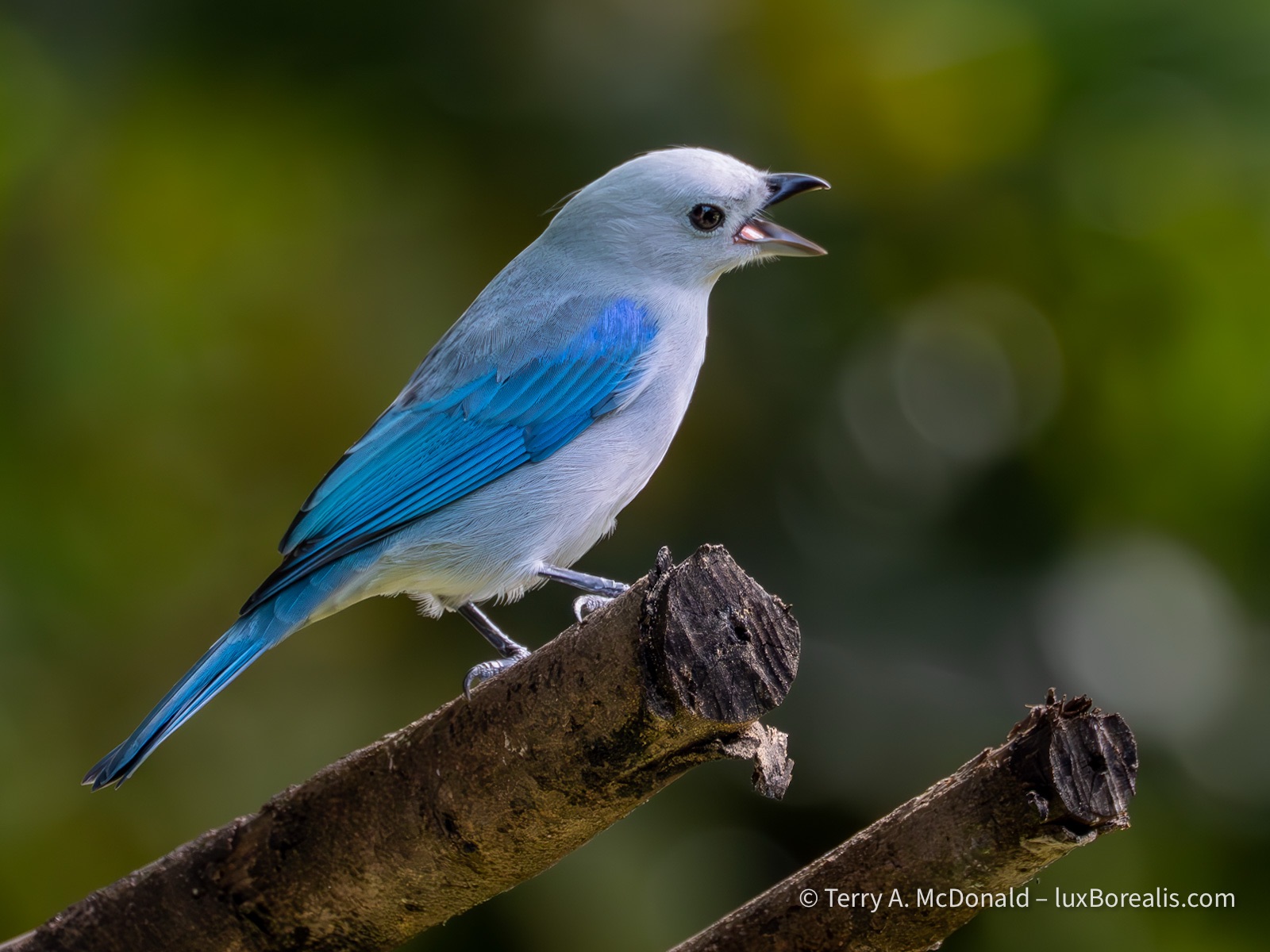
1/1000 at ISO 3200
It’s the gardens that attract the birds and butterflies, and with plants blooming all year around, there is always a source of nectar and fruits. Add in some pieces of old banana around a feeding station and voià, there are birds.
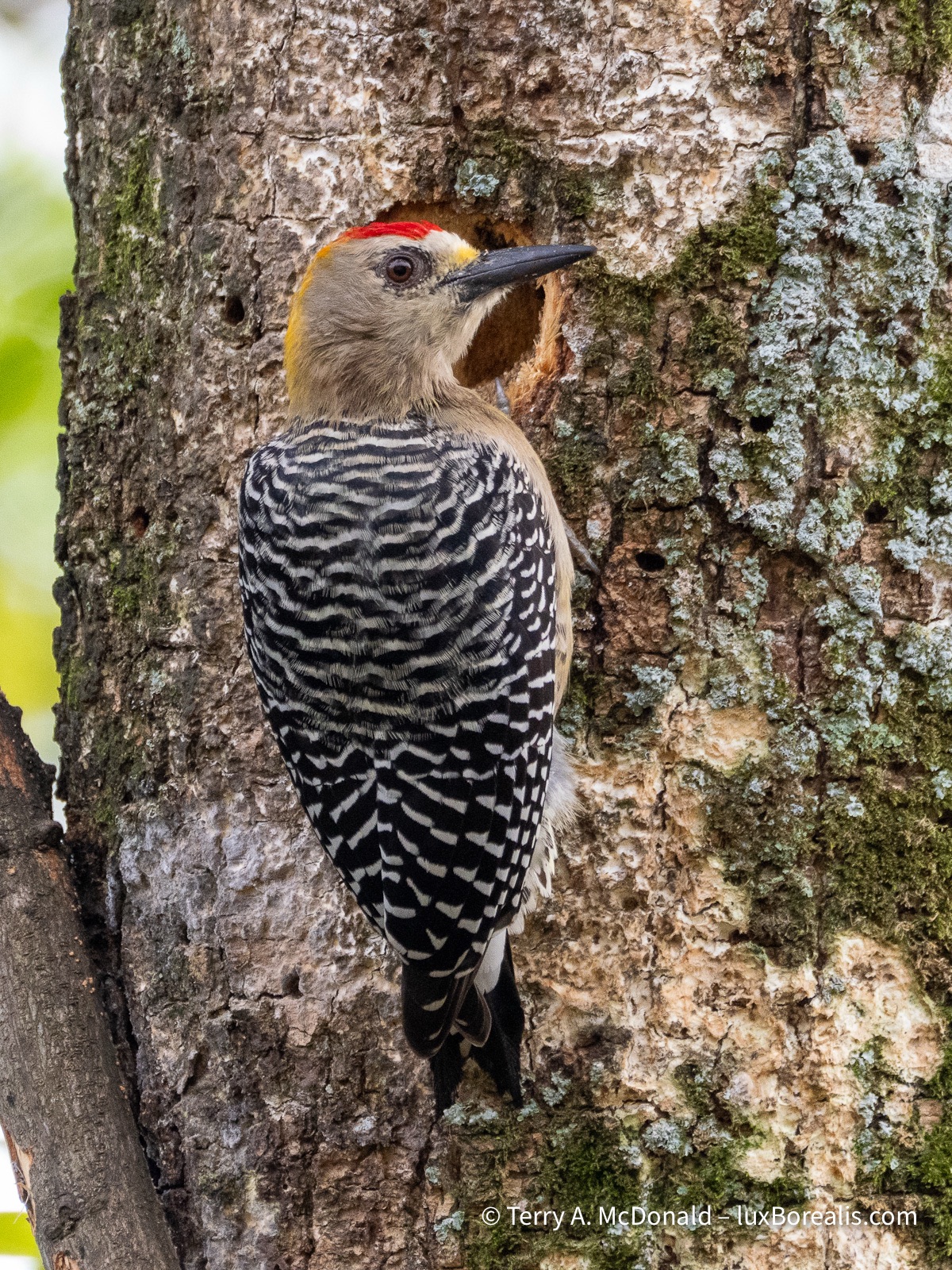
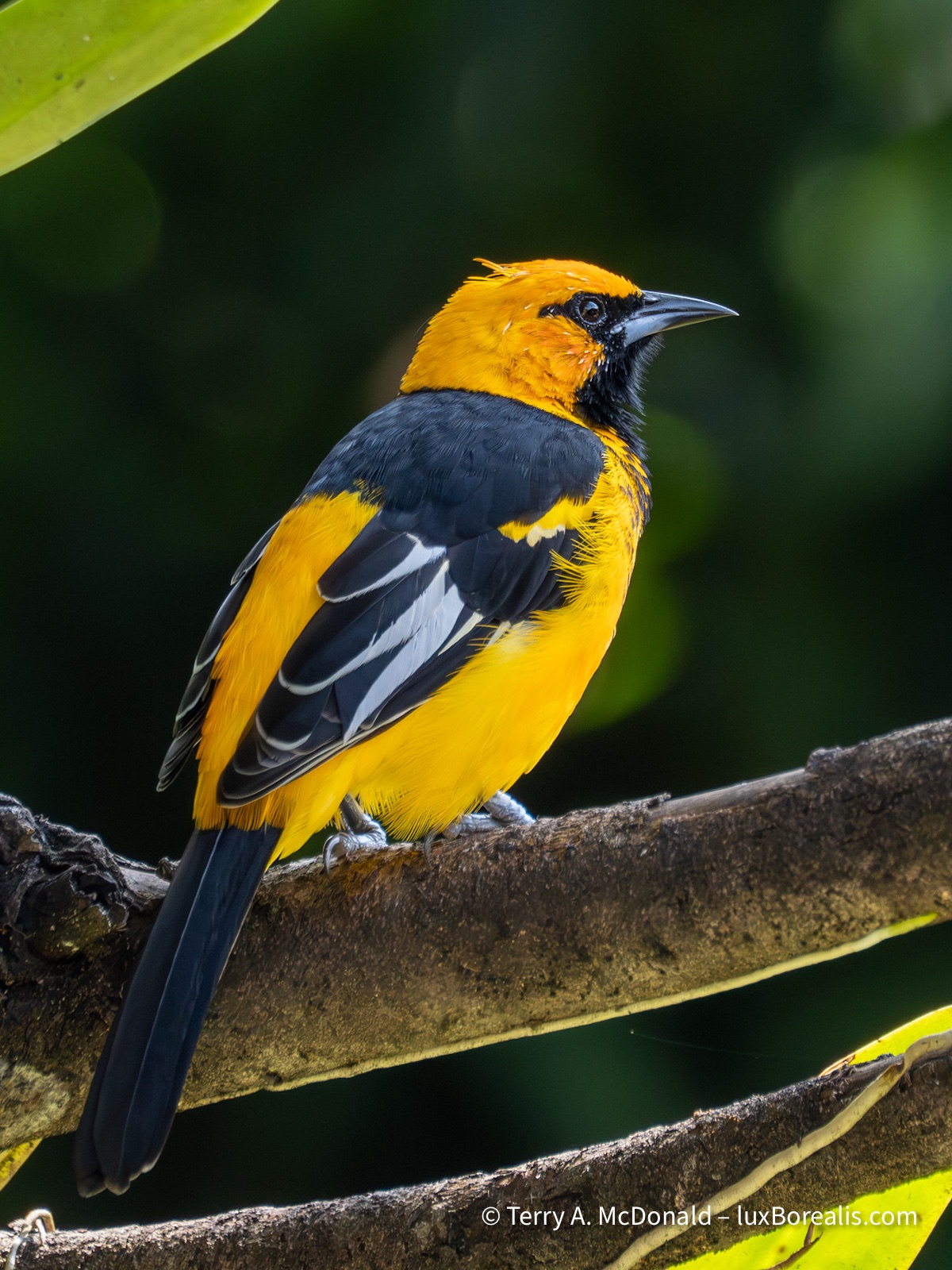
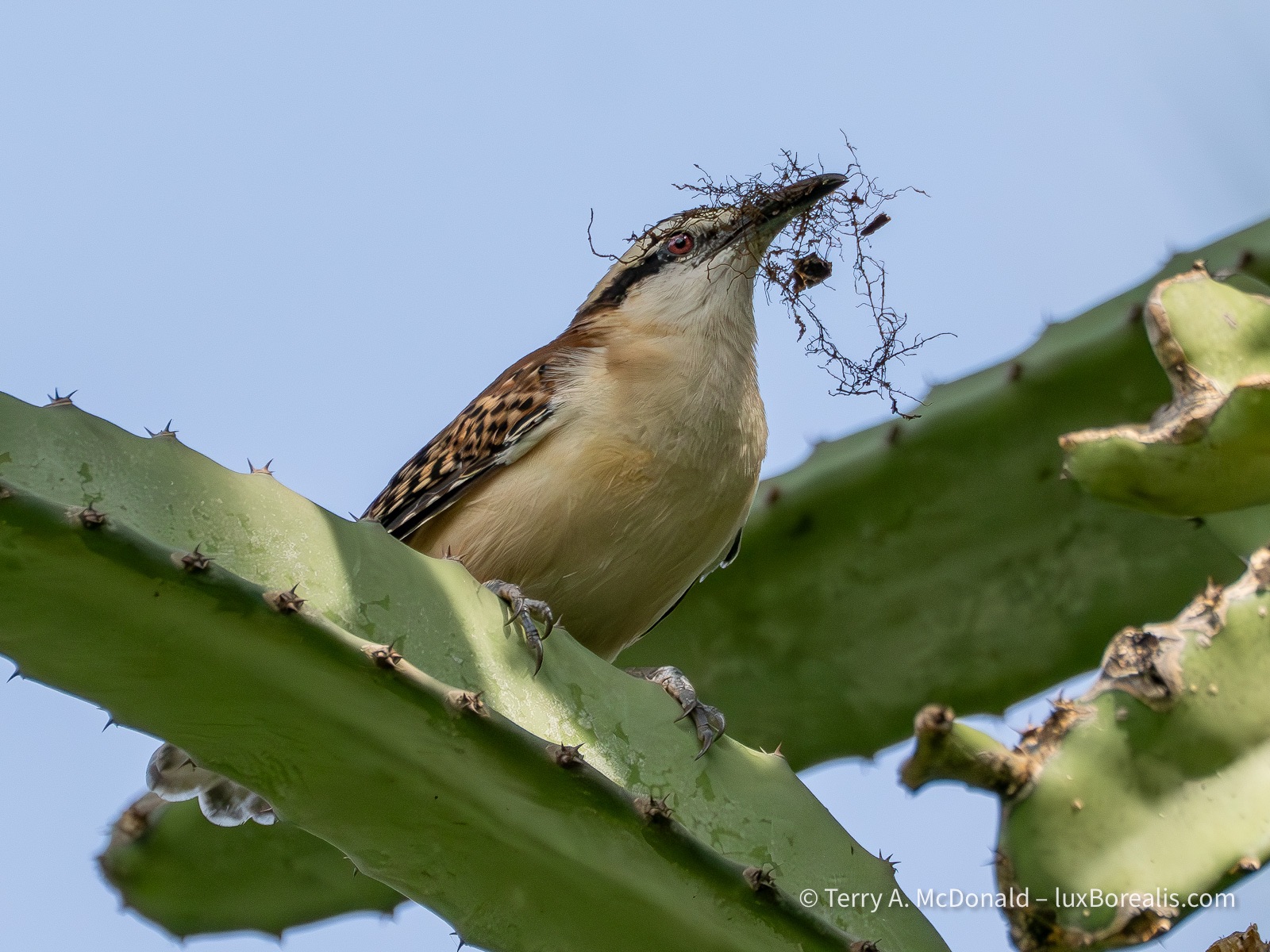
Royal Butterflies
Just off the Highway 34, about two-thirds of the way to Quepos and Manuel Antonio National Park is Royal Butterflies. Started 10 years ago by American expat ’Dan’, it’s a small, quirky place with a few butterfly species in a large outdoor net enclosure and whole pile of enthusiasm for raising butterflies.
In its typically generous way, Trip Advisor gives it a 4.9; I think a 3 is more appropriate. Dan was fantastic with his more-than-thorough explanations and stories, but with dogs underfoot and only a few species, it was only okay.
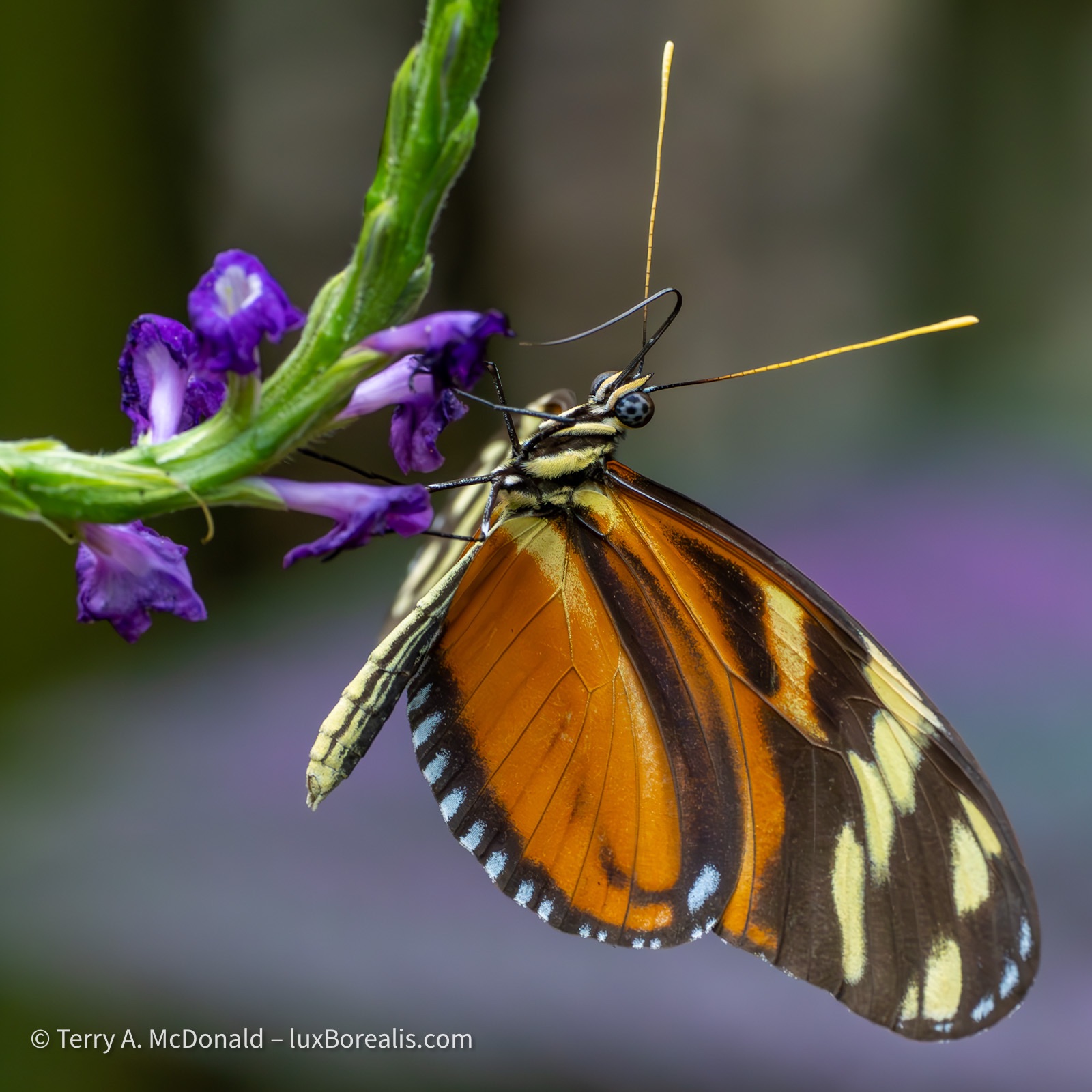
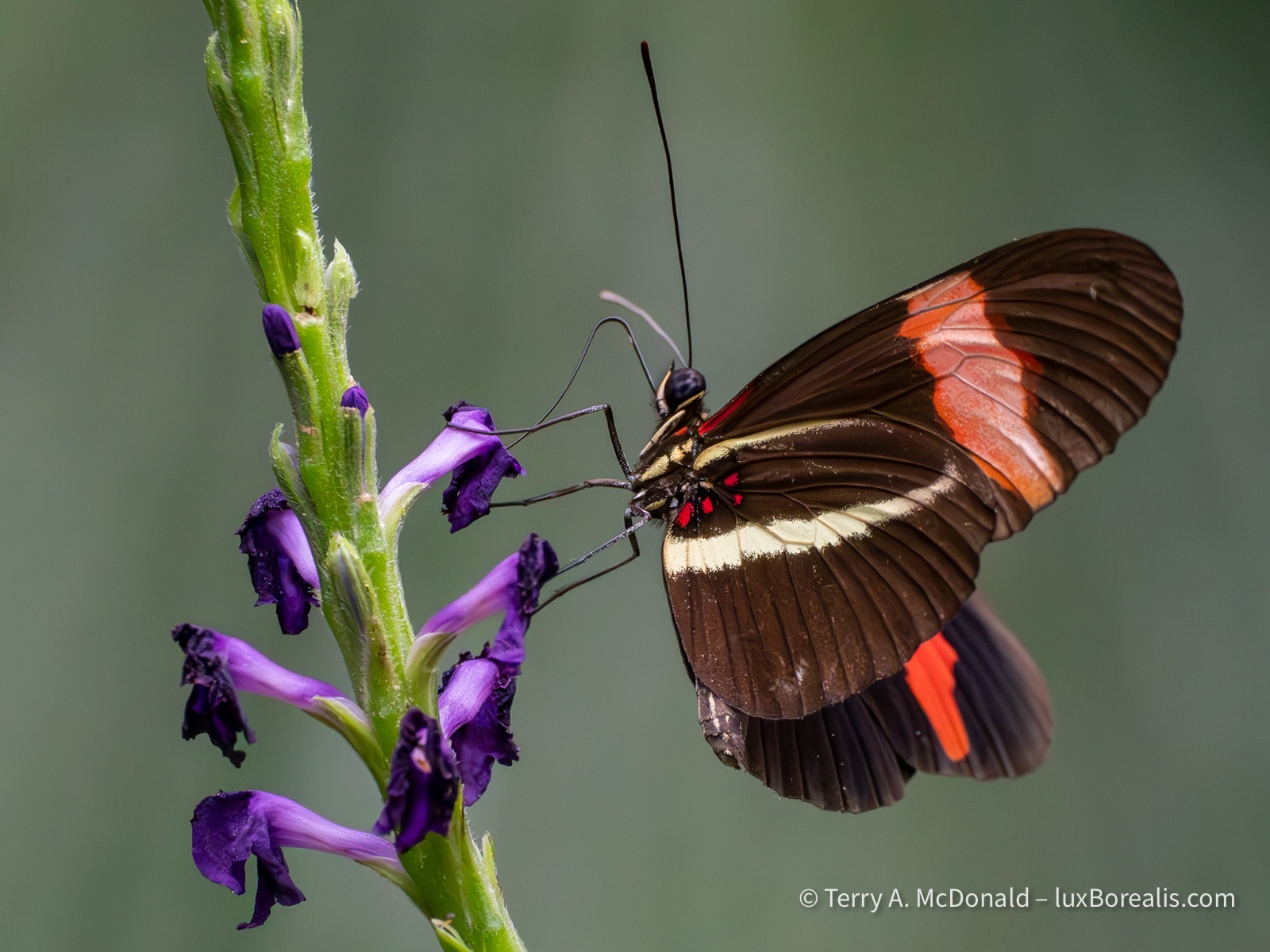
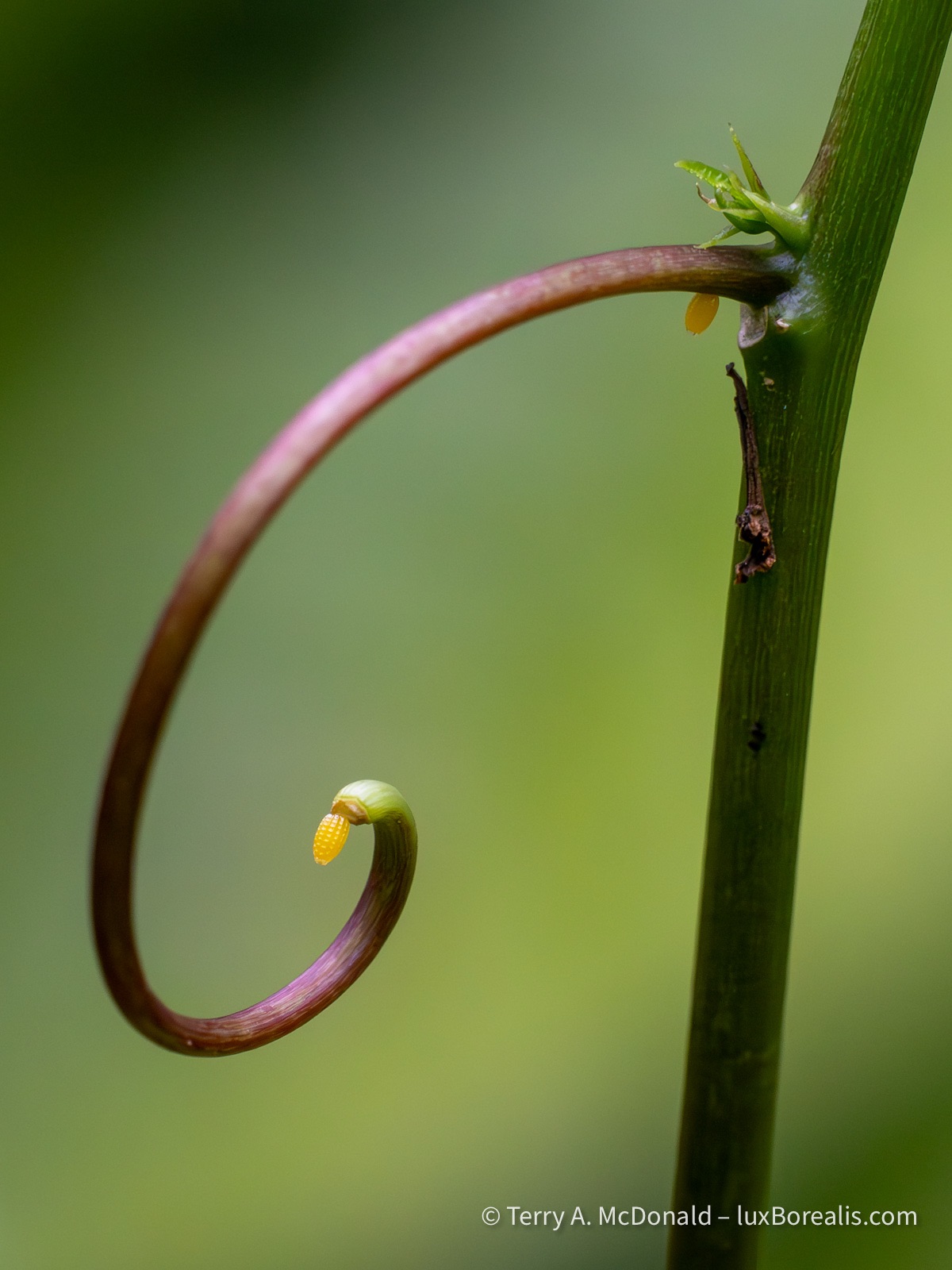

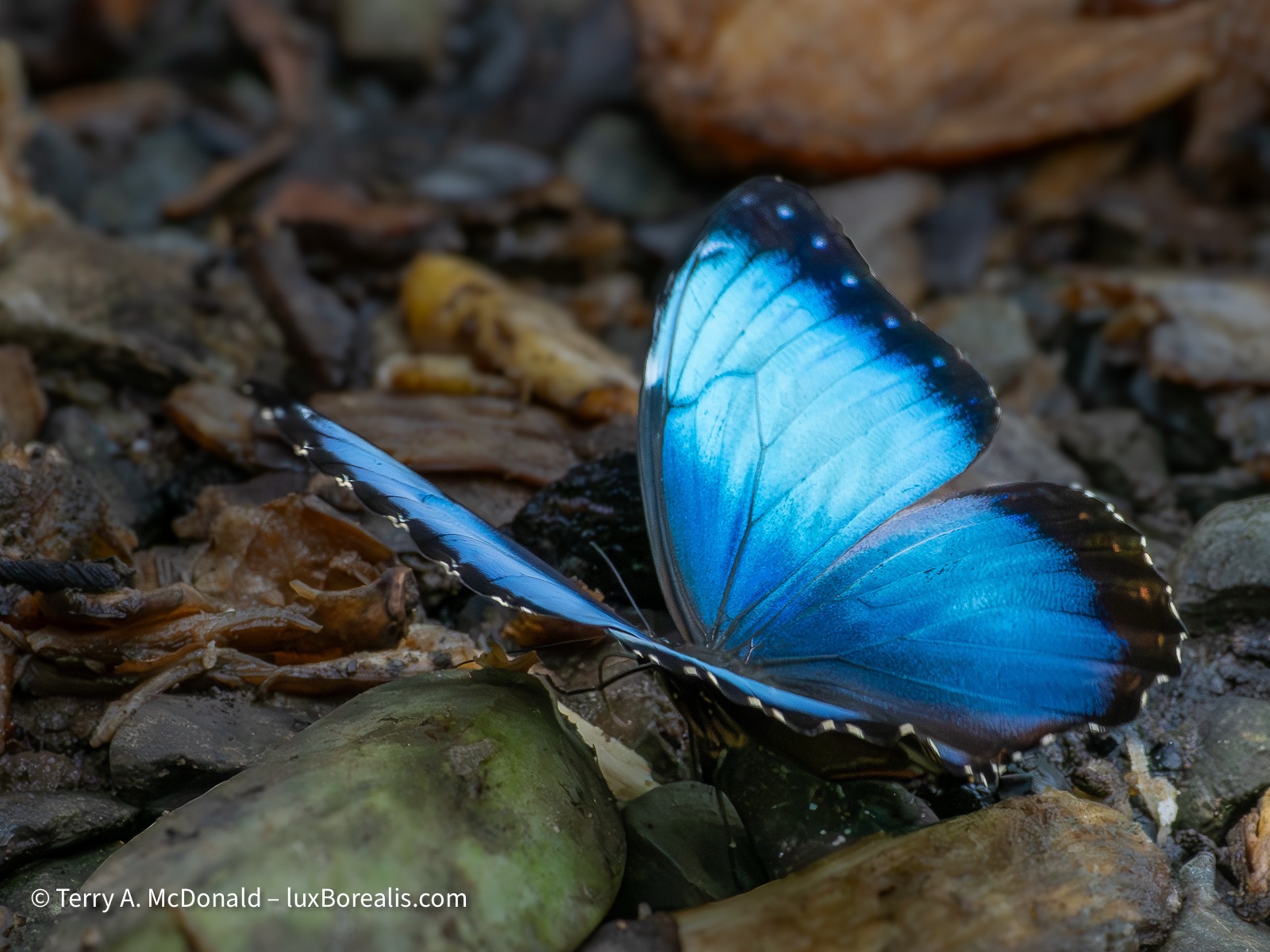
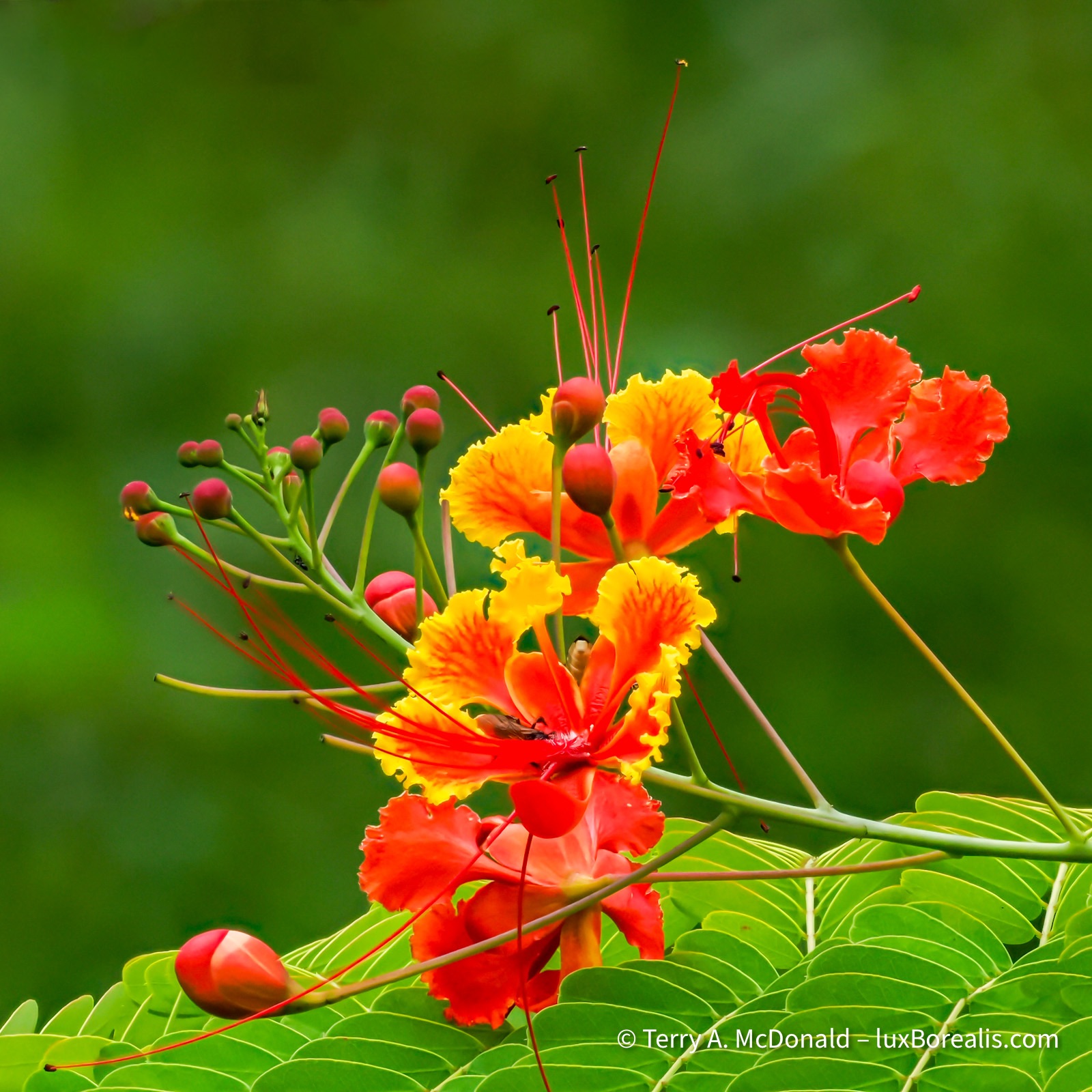
10-image focus stack
Manuel Antonio National Park
We arrived during the afternoon rain to our place just outside of the Park, chosen so that the next morning we had only a 5-minute walk to the trailhead. Being cheap and being pretty astute and observant naturalists, we balked at spending USD $80 each for a guide for two hours. But, it’s the slow season, so they offered a private guide for two us for $40 each. Evan that is more than we would typically spend, but for once we thought, ”What the heck?” Our guide Hans had a birding scope with him, so he must be legit. And he was.
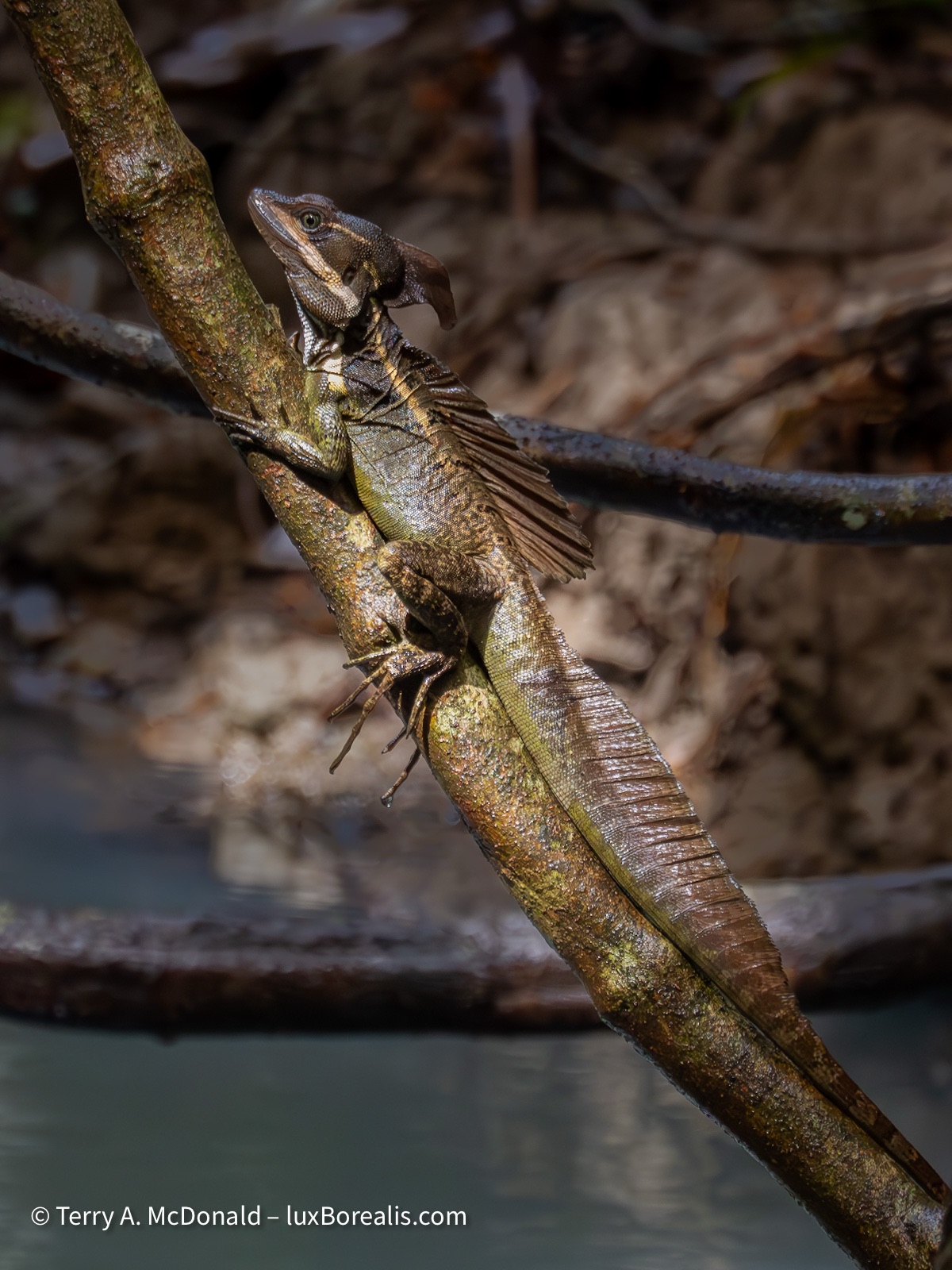
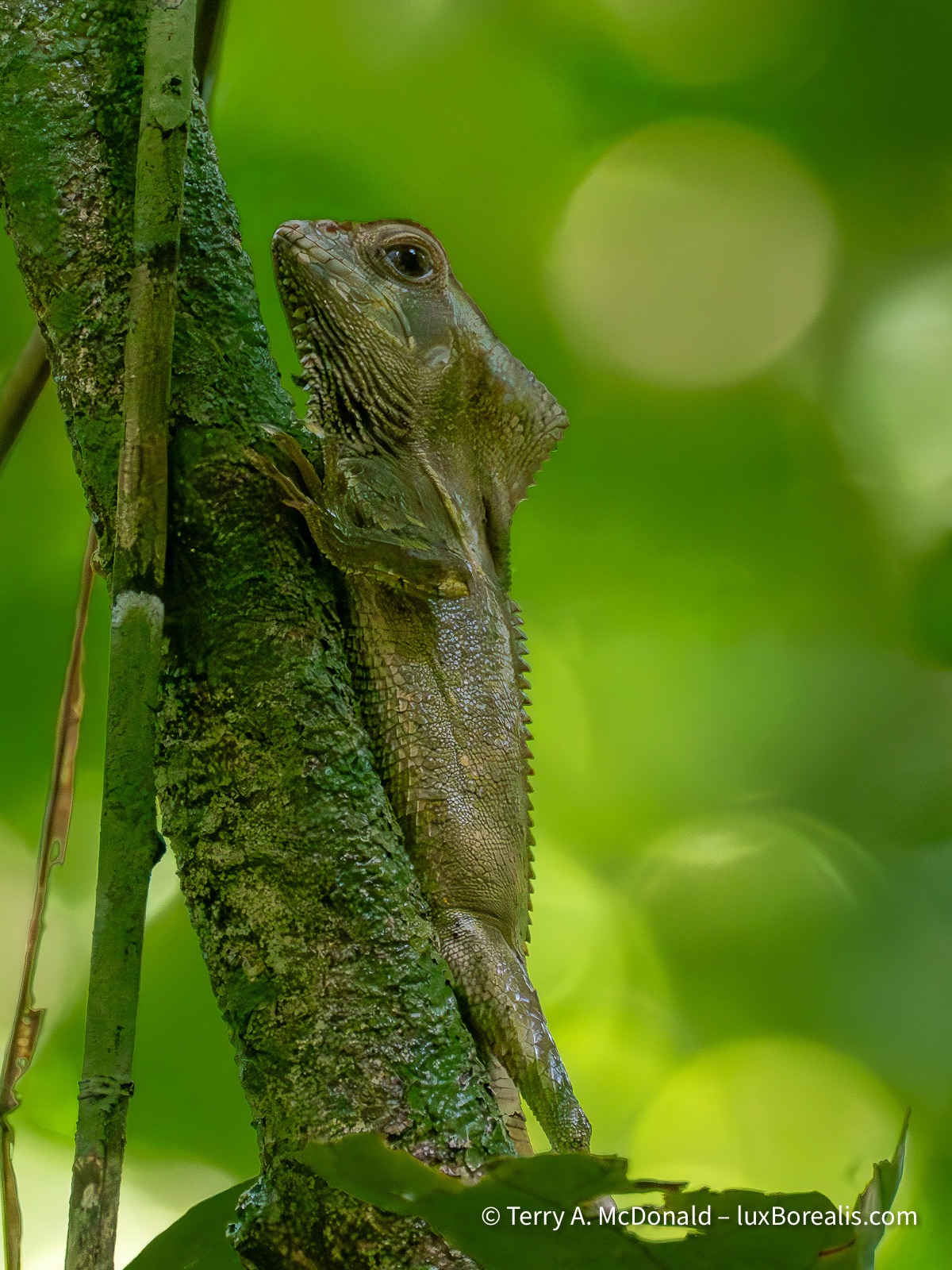
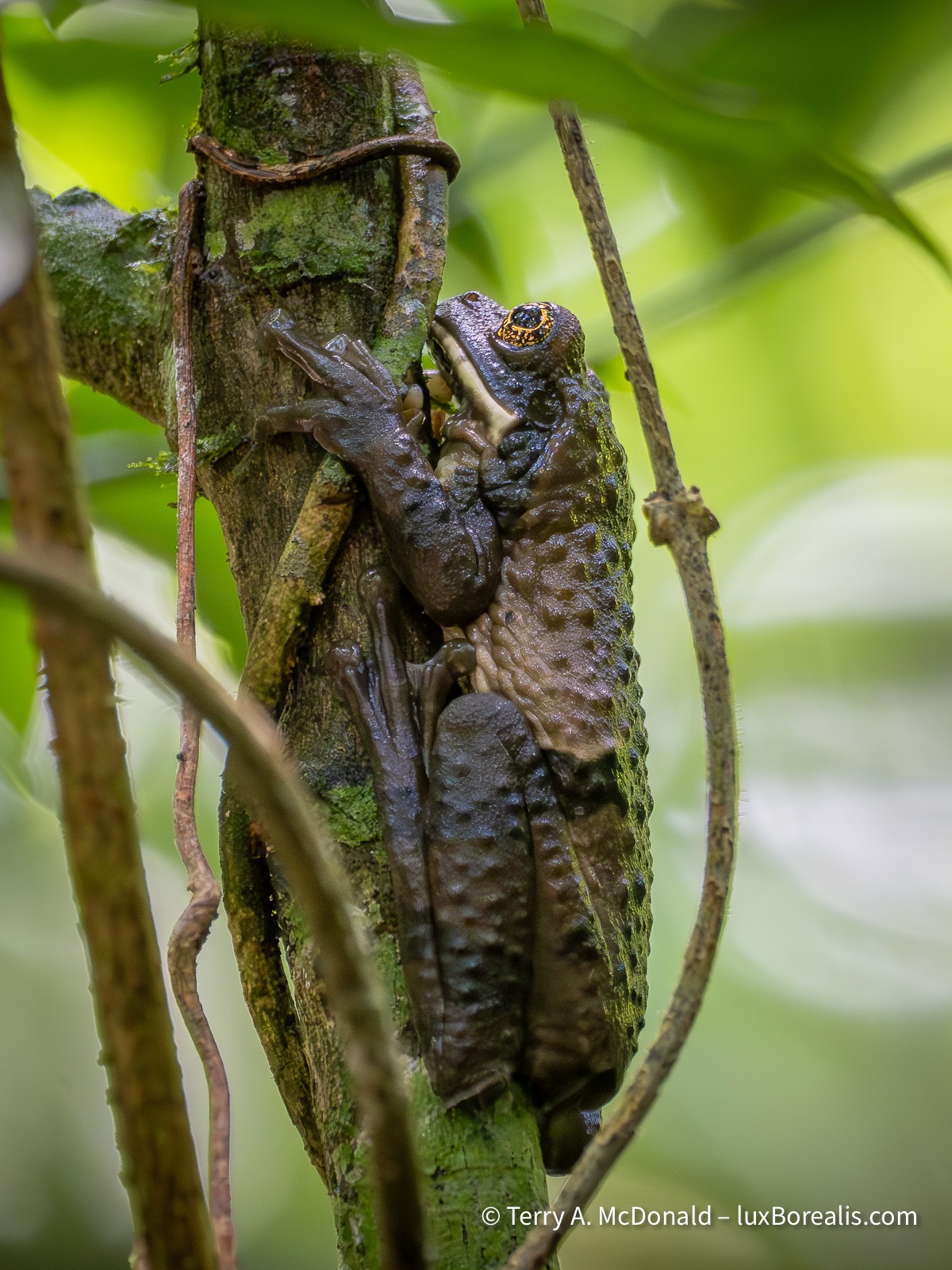
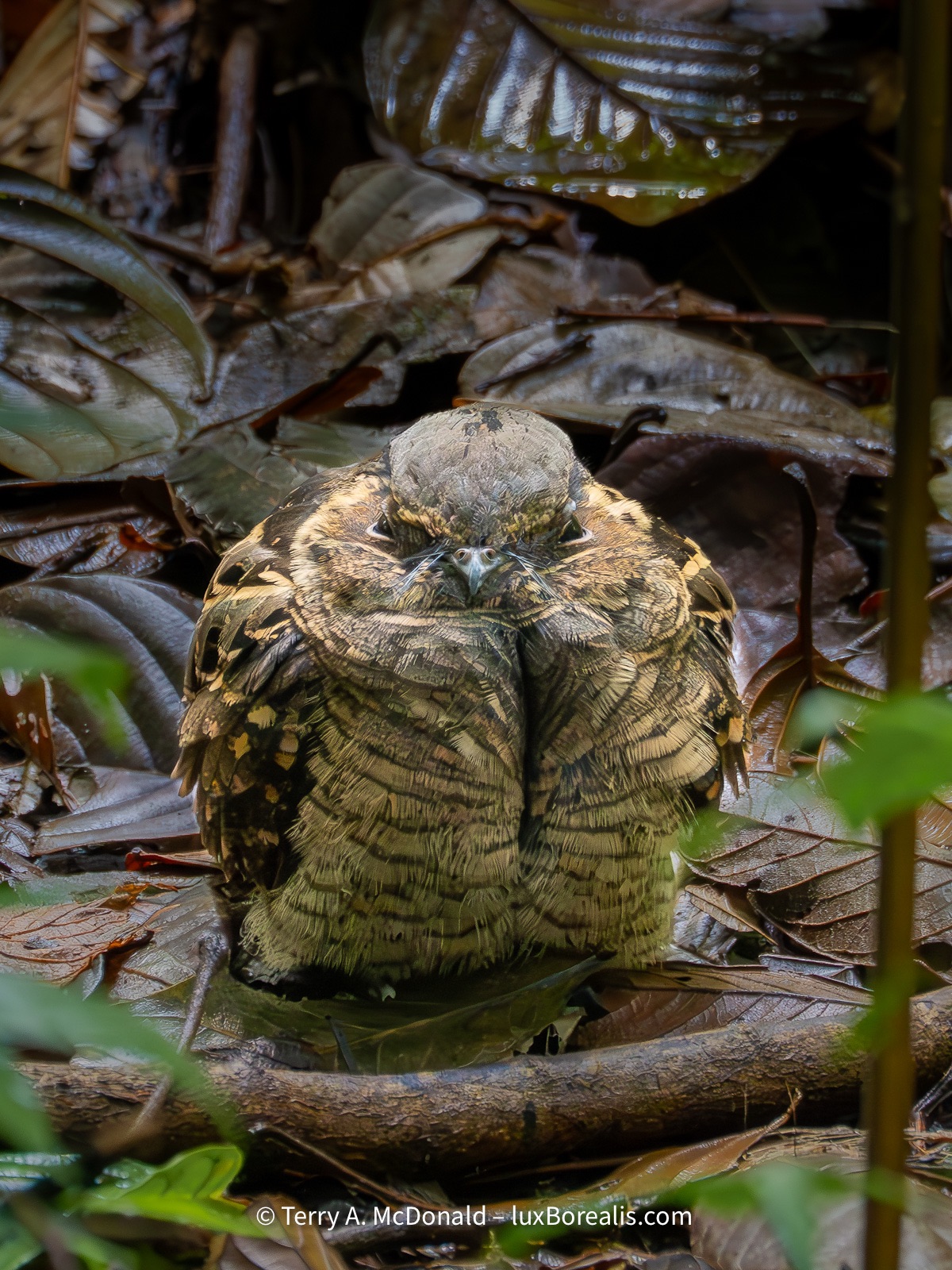
1/60 @ ISO 6400
Our experience to date has been with driver-guides in Tanzania. They are equally astounding in their ability to spot details, but once we had been out on safari a few times, we felt we were pretty much on par with them. A rainforest is a very different scenario, so the $80 was well-spent. We were positively astounded at what Hans saw and we how much we would have missed—completely. An African safari is easily a magnitude greater in diversity than a hike through Algonquin; a rainforest is at least another order of magnitude greater than the savanna. On top of that is the vastly greater number of places wildlife can hide. The wall of vegetation just a metre from the trail can hide just about anything.
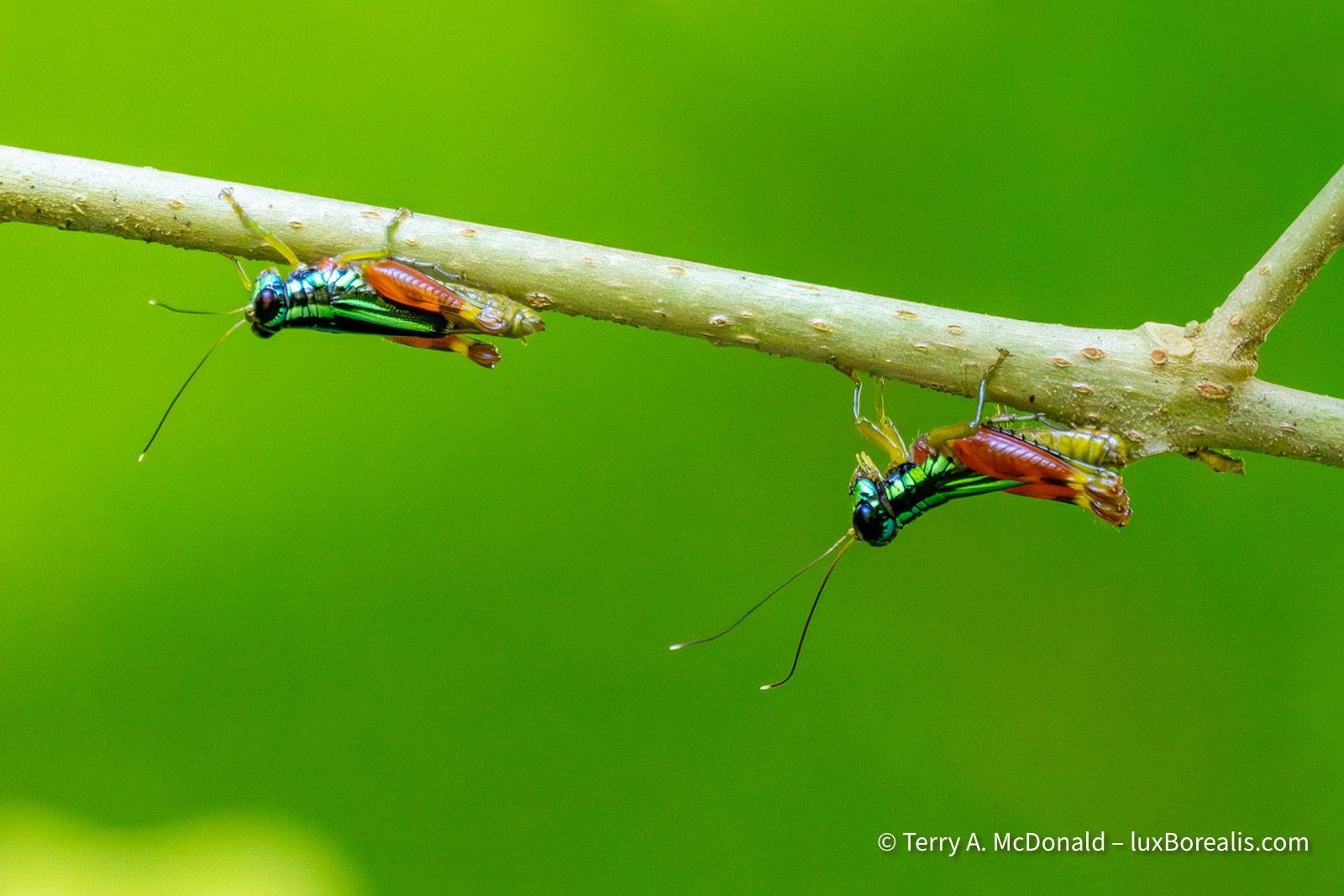
1/320 @ ISO 12800
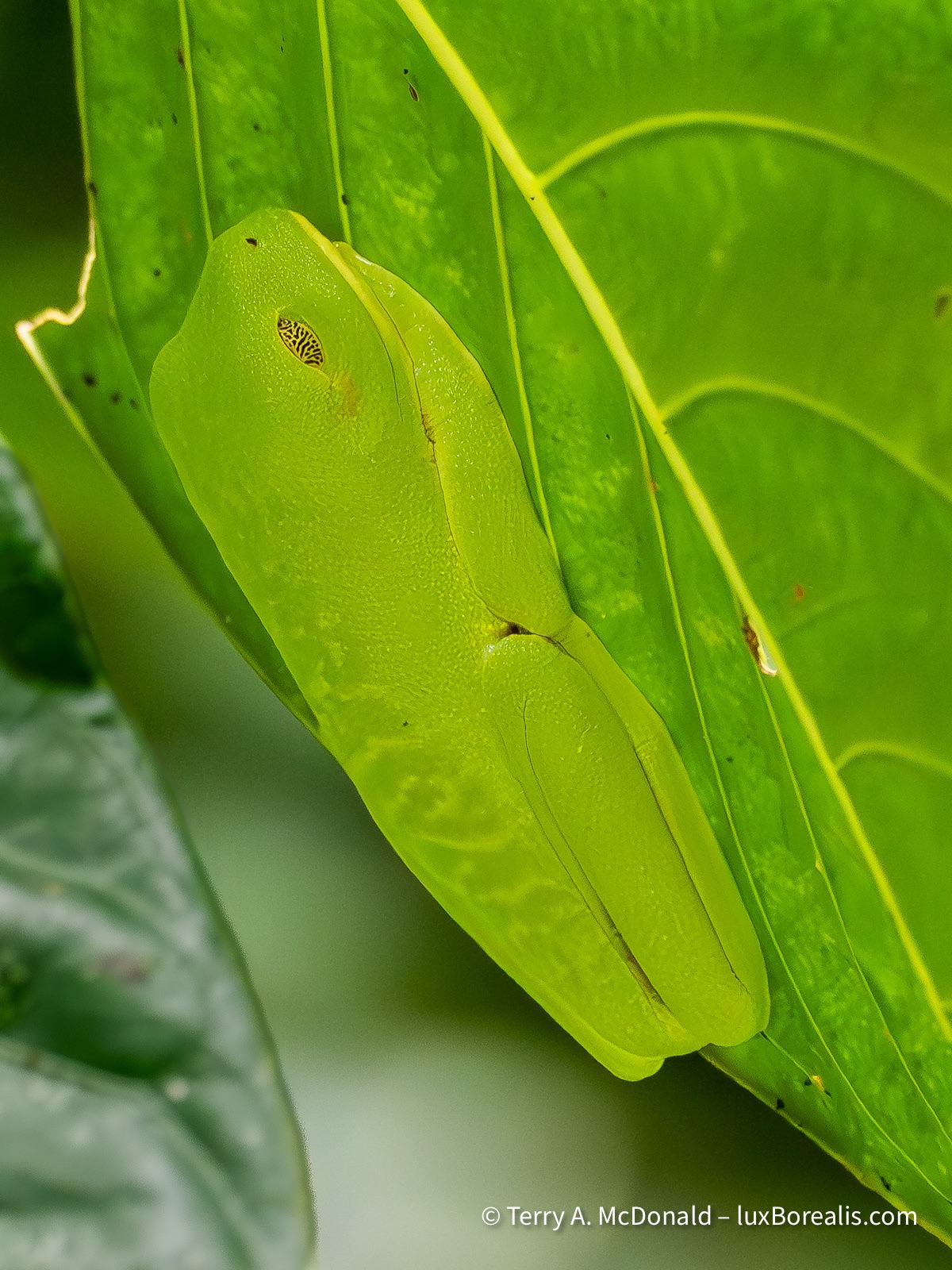
1/640 @ ISO 6400
Cardinal Rule: Never Leave the Trail
We learned very quickly why you never—EVER—leave the trail. In an open spot, just a metre off the trail, Hans excitedly pointed out a highly venomous Fer-de-Lance viper. And that was the one we could see! Imagine the ones that are just under the leaf litter or so well blended in to be invisible until it’s too late. And, unlike our local Massassauga rattler, there is no warning buzz! According to TicoTravel.com, the Fer-de-Lance (’spearhead’ en englais), “accounts for 46% of snakebites and 30% of hospitalizations” in Costa Rica. At first, I wondered if the guides placed a rubber snake alongside the trail, just to make their point about staying on trail, but no. It was the real deal.
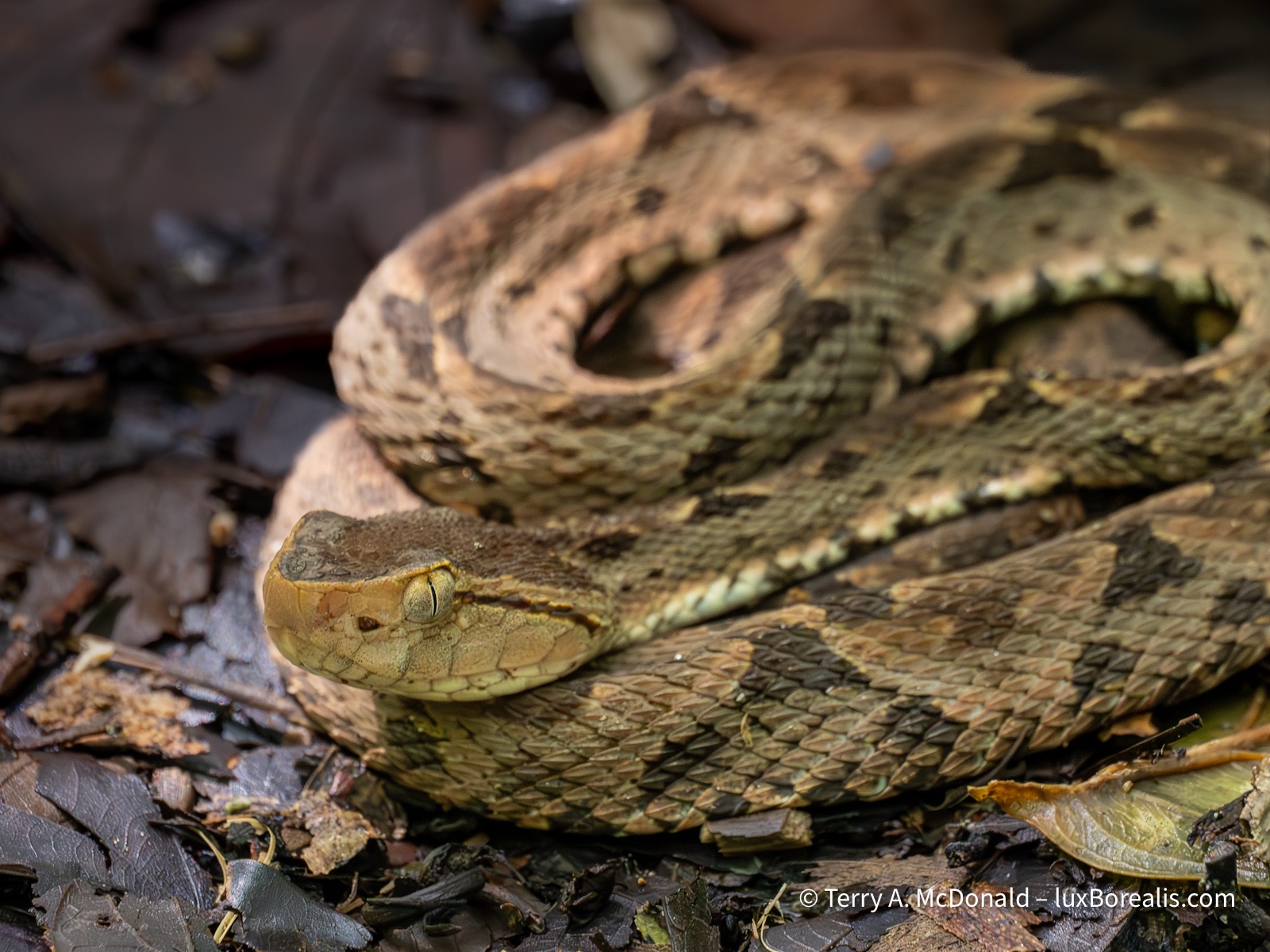
1/50 at ISO 12800 — Despite the dappled light filtering through the canopy, it was still dark!
Hans continued to point out a multitude of wildlife including both two-toed and three-toed sloths, three species of monkeys, juvenile iguanas, terrestrial crabs, not to mention the species we would never have seen without him: a tent-making bat, rainbow grasshoppers, two species of tree frog, two species of basilisk lizard, plus the innumerable interesting tid-bits he related to us about the astounding diversity of foliage, including the Giant Pelican flower.
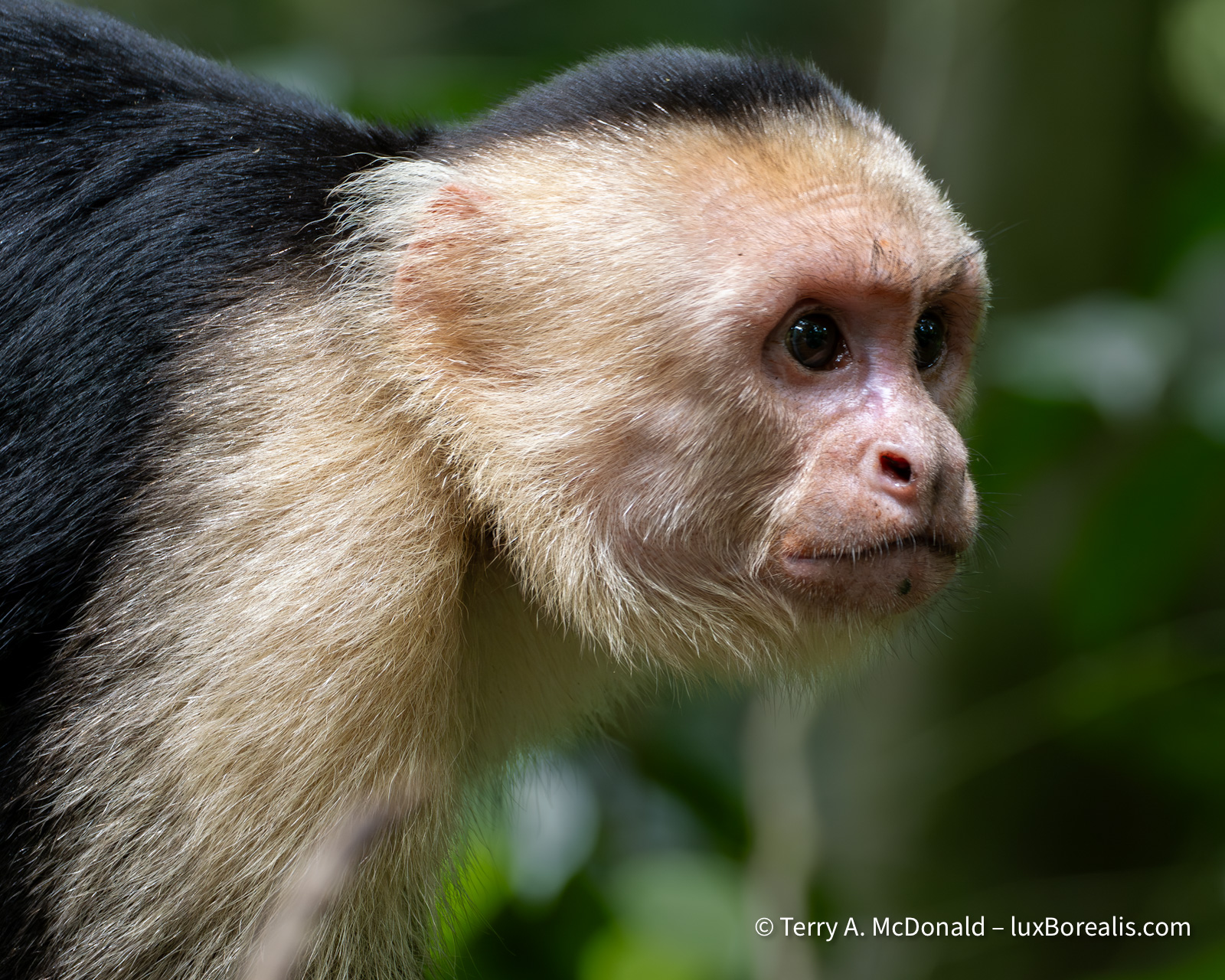
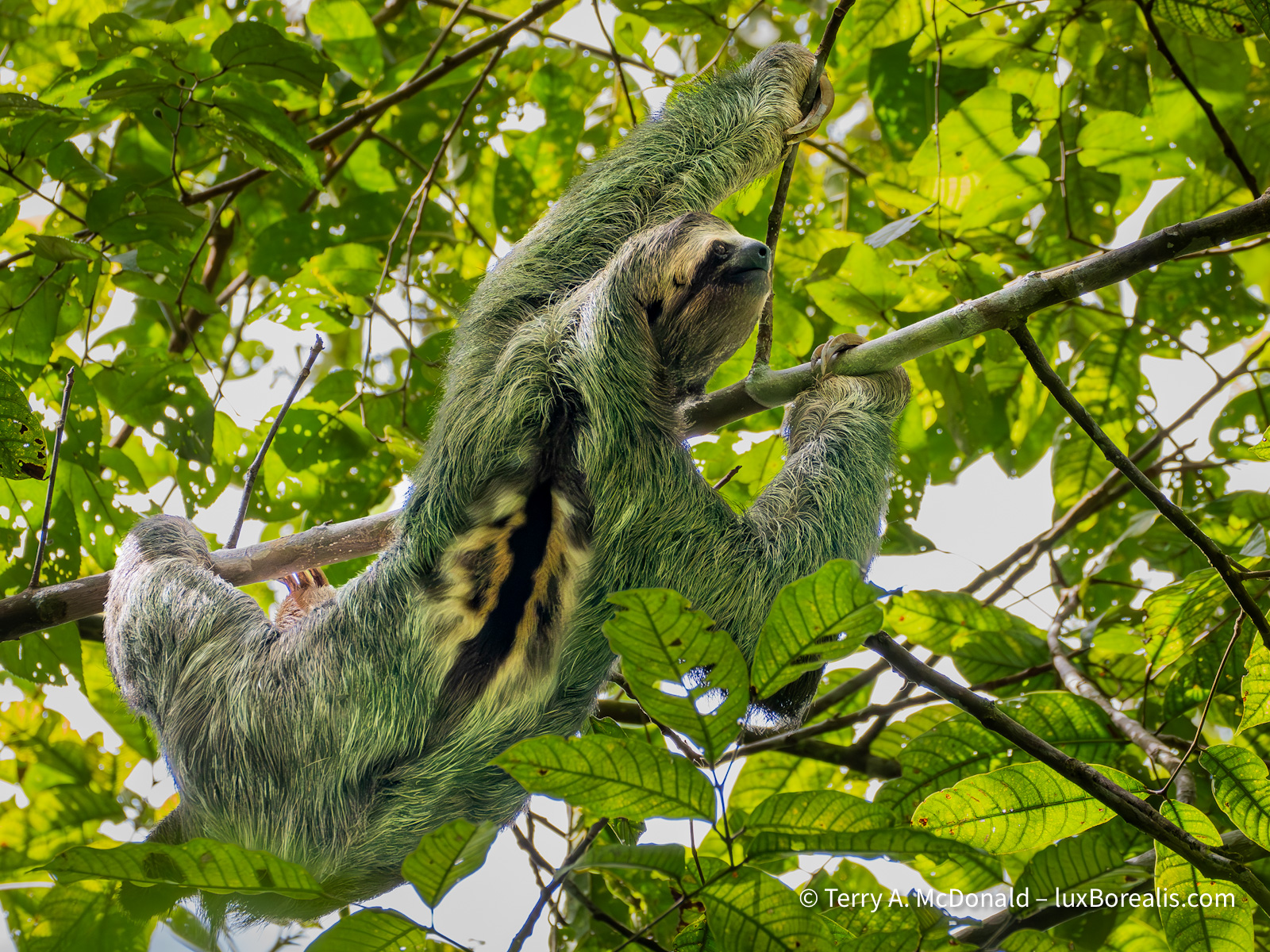
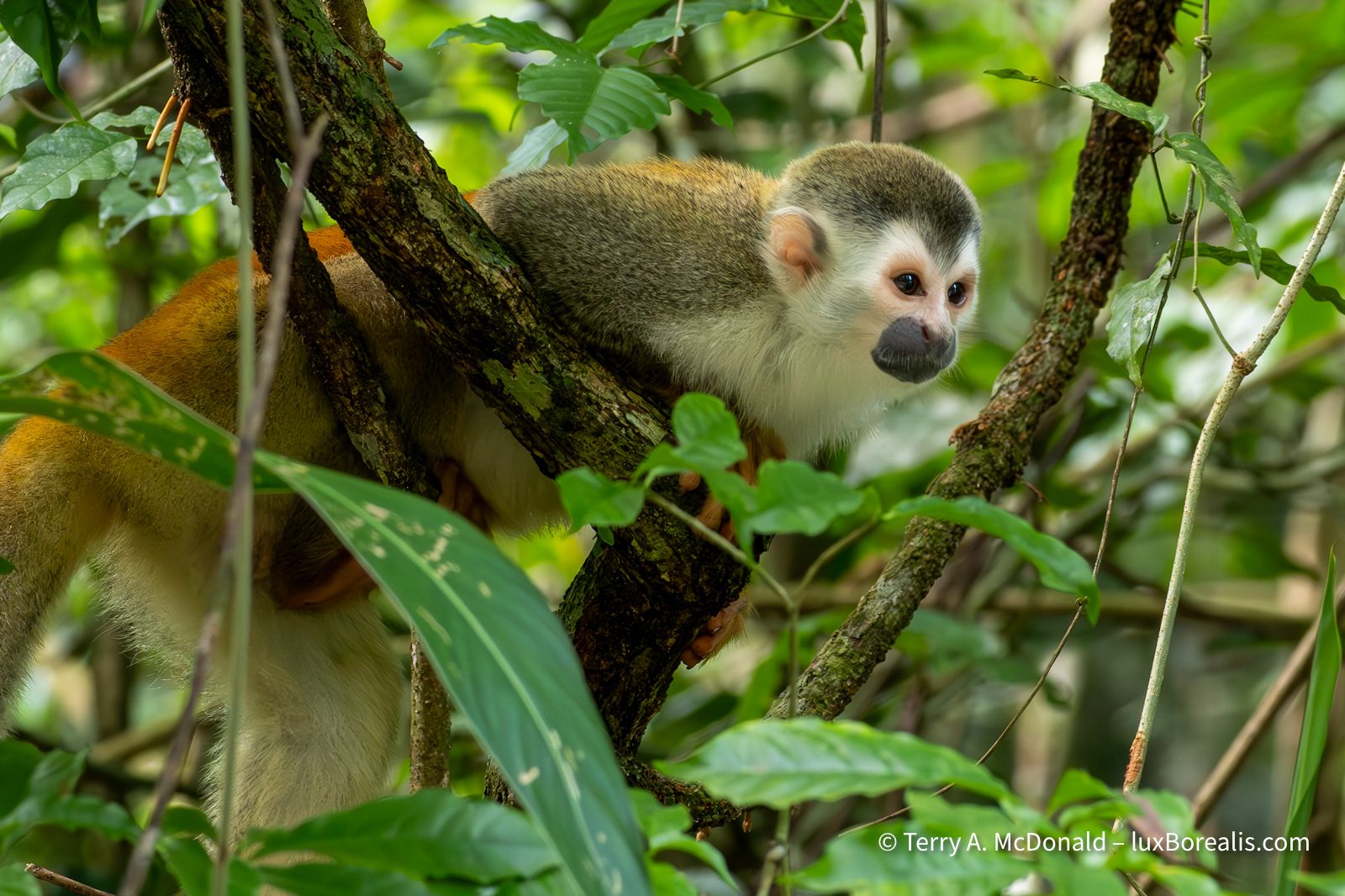
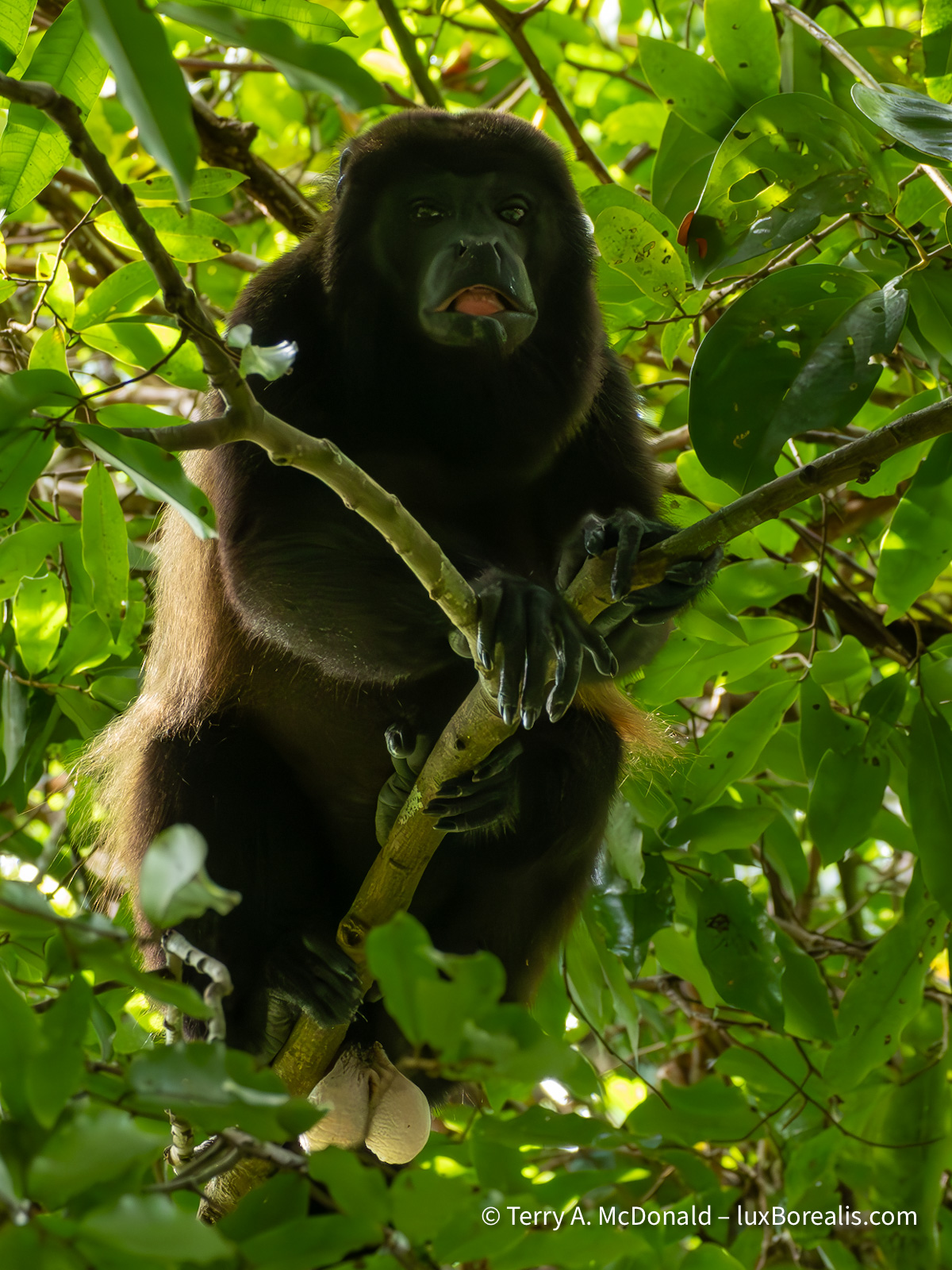
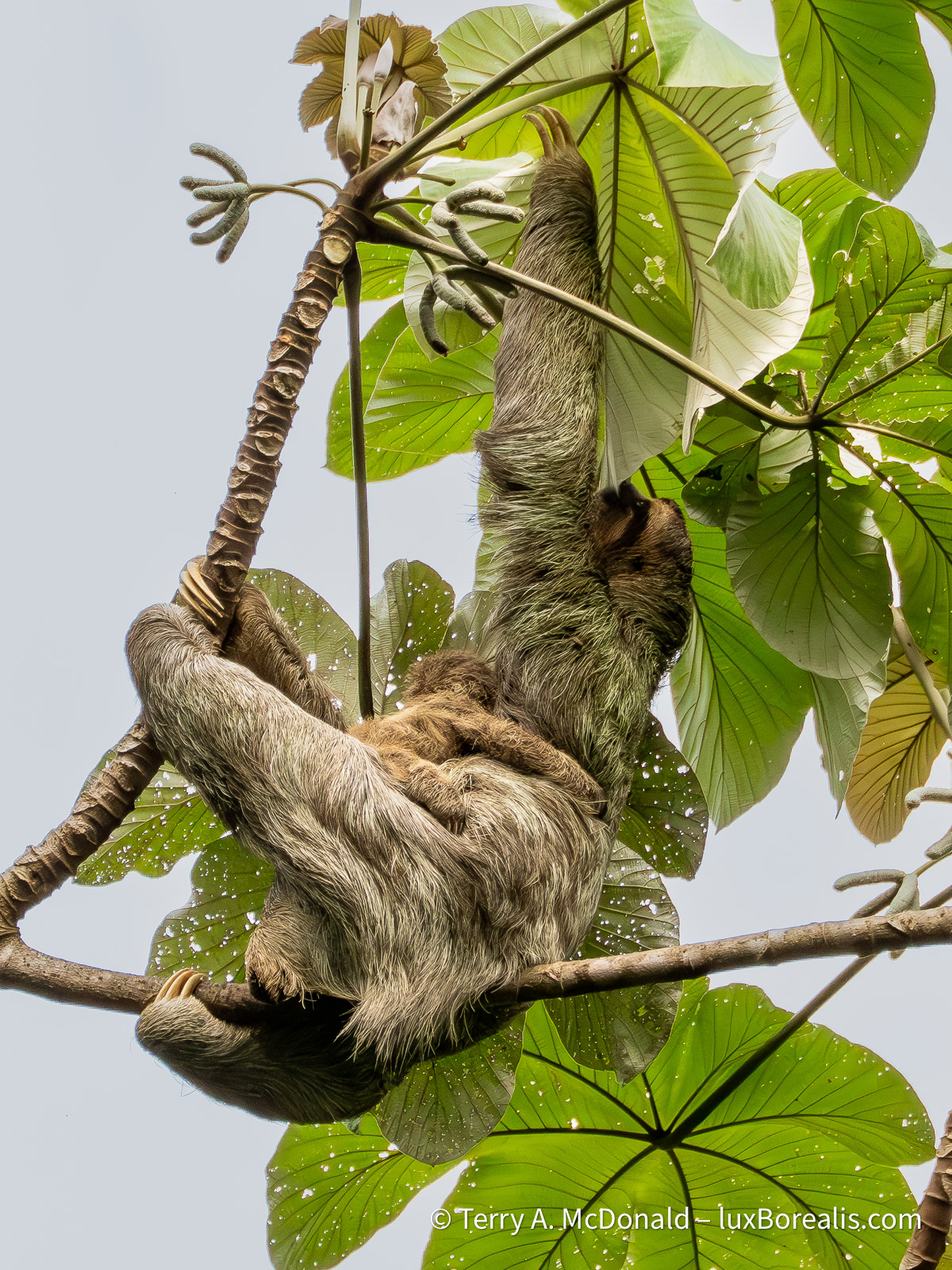
Rainforest Photography
To put it simply, photographing in the rainforest is a completely different experience than anywhere else. Out on the East African savanna, there is no shortage of light. Even in Iceland, under cloudy skies, there is plenty of light. The forests of eastern North America can be dark, but they are nothing compared to the dimness of the rainforest. Before breakfast, we decided to do a short hike along a trail through a nature reserve created by the owners of the hotel we’re in. Being adjacent to Manuel Antonio National Park, it shares all the same wildlife. But at 7am, almost 90 minutes after sunrise, it was like someone had turned out the lights. Walking into the forest was like entering a cave.
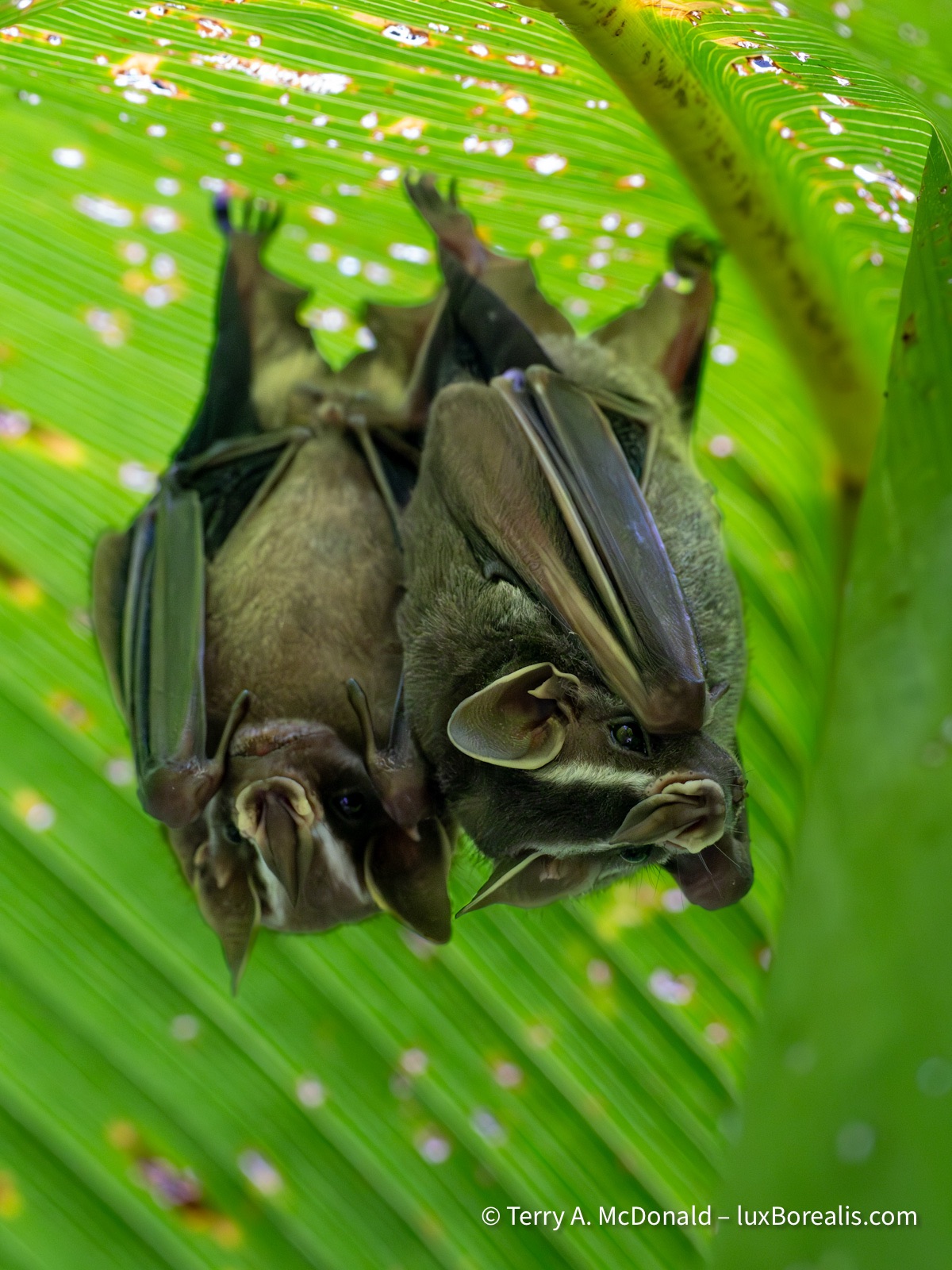
1/80 @ ISO 12800
Trying to bend myself under the fronds of this palm which the bats had nipped to form a tent was an exercise in limbo dancing.
Even a simple shot of the rather medieval-looking Desmoncus orthacanthos required an ISO of 25600, and that only gave me ƒ/8 @ 1/60!! To capture the deer, I waited until it was stalk-still and even then I needed a very steady hand, shooting at 1/100 despite using ISO 25600. Unreal! I’m very thankful for the engineers at Adobe who have created the denoising algorithms in Lightroom.
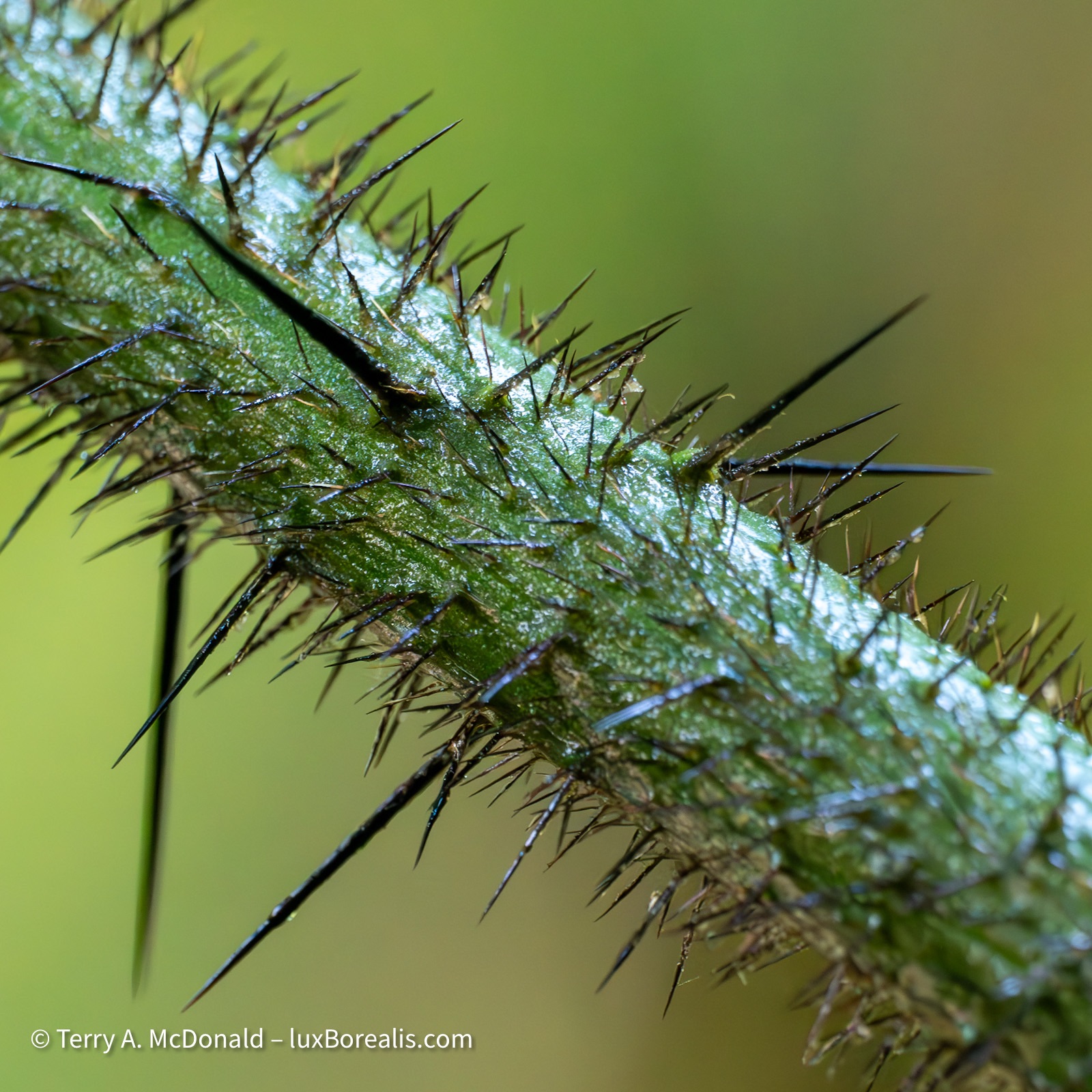
1/60 at ISO 25800
This is the stem of a climbing palm that appears to have more in common with a mediaeval weapon, then a rainforest plant!
And then there is the dampness, the humidity, the sweat, seeping out of every pore. Even without the rain (which held off for a few days!!), with temperatures approaching 30°C at 100% humidity, we were soaked within minutes. Glasses became fogged or smeared with sunscreen and sweat and it wasn’t long before my arms and neck were tired from always looking up—way up—and hoisting the camera and lens up to follow whatever was travelling or flying through the canopy.
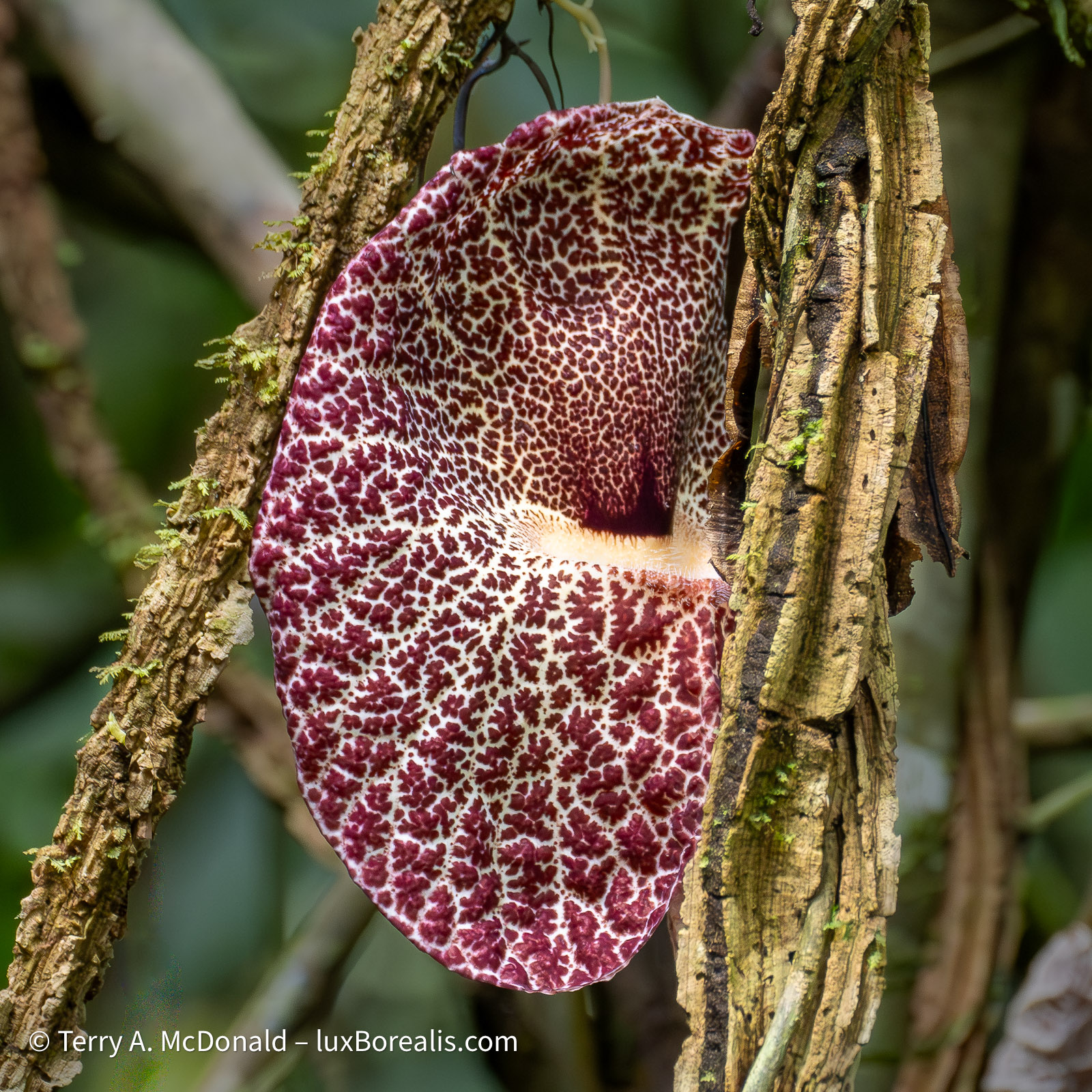
1/125 at ISO 6400
This one was small, about the size of two open hands.
It’s said, ‘the most important piece of photo equipment is the garbage bin’ which is where many near misses ended up, often due to a shutter speed that was too slow, my worn out muscles, and moving creatures, especially birds. Hundreds of photos have been reduced to the few I’ve posted today.
Tomorrow we head back to San José to meet up with the rest of our tour group. With only 12 of us, and with many different habitats and locations ahead of us, I think we’re in for a real treat.
Stay tuned!
Need an online photo service for books, calendars, canvases and prints?
199 words; 1-minute read
Whenever I’m presenting an evening PhotoTalk, I bring along with me prints I’ve made and some photo books I’ve had printed.
I’m always asked about which online photo service I use to make my photo books and calendars and can highly recommend PosterJack.ca. If you’re in the States, then go to PosterJack.com. I am NOT an affiliate of PosterJack, nor do I receive a commission from sales. This is me, myself, making the recommendations.
Not only is PosterJack.ca based in Toronto, they are 100% Canadian, and will ship Canada-wide for a flat rate of $10/order. If your order is over $150, shipping is free.
I’ve had great success with PosterJack. Not only have I used them for photo books and calendars, they have produced two large canvases for me—both were exceptional. Shipping was prompt and the canvases were very well packaged against damage. The books were also promptly printed and shipped and look great! I have PosterJack.ca print photo calendars each year at Christmas—family pics or nature scenes on a calendar makes for a great gift!
The best part of using PosterJack is that they frequently have sales on of 20%, 25% or even 30% off.
They offer a host of other services as well, including regular prints, posters, fine art print on Hahnemühle paper, metal and acrylic prints—just about anything you might want your photos printed on.
Check them out: PosterJack.ca!

DxO PhotoLab 9 vs Lightroom – Part 2: Processing and Masks
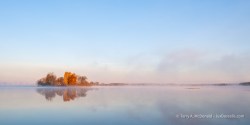
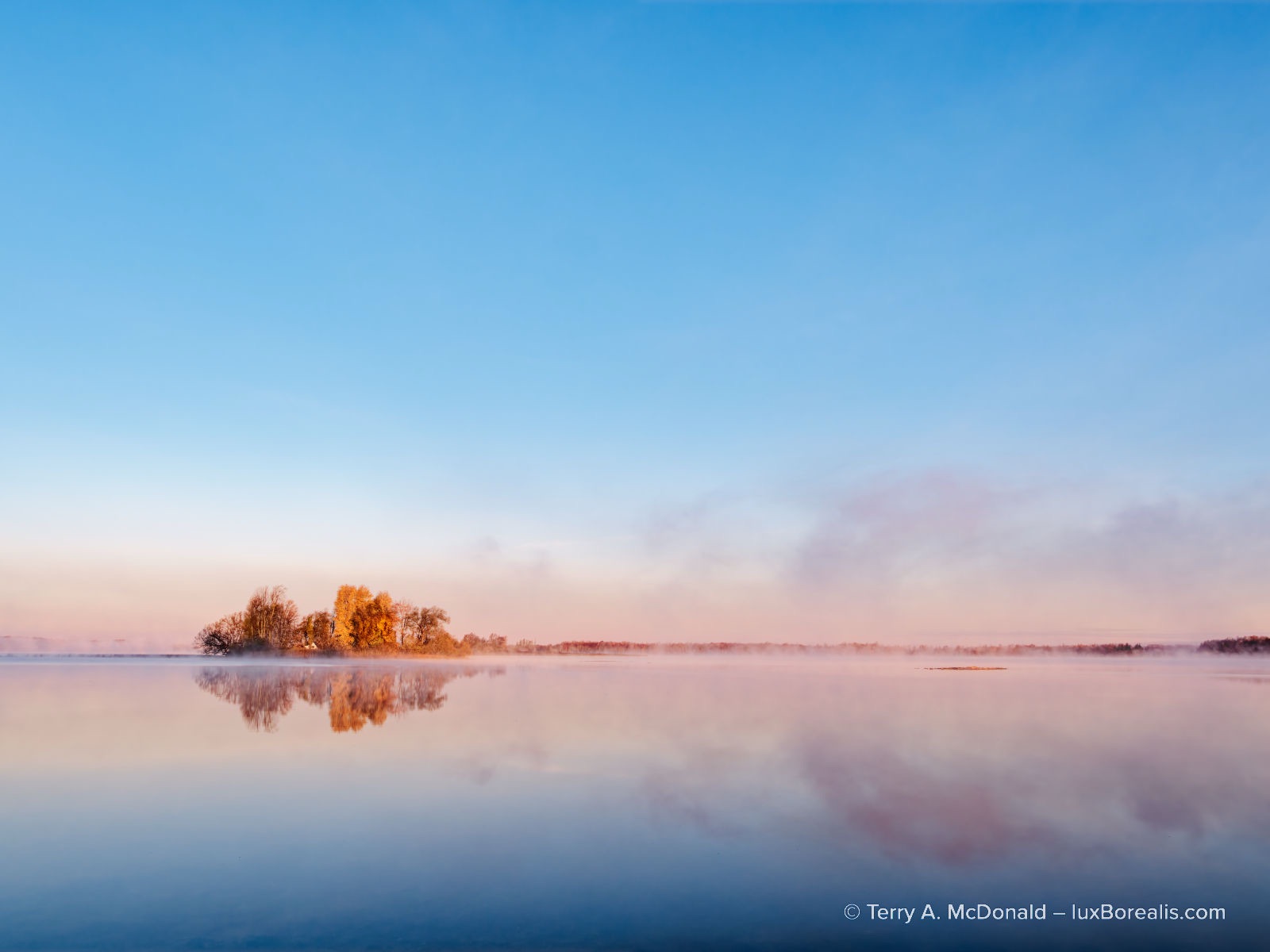
Can standalone DxO PhotoLab 9 dethrone Lightroom as the one-stop photo editing suite?
4417 words; 4 images; 23-minute read
This article was first published on Luminous-Landscape.com.
Terry A. McDonald | luxBorealis.com
Customize (= Processing)
Let’s dive in with some processing, step-by-step. Upon opening a file in Customize (as easy as double clicking the thumbnail in Photo Library), PL9 automatically does whatever it’s told to do by the Preset selected by the user under Settings > General. I prefer to start with something as neutral as possible, which appears to be “DxO Optical Corrections only”. DxO knows their lens corrections, so I don’t mind leaving that up to them.
From a processing perspective, I treat each raw file as a digital negative, a processing blank slate. Choosing any of the other Presets in the drop down list will apply differing amounts of a variety of edits. I would rather build the processing myself to match the vision I had for the scene or subject, but the option is there for whatever users prefer.
Once the photo is open in Customize, it is easy enough for users to change the preset by selecting the Presets button in the top right.
- Note 1: Selecting a new Preset wipes out any edits done up to that point and applies the values in the Preset.
- Note 2: If (when) you become mired in edits and feel you’re going around in circles, there is a Reset button up beside the Presets button. I’ve made good use of it over the past few weeks of learning the app. Another alternative is to make a Virtual Copy (Yes! PL9 has VCs!!) before starting over.
OM-1 | 15mm (30mm efov) | ƒ5.6 @ 1/800 | ISO 800 | HHHR | PhotoLab 9
Once again I was able to successfully match the image to the editing achieved in Lr.
OoO
There appears to be an on-going debate regarding the order of operations (OoO) for processing images: there IS an optimal order versus there IS NOT an optimal order. This is perhaps the biggest divide between Adobe and DxO. I’ll begin with some history . . .
Years ago, Lr was re-designed with a specific order in mind, as indicated by the order of operations as they appeared in the Basic palette of the Develop module: Exposure-Contrast-Highlights-Shadows-Whites-Blacks, each being pegged to a specific section of the tonal scale, as represented by the histogram. Adobe also recommended moving from top to bottom in LrC Develop panel. In fact, this order cannot be changed.
With the number of recent new functions within Lr, as of 2025 Adobe has published this list for Lightroom Desktop and Adobe Camera Raw stating:
“The best order of Develop operations to avoid unexpected results and achieve the best output is as follows:
- Denoise, Raw Details, Super Resolution
- Reflections Removal
- Distracting People Removal
- Generative Expand (Currently available only in Adobe Camera Raw as Tech Preview)
- Generative Remove, Content-Aware Remove, Heal, and Clone
- Lens Blur
- Lens Profile
- Crop and Transform
- Adaptive Profiles
- Global Adjustments
- Masking”
Adobe then offers this ‘Tip’:
“Note: The recommended workflow is to avoid applying Clarity, Highlights, Shadows, Dehaze, Whites, and Blacks, until after healing. Other tools that can be used initially, if desired (before healing) without adverse effects are Exposure, Contrast, Parametric, and point curves.”
What they are saying is that there is an optimal OoO: do the heavy-lifting first, the denoise, healing, and blurring, all the AI intensive edits. This is interesting for two reasons: (1) it shows there is also some latitude in the process order; and (2) the recommended order is opposite to PhotoLab9.
PL9 leans towards leaving the resource-intense operations to later in the workflow. At least, that’s the suggestion, based on button arrangement from left to right at the top of the Customize panel, with the less intense processes to the left. As I began processing, the reasons for this order became apparent: with lower-resource-intensity edits first (Light and Colour), there is less lag before the high-intensity processes of denoising and masks.
Given the ability to drag-and-drop palettes in any order, it seems DxO supports the idea of complete freedom for a user to adopt any order of operations. But is this the case? So far, despite scouring the Help Centre, searching ’best order of processing’ and ’processing order of operations’ plus checking various forums, I’ve not found anything official from DxO about OoO. The general consensus is the same as what I found and is supported by a couple of blog posts from 2022 by BeforeAfterAndOtheStuff.com and ChrisWright.photography, who place Local Adjustments (masks) towards the end (though they differ on Detail).
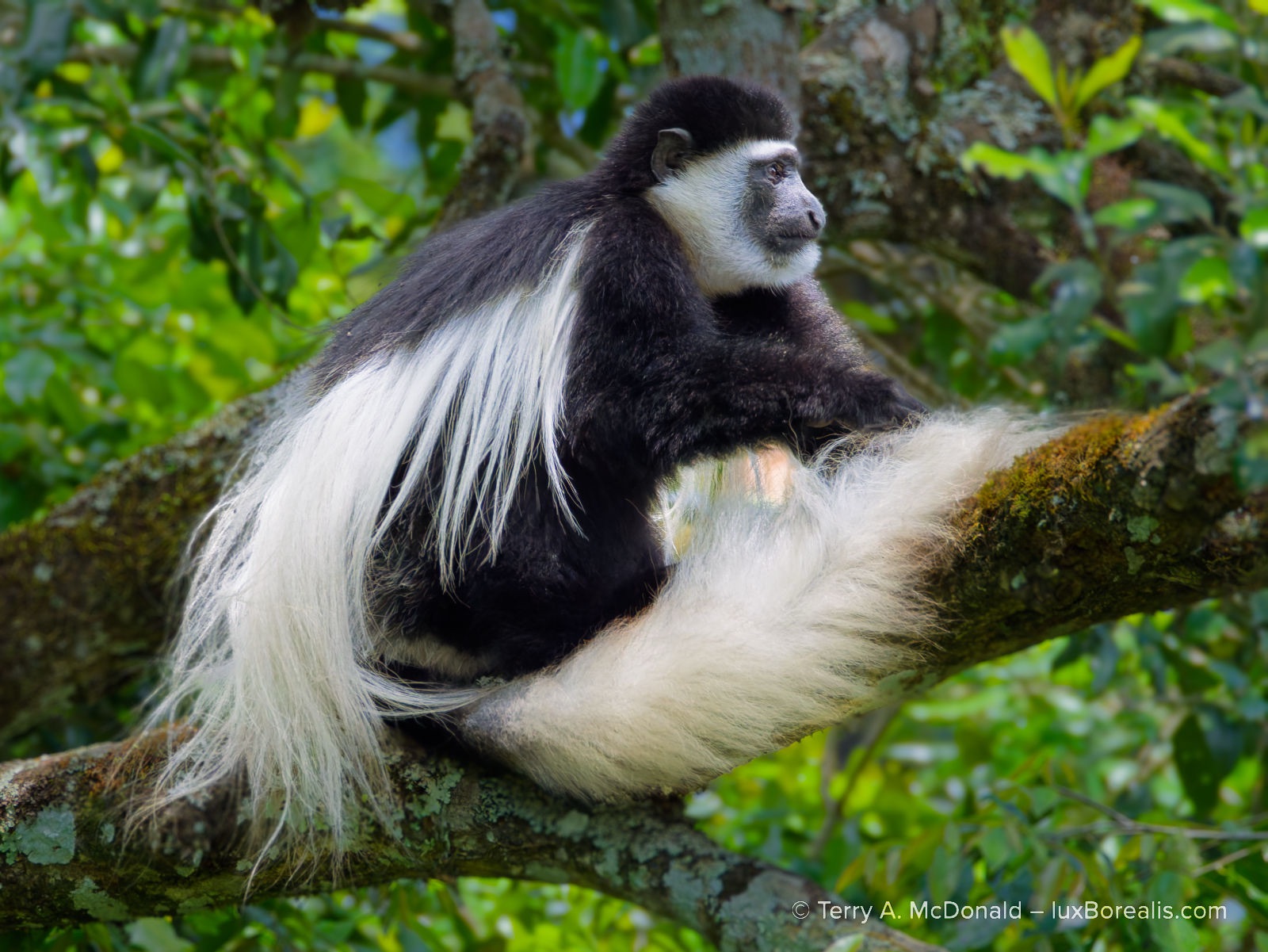
OM-1 | 381mm (762mm efov) | ƒ11 @ 1/250 | ISO1600 | PhotoLab 9
The precision of the Subject AI mask amazed me. It accurately picked up every stray hair and was almost perfect at ignoring any twigs. Furthermore, the blur tool for part of the background is very natural-looking. The only additional mask I would have used is the Radial Gradient mask, which is not available in PL9.
Lag Time
Unfortunately, I didn’t pay attention to the PL9 left-to-right OoO and followed my Lightroom instincts by diving right into Detail, using DeepPRIME-XD/XDs. I was greeted with a ’Correction Preview’ lag of a couple of seconds. From that point on, every time I changed a value and hit return, I needed to wait for rendering. It was like waiting for test strips to develop in a darkroom; I thought we were past that!
No need to tell you how alarming this was, as there was no lag with either version of Lightroom when performing the same edits under identical conditions on laptop or iPad.
Am I just nitpicking here, belly-aching because I can’t have things my way? No. Should I just pony up for a new laptop and stop complaining? No. With both versions of Lr, all changes, small and large, are live as I make them. Intuitive, seamless editing without waiting to view results is not too much to ask for in 2025. And according to the DxO Forums, I’m not the only one. There is significant chatter about the lagginess, especially when denoise and AI masks are used. Funny how this does not come up in any of the many promotional reviews circulating around the web.
So I got looking and researching. Under Detail, I changed Denoise back to Standard hoping things might speed up. They did. Slightly. There was still a Correction Preview lag before the changes were live again. As suggested online, one way of decreasing lag is to open Settings and toggle off both ”Enable high quality previews” and ”Enable DeepPRIME rendering”. The lag was cut to only a second or so, but there is still a lag and now I’m looking at a rough image, not a finished one.
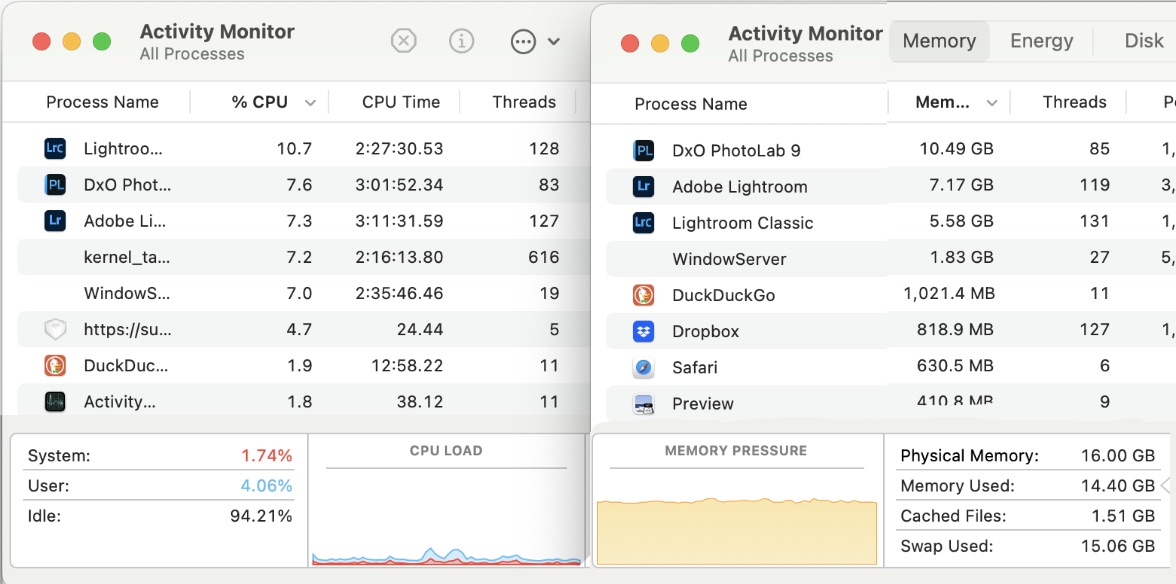
For processing, I’m using a 16” M1 MacBookPro with 16 GB of RAM. I have no issues with LrD or LrC keeping up with me. Even LrM on the iPad has no lag. Every change I make is immediate and, as I adjust sliders, I can watch the changes in real time. They are live, happening right in front of me. This is how digital editing should be, but it was not the case with PL9. I also experienced delays when switching zoom levels,.
An M1 MBP is no slouch and before you suggest my MBP is ’underpowered’ or I’m ’only’ using 16 GB of RAM, it’s important to note that I am running LrC, LrD, PL9, two web browsers, Notes, Preview and mirroring my phone—all at the same time—and lag times are only an issue with PL9, not with either version of Lr. I’m not sure if the sluggishness is due to a lack of resources or if it is the way the app was designed. According to Activity Monitor, DxO PL9 does not appear to be a resource hog. Either way, it is an impediment to smooth and intuitive editing.
Lag Solutions
PL9 lag times have been reduced (but not eliminated) by: (1) restarting my computer; (2) keeping PL9 ‘fresh’ by closing it periodically and re-opening it; and (3) minimizing other open apps. I could push the cache limit up past 1000MB, but even it isn’t maxed out. Despite the refreshing and minimizing, there is still a “Correction Preview” lag of a few seconds when opening a photo processed previously. It seems PL9 needs time to apply the various adjustments I made. This does not happen with Lr. The photo is live the moment it is opened, even after Denoising. I’m guessing, but the extra speed may come from Lr creating and using screen-sized Previews, rather than opening the original file every time and applying the processing steps from the XMP sidecar file. I can’t be certain, but perhaps this is another advantage of employing a closed database versus an open file browser.
In the end, users will adopt a specific workflow based on what works for them, whether they use PL or Lr. It’s not wrong to dive into Denoise first, but be aware that you may encounter increased issues of lag time.
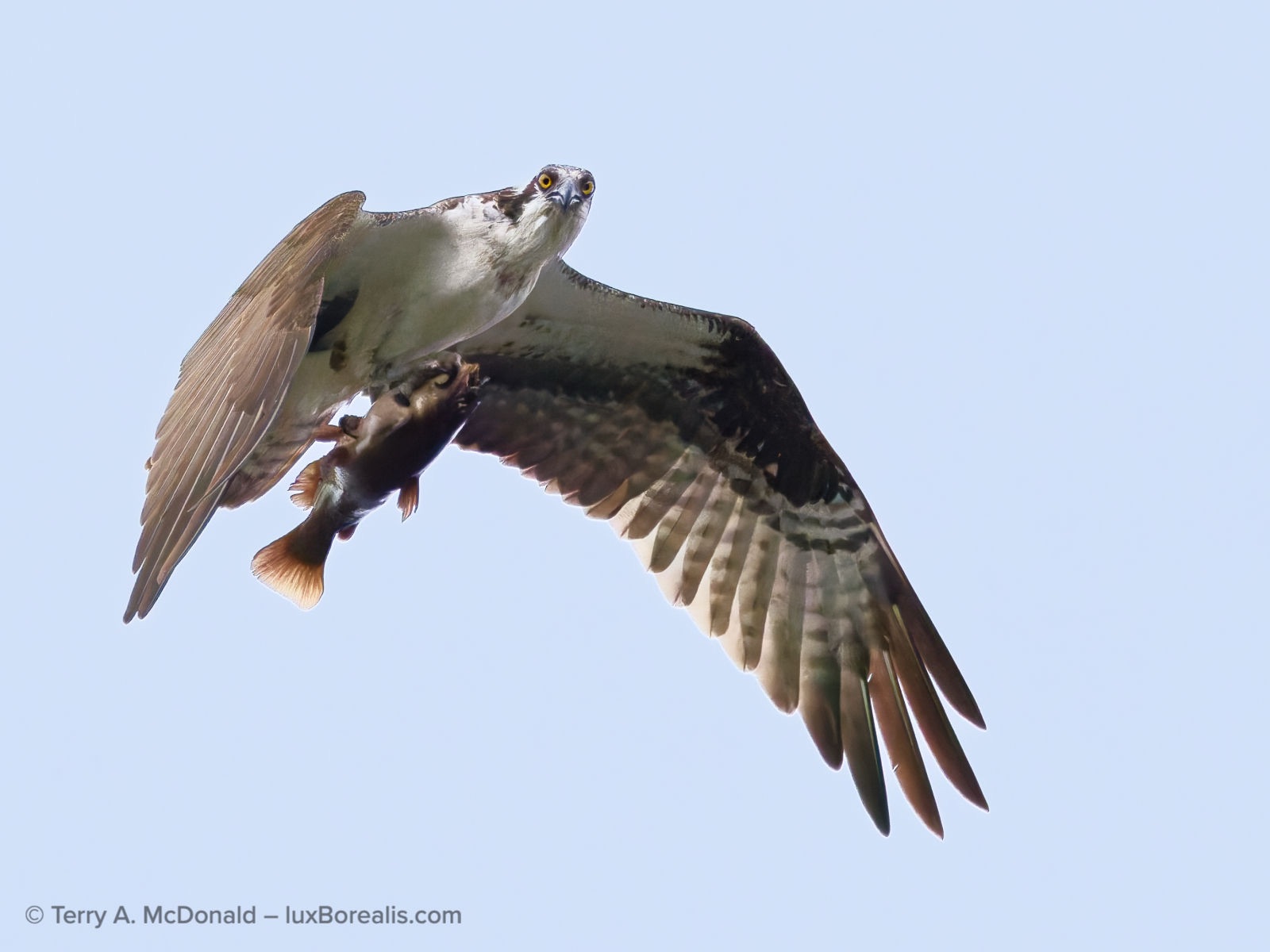
OM-1 | 400mm (800mm efov) | ƒ8 @ 1/20000 | ISO3200 | PhotoLab 9
PhotoLab 9 handled this difficult shot superbly, though not without significant lag with every change—even when re-naming masks! It was a difficult grab shot with the osprey heavily under-exposed against a very bright morning sky. I treated it as two photos, masking the osprey and the sky separately, the performing edits for tone and colour on each.
Light: Exposure and Tone Control
Exposure and Selective Tone controls are the heart of creating lively tones in an image. With Lr, each of Exposure, Highlights, Shadows, Whites and Blacks operate somewhat independently on different parts of the histogram/tonal range. A change in Shadows will alter the mid-tones and blacks, but only slightly, with the bulk of the changes happening between the two and virtually no change happening in the highlights. I remember when this was introduced in Lightroom years ago—it revolutionized how we balanced tones. The Shadows adjustment, for example, allowed us to pull out details that were otherwise muddy, leaving the Black Point untouched.
I am also seeing this with PL9, though perhaps not to the same extent. There appears to be more overlap of the tones each slider is changing. Also, without a dedicated Whites adjustment, as there is in Lr, I’m finding it more difficult to control highlights. There doesn’t appear to be the same nuanced ability to create more highlight separation, without having to resort to masks.
Furthermore, PL9 does not have the Auto White Point and Auto Black Point feature found in Lr. When working with full-tone images (those that include everything from pure white through to pure black), it is helpful to have the app automatically find the brightest pixel(s) and make it pure white, then do the same for the darkest pixel(s), making ittiitt pure black. This sets each end of the tonal spectrum and allows me to work with the tones between those two points, taking the guess-work out of a fairly routine requirement when editing full-tone images, landscape photos in particular. I’m sorry to see this is not available in PL9.
SmartLighting and ClearView Plus
DxO’s proprietary SmartLighting and ClearView Plus adjustments are an interesting addition. They seem to act similarly to Clarity and DeHaze and can be quite effective in separating the muddy mid-tones and shadows. SmartLighting can be further enhanced by using the Spot-Weighted tool. I know Tom Stirr over at SmallSensorPhotography.com swears by SmartLighting, in particular the Spot-Weighted feature.
Colour
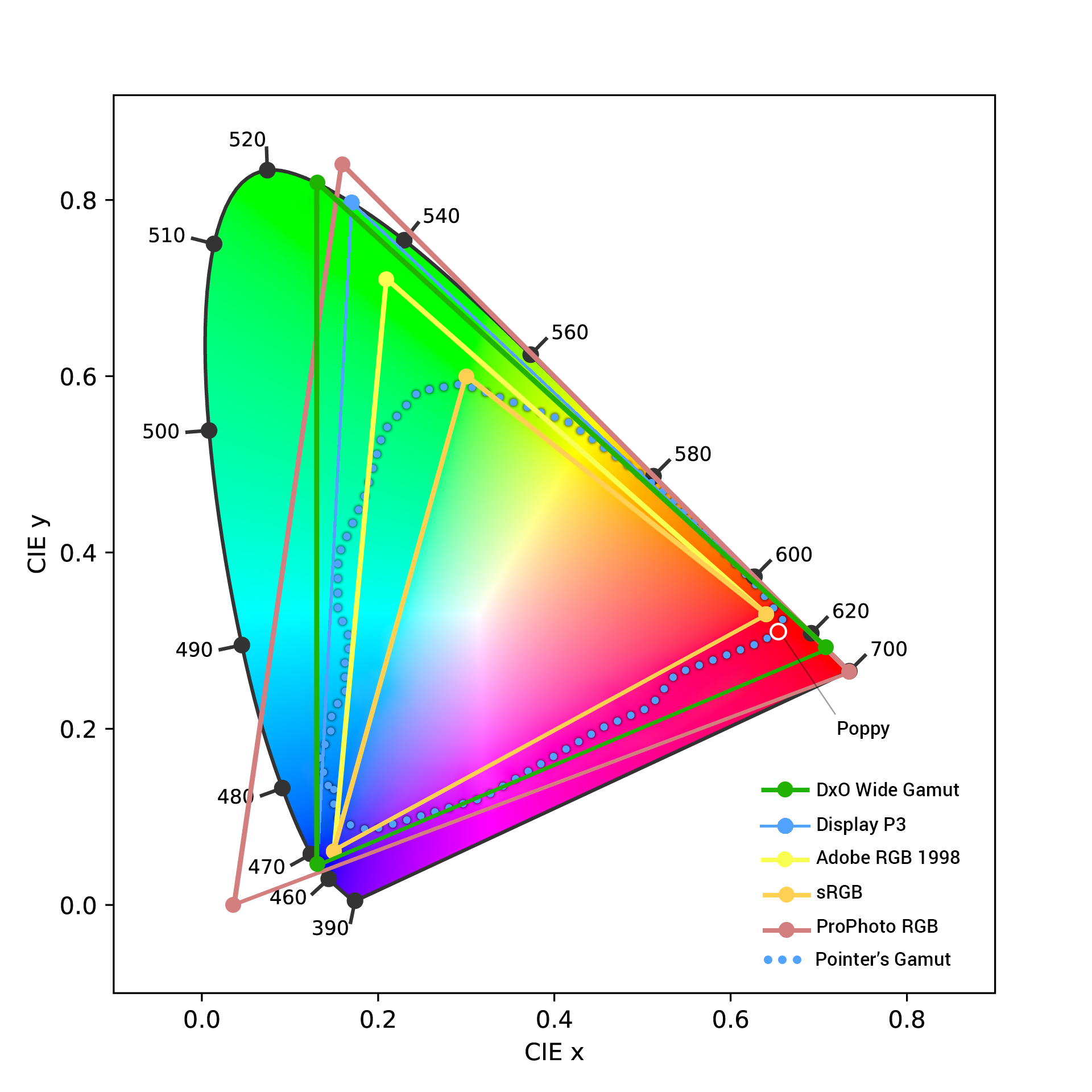
The first difference I noticed is that I could not select ProPhotoRGB as my colour space for processing. PL9 uses DxO Wide Gamut for colour space—one I wasn’t familiar with until I did a bit of research. Though different from what Adobe users are familiar with, it turns out to be a thoughtful choice. DxO knows what they are doing and say it’s ”An intelligent compromise”. DxO Wide Gamut is wider than AdobeRGB, covers the visual spectrum of what we see, but is not as large as ProPhotoRGB. Thanks to ChrisWhite.photography for shedding some light on this.
Denoise-Demosaic-Sharpen
This is where PL9 should shine. And it does—once the user figures out that ”DeepPRIME rendering” must be toggled ON in the Settings. Silly me, until I did this, I couldn’t figure out why the rendering looked like crap. There was even a “Correction Preview” lag, so I thought it was rendering. Nope. Newbie mistake. But in my defence, DxO PureRAW, which I’ve used for a year now, does not have the same requirement. Rendering is live from the moment you open the app. Oh well; lesson learned. But remember, live rendering = lag time.
It’s an interesting model and, for comparison sake, it’s one that is the opposite of Lightroom. Lr does the rendering when Denoise is selected, taking about the same time as PL9, but once it’s done, it’s done. No further lags due to rendering. Adjustments can then be made with the slider and, of course, with Detail Sharpening, but when scrolling around the photo, to check out different parts of it, there is no lag in Lr as there is, at times, with PL9. If DxO could sort out this lag, then they would truly have a winner with PL9.
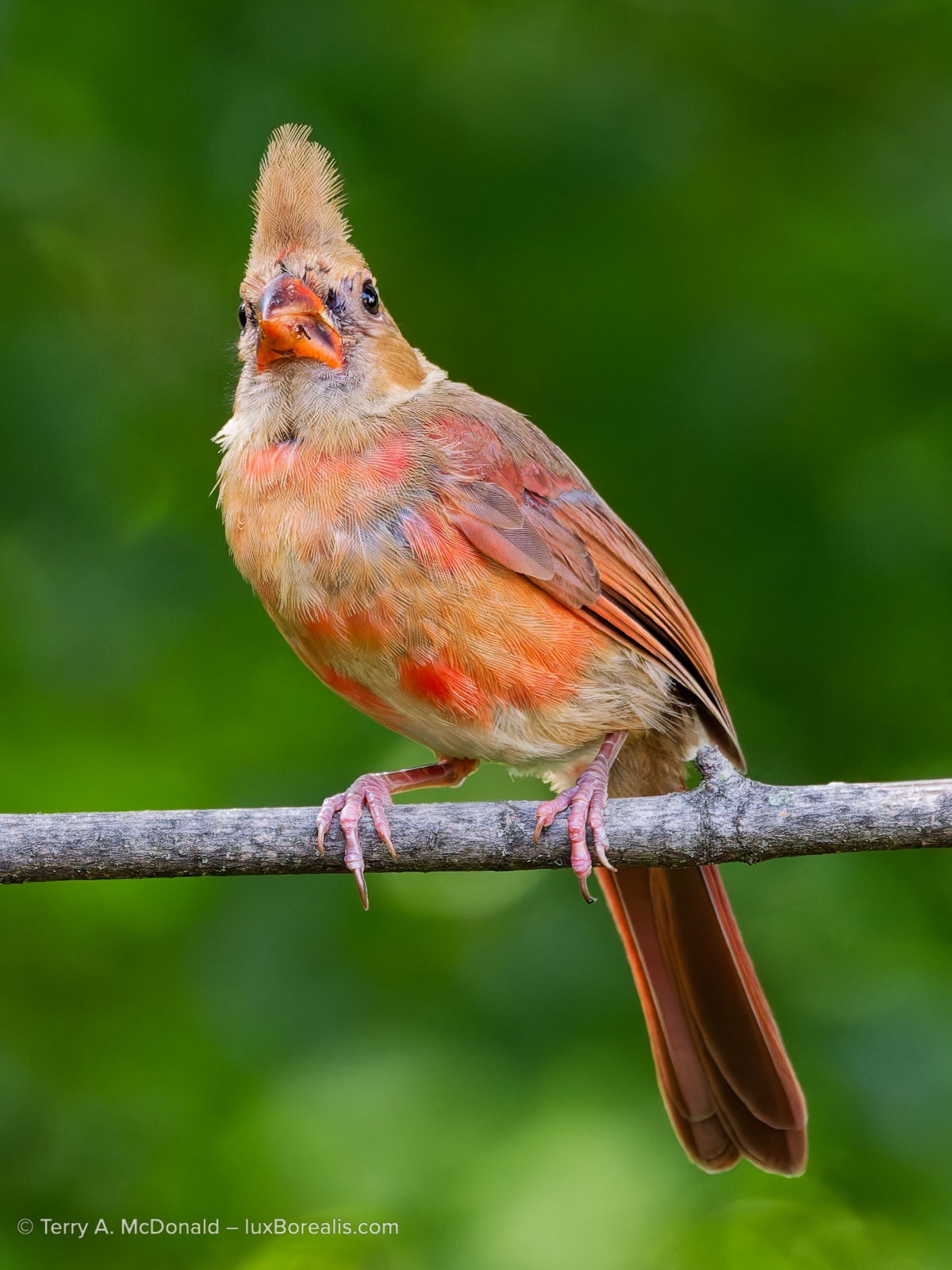
OM-1 | 400mm (800mm efov) | ƒ8 @ 1/320 | ISO 6400 | PhotoLab 9
This is a 2400×3212 vertical crop of the original ORF, and it is absolutely clean and absolutely sharp. There is no indication this was made by a M43 camera, a testament to the excellence of DxO’s demosaic, denoise and sharpening algorithms.
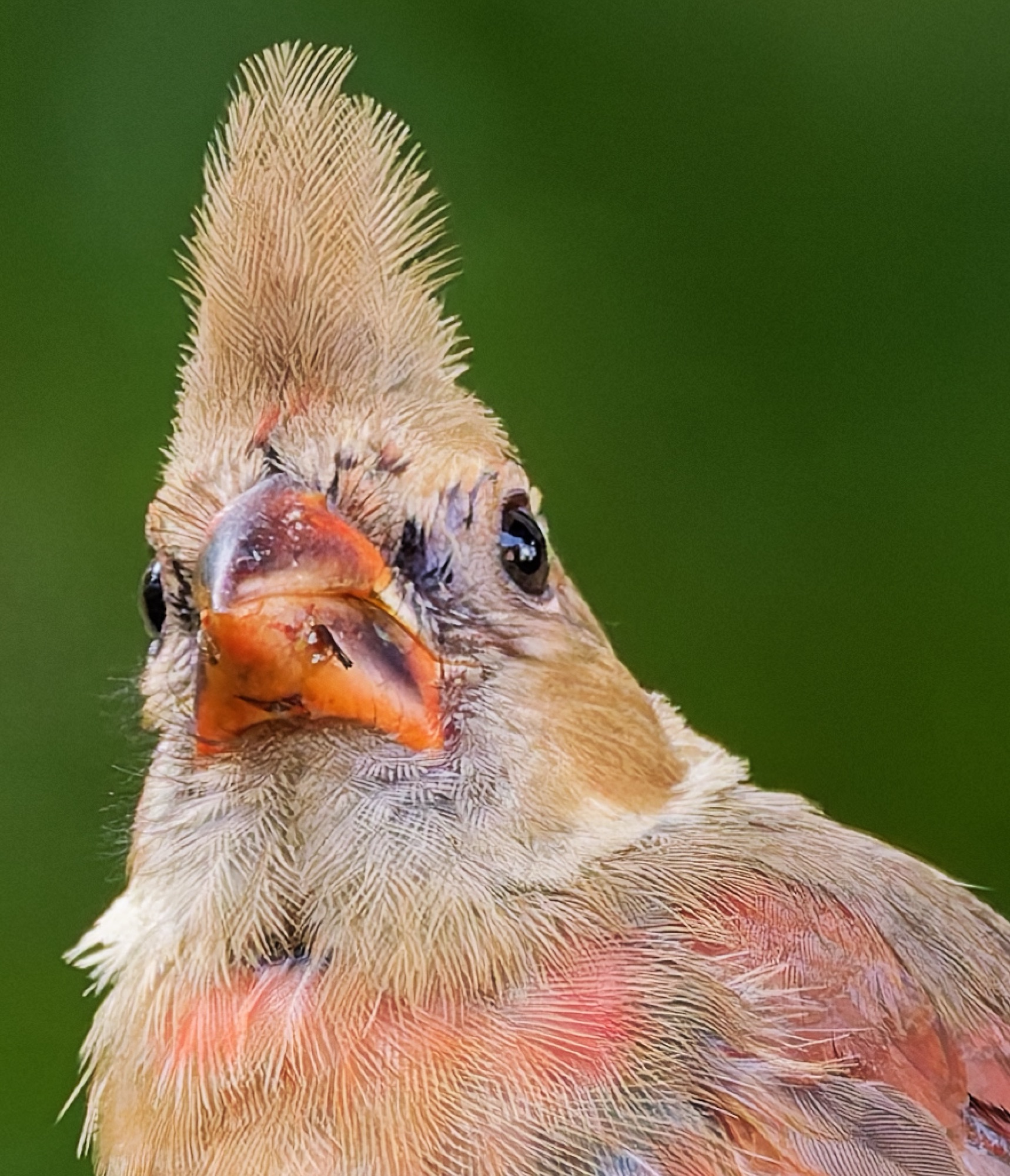
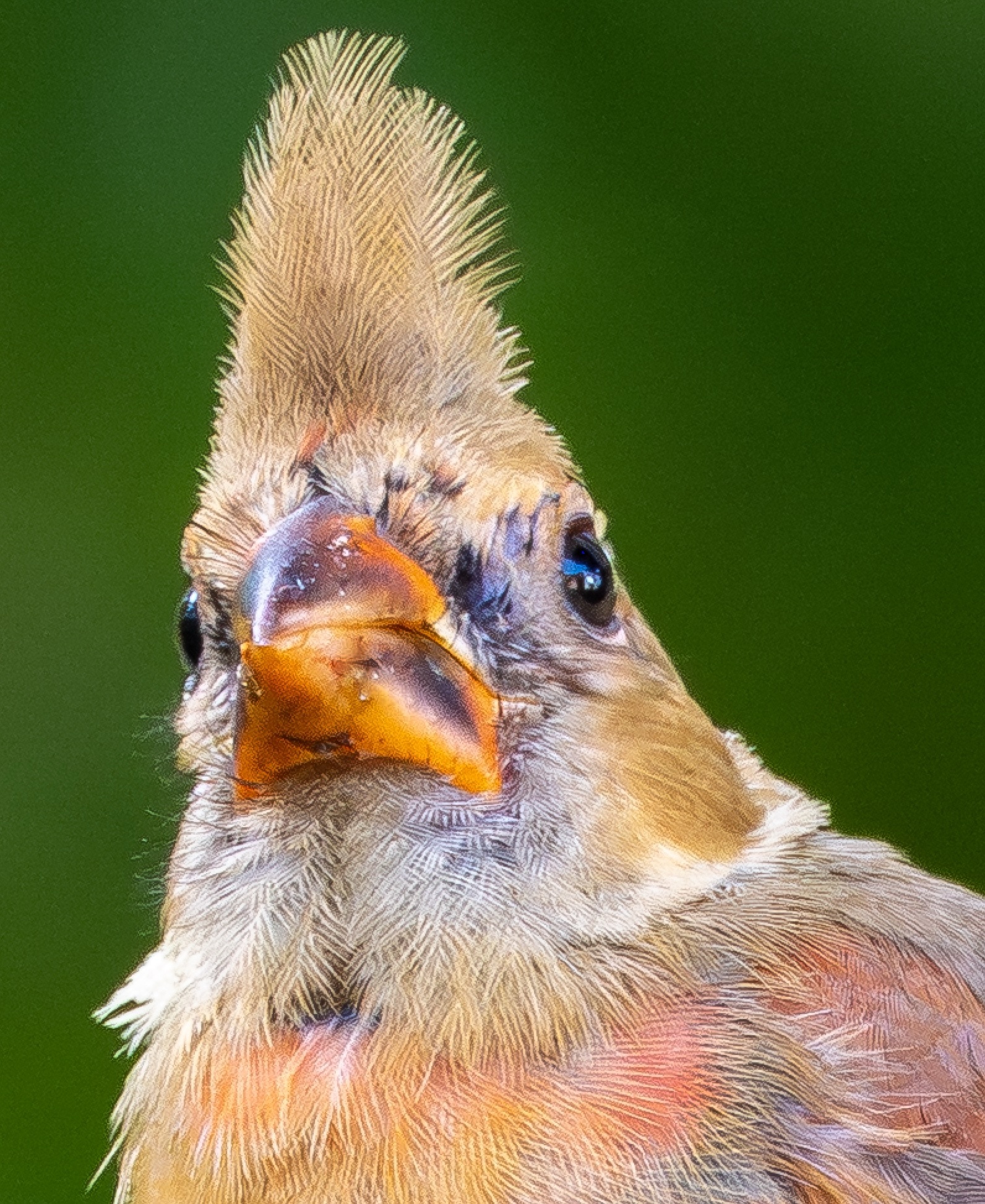
PL9 has accounted for this with their Loupe tool (S on the keyboard). First, turn off denoise in Settings. Then, in the Detail palette, select the type of denoise you want. The Loupe tool can then be used to provide a 100% view of what the denoising will do when the file is exported without adding lag time with every adjustment.
With that behind me, I could begin my comparisons. As I said above, this is where PhotoLab really shines. DxO has superb rendering engines and algorithms producing smooth where smooth should be and detail where detail should be. The default rendering is excellent. Tweaking the balance of smoothness and detail is done with the Luminance and Force Details adjustments; higher Luminance = smoother tones; more Force Details—well, you get the picture. Further sharpening is applied via the Lens Correction tool.
Interestingly, and something that demands pointing out, is the artefact that was introduced on ‘Junior’s’ bill. It looks like an insect or a seed husk, and it is clearly not there in the original. It’s easy enough to retouch out, but it seems like an odd thing to be added, especially when denoise is supposed to use internal generative AI, using only pixels from the actual image, not third-party pixels. Where did the artifact originate?
ReTouch Tool (N) (Detail palette)
PL9’s ReTouch tool is very straightforward to use and very accurate. It chooses appropriate source areas and is just the click of a button away (or tap the N key). As well, with the stroke selected, it can be switched between Repair and Clone. Even better, it will ‘borrow’ from pixels outside the cropped area; something Lr does not do. Perhaps its best feature, and another not found in Lr, is the ability to Transform the source area by changing its shape and rotation–very helpful, especially for difficult-to-retouch areas.
A nice addition would be seeing live views of how ReTouch changes as the user drags the source area to a new location. It would mean not having to wait for the render to occur only to discover it needs to nudge further. Lr provides this live view of the source area and how it affects the destination.
Changing the size of the brush (Cmd+Touchpad Up/Down) and the feathering using Shift+Touchpad Up or Down is also very helpful, a feature PL9 shares with Lr, though with Lr, it is a matter of pinching the touchpad to make the brush larger or smaller; i.e. no keys are involved.
Despite the excellent options available in PL9, I note two options missing compared to Lr:
- The PL9 ReTouch brush has only two options: Repair and Clone. There is no Healing brush equivalent. Healing is helpful for softening edges, particularly around areas that have been cloned when there is no perfect source to draw from.
- With Lr, users can Cmd/Ctrl-click-and-hold to choose the source area for cloning. This is a significant time-saver from having to wait for PL9 to make its choice then changing it to a more appropriate set of pixels, and the associated lag time for both.
Local Adjustments: Masks
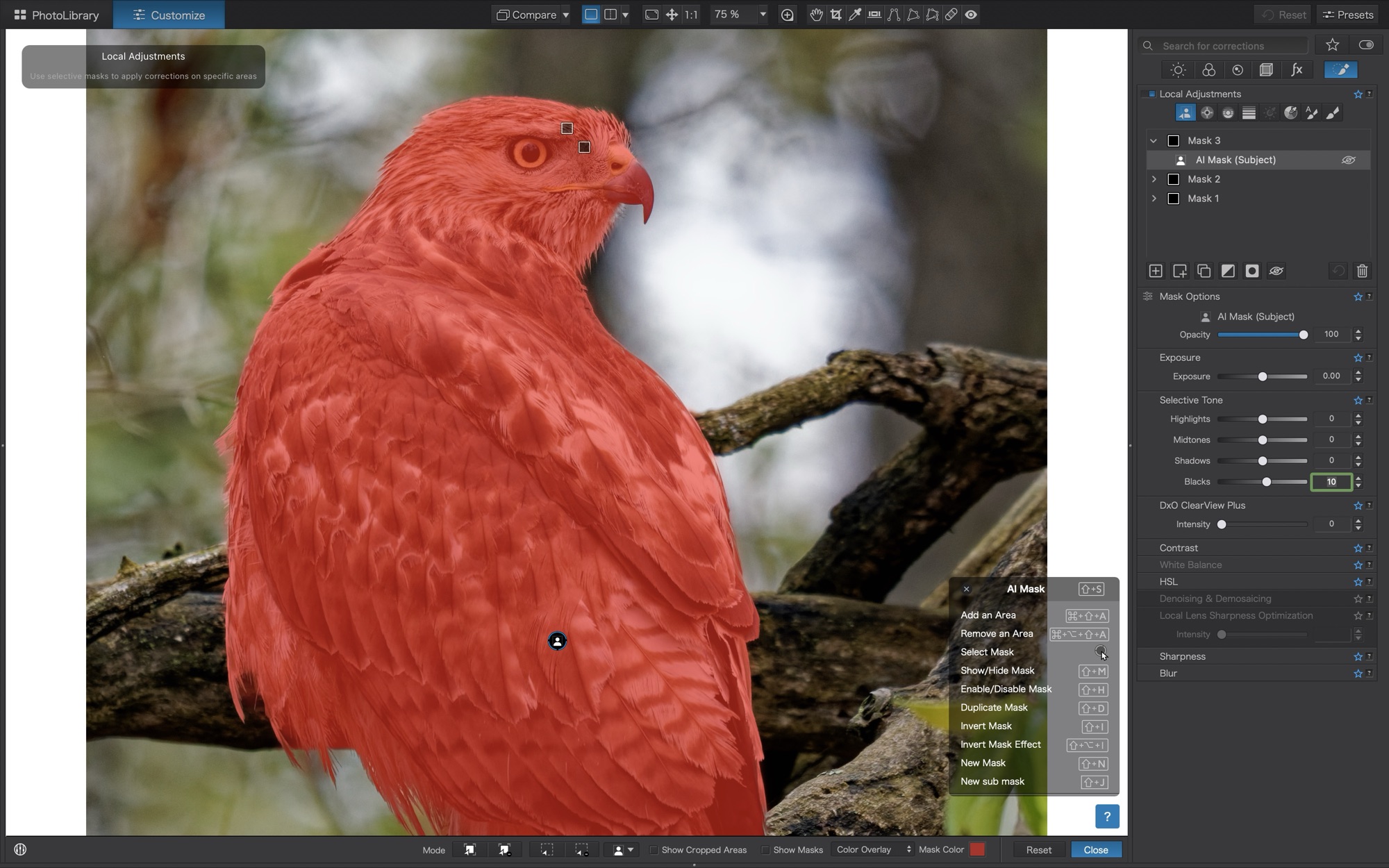
I live by masks. They are essential tools for balancing and shaping the light in any image. So, masks need to be intuitive. Masking in PhotoLab 9 is excellent, and is almost on par with Lightroom. PL9’s AI Masks are accurate at picking out well-defined objects with edges. No surprise there. I also like the semi-transparent menu that pops up in the bottom right corner of the image viewer, which provides keyboard shortcuts. Note: If the palette’s in the way, it can be closed and easily opened again.
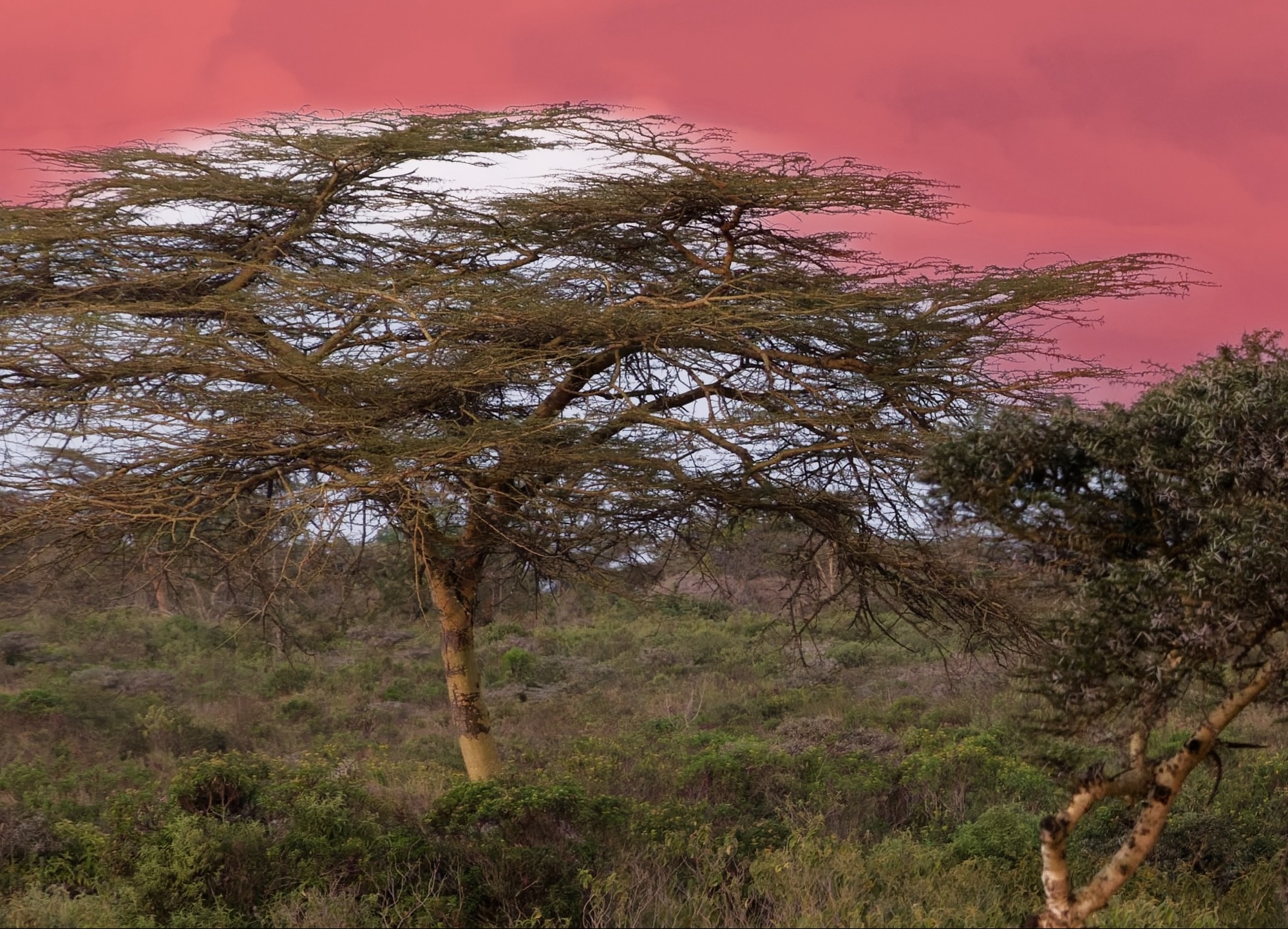
One thing I noticed when working on a landscape image is that the AI Sky mask has some trouble with tree branches, choosing to ignore them and go around them rather than recognising the similar hue within the branches. Perhaps it’s looking for contiguous pixels. I tried using the Auto Brush tool to fill in the sky pixels between the branches, but as the size of the brush is increased, so too is the size of the inner circle, which causes too many of the wrong pixels to be included.
Determined to make this work, I made a virtual copy in PL9 and experimented with different masking techniques. The workaround I found was to use a Grad ND filter that covered down past the tree line then subtracted out the trees (and branches) using the ’Remove a selection’ tool. The result was a much more realistic-looking sky-treelike separation. To many, this might be of little consequence. But, for someone who does a lot of landscape photography and is frequently masking the sky, it is additional work.
It’s nice to see that both Duplicate Mask and Invert Mask are offered, but it would be helpful to also add ‘Duplicate & Invert’. I use this frequently in landscape photography to generate a mask for the foreground after generating a sky mask, and with wildlife, to generate a background mask after masking the subject.
Sadly, a mask I routinely use is not part of the PL9 repertoire: Radial Gradient. I frequently use this to subtly focus the viewers attention, especially with wildlife. Perhaps PL9’s Control Points can be used in the same way. As well, I see that the Luminosity Mask, which is part of the masking routine in Lr, is only available by purchasing the DxO FilmPack for USD $150. To me, this is a blatant up-sell, within an app that already costs USD$240.
Control Points are a masking technique unique to PL9 and, at first, I was a bit stumped about what they actually do. After doing a deep dive to learn all the ins and outs of them (thanks, in part, to TakeBetterPictures), I’ve decided that (a) Control Points do not take the place of a Radial Gradient mask in Lr, as I had hoped; and (b) advanced users appear to use them in the same way I might apply an Auto Brush mask in Lr. I can certainly see the benefit and versatility of Control Points for shaping light, refining colour, raising shadows, and reducing highlights, but building an Auto Brush mask in Lr achieves what I perceive to be a similar result.
Note: Auto Brush in PL9 is different from the Auto Brush in Lr. In PL9, it assumes/predicts what I might want. I don’t like it when technology does this as it rarely matches my vision. I would prefer to do a little extra work in selecting the hue of pixels for masking.
Lastly, something else I’ve noticed is that as more masks are added, the overall refresh rate seems to slow down. The lag occurs every time a photo is opened, every time it is adjusted, and every time it is exported. Even if each lag is only a second or two, those seconds add up and interrupt the overall fluidity of the workflow. Suggestion: do all masking with denoise turned off!
History
Having a History palette is one of those essential functions that LrC has, but not LrCC, and I miss it. PL9’s History palette is very functional. While it resides in the left panel and could be moved to the right panel, I like that it can be set to ‘Float’ over the image as I go back and re-examine edits.
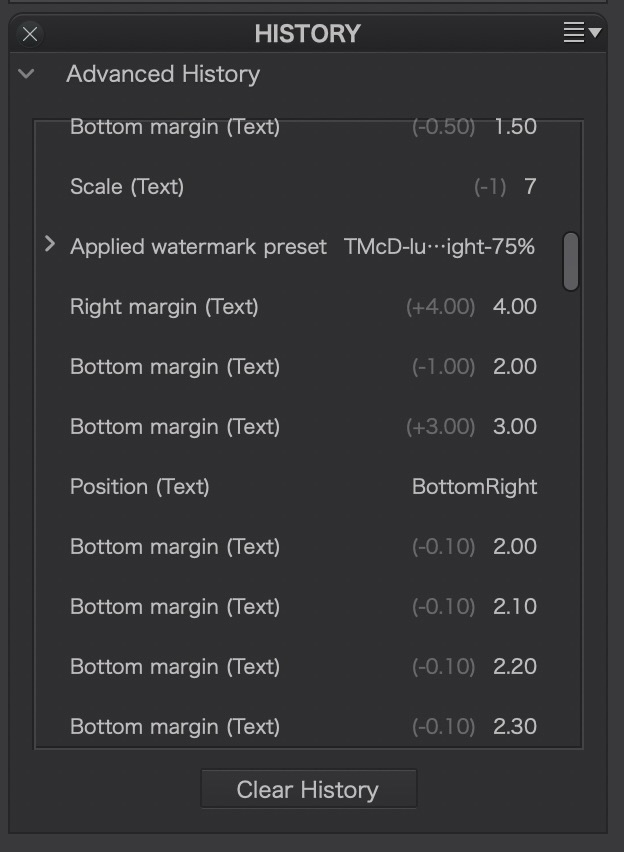
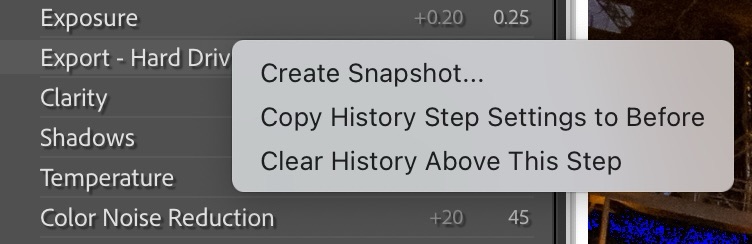
It would be even more helpful if it had a few of the functions from LrC such as ‘Create Snapshot’ or, one I use most frequently, ‘Copy History Step Settings to Before’, which allows before/after comparisons over more than just one step in History. As well, the PL9 History does not show when a file was exported as LrC does. Showing each Export is very helpful as Exports are our visual confirmation of the processing to that point. The closest I could see in PL9 was when it showed ‘Applied Watermark’, which may indicate an Export, though not always.
Compare
Being able to compare two images side-by-side or the same image before and after is essential to image selection and processing workflows. With Lr, it’s easy—simply select two images and choose Compare (Opt-C). With PL9 the workflow requires a few extra clicks but is easy to do.
To compare two different images, users select the reference image then choose ‘Use current image as reference’ from the compare menu. This command can also be done by right-clicking on the image. Then, simply select the image you wish to compare with it. As a further refinement, both images can be zoomed in and out to check details and the right-hand image can also be processed while next to the Reference image. As with Lr, the comparison can also be top and bottom and split views, both left and right and top and bottom. Excellent! This is a huge step forward for PL9 compared to previous versions. Next steps would be to align the navigation around a zoomed in comparison so that both images click-and-drag to the same location/view.
To compare before and after is even more straightforward: simply selecte the image, choose how you want to compare it (with or without Geometry applied) and select the orientation: L-R; T-B; or either in split view.
Cropping and Geometry
There is a Crop tool along the top (or simply R) for straightforward changes, but there is also a Cropping and Geometry palette in the right panel. It would be helpful if, when selecting R or the Crop button, the Crop palette opened in the right panel. Also, some tools are found above, and others below, which means additional cursoring around. What’s missing from these immediate tools (it’s in the palette) is the vertical crop tool, although, as in Lr, a vertical crop can be forced by pulling one of the bottom handles across towards the other.
I must admit to being cosy with tools such as Straighten and the Transform functions of Vertical, Horizontal, Rotate, Scale, etc. of Lightroom. This is perhaps the greatest challenge I faced with PL9. Horizon (and Auto Horizon) is an easy switch for Straighten, but the Force Parallel, Rectangle and 8 Points tools took some getting used to. They are powerful—particularly when using Intensity to nudge the changes, as well as the Advanced settings under Distortion and Perspective—and may well be better than what I’m used to with Lightroom.
I love setting myself a challenge, in this case straightening an oblique view of the Rothenburg Ratstrinkstübe Clock Tower. This was a throw-away image as, at the time, I moved to capture it straight-on, but it provided me with a way of comparing PL9 and Lr, in this case, LrD. I’m happy with both results, though PL9 seems to edge out Lightroom in this regard.
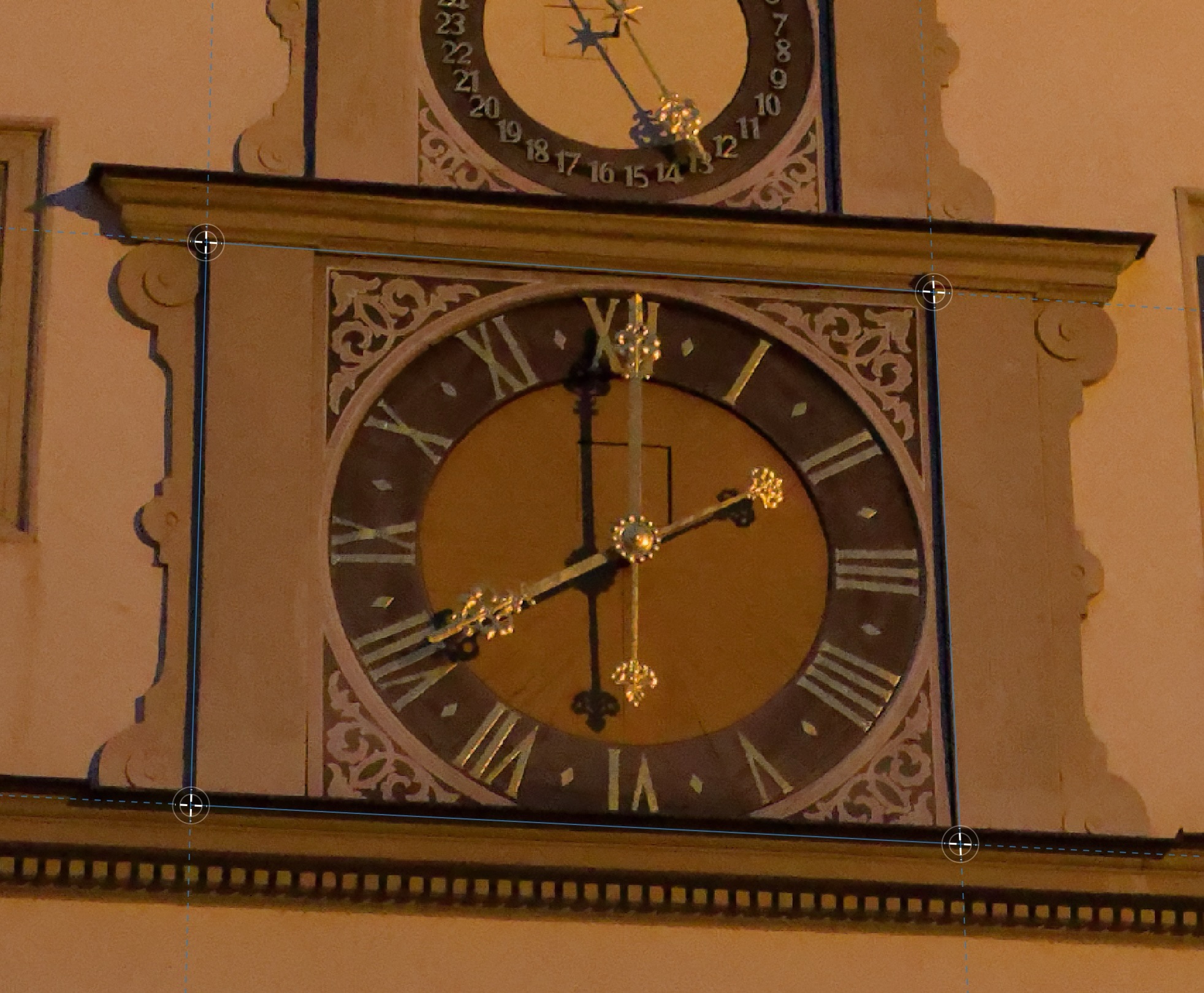
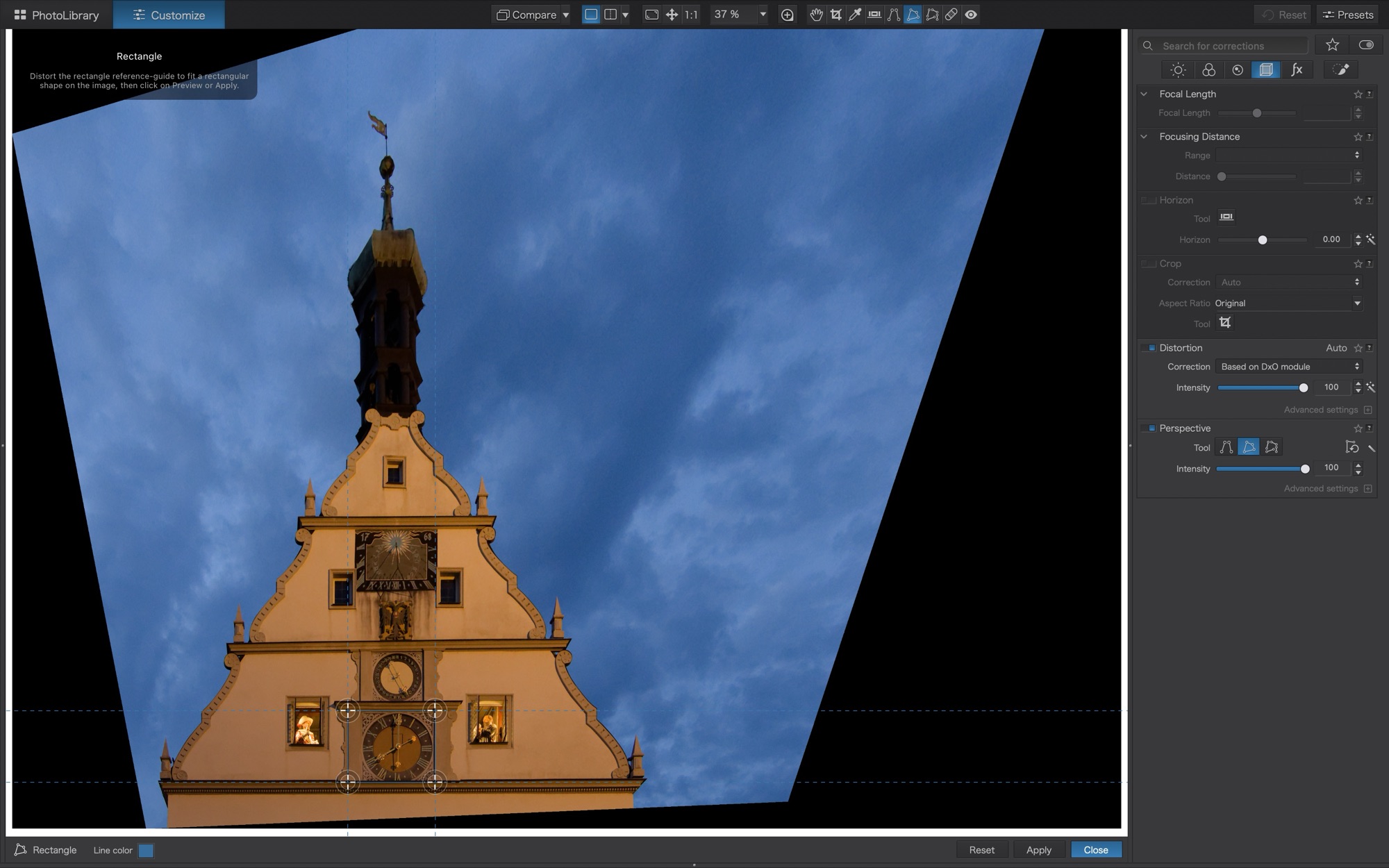
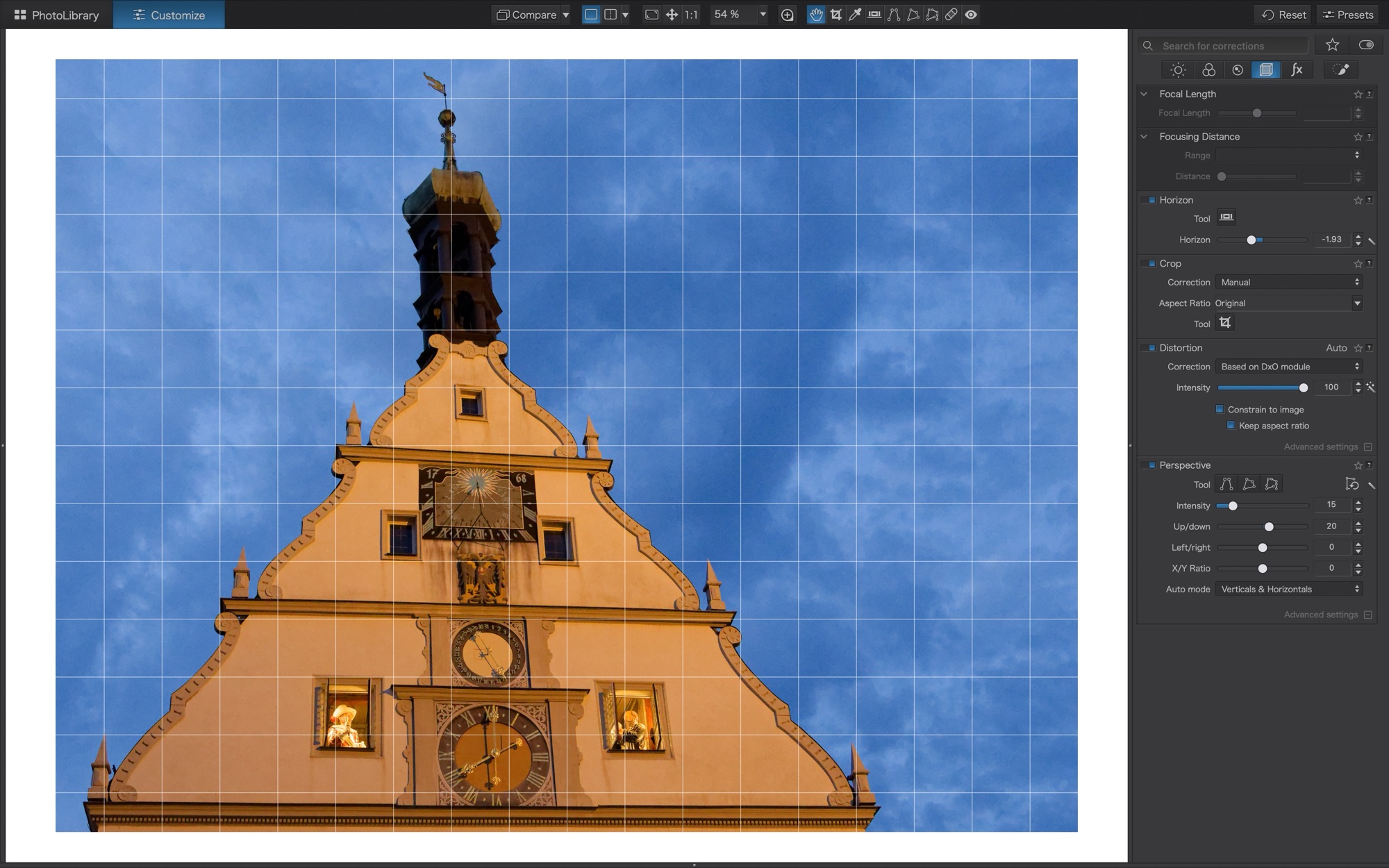
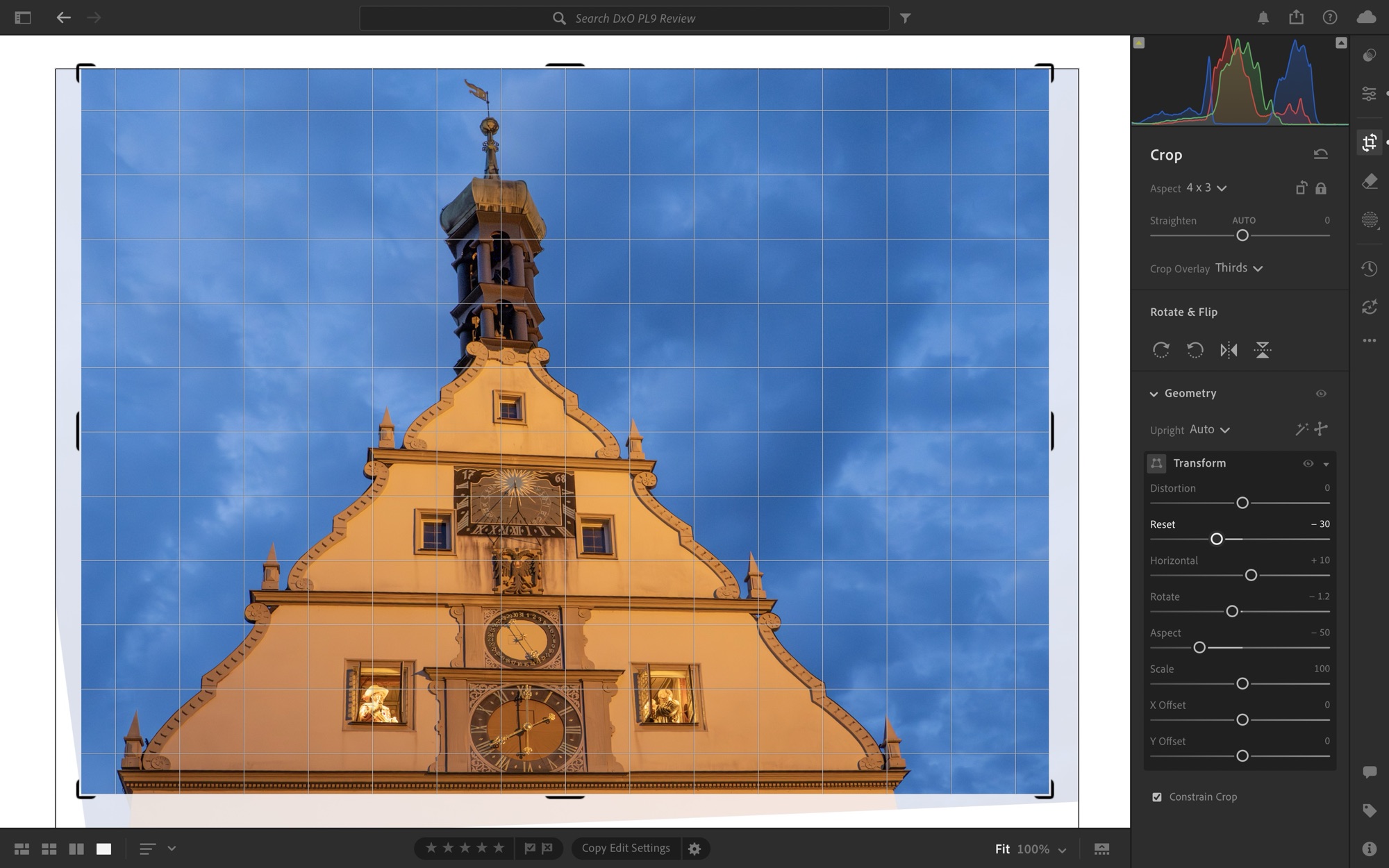
There is so much to unravel with this comparison of PhotoLab 9 with Lightroom. We’ll take a break here and return with a look at monochrome, export, printing, and cost–and an overall conclusion.
Thanks for reading. Let’s turn this into a discussion—add a COMMENT or ask questions in the comments. Be sure to SUBSCRIBE and SHARE this with others who might be interested.
 luxBorealis Blog