George DeWolfe – B&W Master Print
I love revelations. It’s so nice to read something refreshing and new; not about using yet more technology, but actually using less. Here’s a great article on black-and-white photography that should be read by anyone who is seriously thinking about improving their printing:
B&W Master Print by George DeWolfe on Luminous Landscape
From my perspective as a long-time black-and-white darkroom worker is that George DeWolfe’s article is about the best I’ve read since Ansel Adams’ series The Camera, The Negative and The Print (and if you haven’t read them yet – I mean really read and study them – then you simply must as they are the landmark black-and-white technical manuals).
While DeWolfe spends some time outlining the use of a $95 Photoshop plug-in he’s created, what is more important is his discussion around how we perceive photographs and how we, as printers, can achieve masterful prints: that is by learning to critically evaluate all the details of photograph and learning how to take what we see and enhance it to a point where we feel.
What I also learned is that what his PercepTool appears to do in Photoshop is similar to what I’m doing in Lightroom: look carefully at how it keeps the deep shadows and keeps the bright highlights, but opens the shadows between the two creating a brighter image with more three-dimensionality. In Lightroom we can boost the Blacks value higher than normal then open up those shadows with higher Fill Light values.
Lastly, what seems to really stand out in his work is his attention to detail – not just left-right, light-dark but his perception of three-dimensions by working on the relationship of foreground to background elements, things that reside in the shadows and things in the highlights. Most importantly, he spends time evaluating instead just reaching for another tool. He looks at his work critically to learn what doesn’t quite “feel right” about the image. Perhaps more than anything else, this is the key to producing great prints.
Thank you George!
September Photo Newsletter
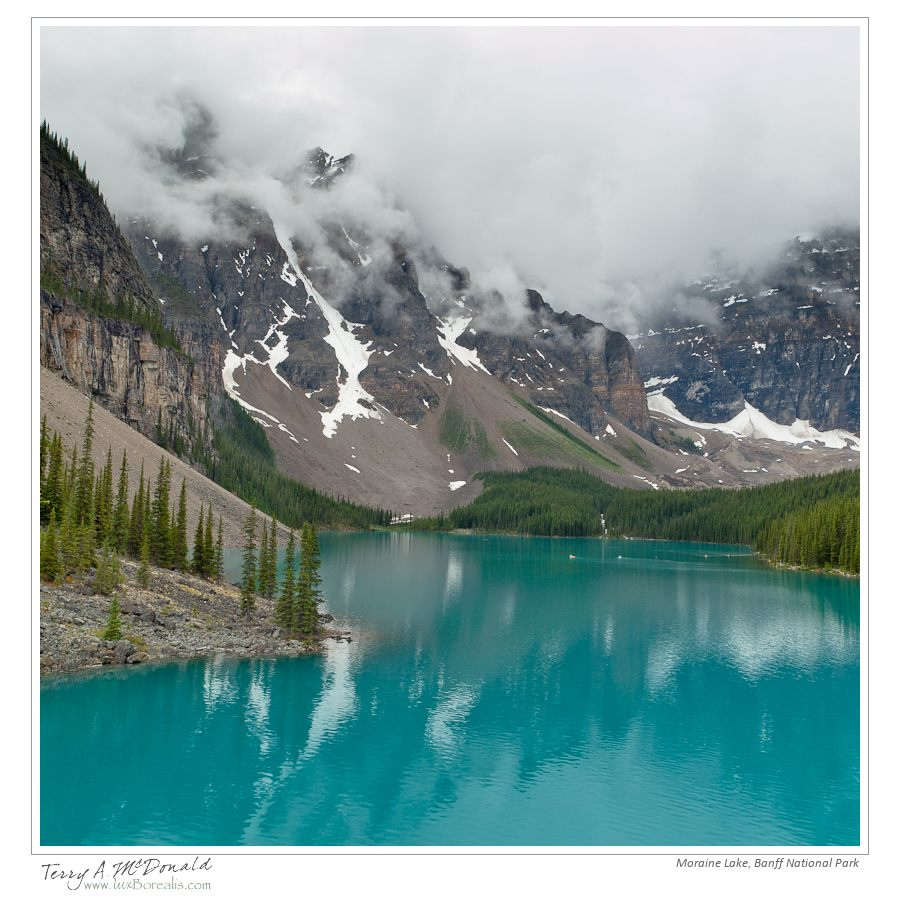
Moraine Lake, Banff National Park - 34mm ƒ5.6 @ 1/200; EV+2⁄3 ISO100 +POL - Rain, low cloud, dull light – not the conditions I had hoped for at one of Canada’s most spectacular places. However, the poor conditions forced me to look be- yond the obvious to nd visual design elements that worked amidst that incredible blue of the lake.
The luxBorealis September Photo Newsletter is hot off the press.
After a two month hiatus which included our family trip out West, canoeing in Ontario and ramping up my fine art printing, it’s time to get back in the saddle. I would like to extend a warm welcome to all the new subscribers that have signed on over the last month or so. I hope you find this “mostly monthly” newsletter and my accompanying blog helpful and inspiring.
The Right Stuff
During workshops and courses, I am often asked a question something along the lines of: “How do you know when a scene is worth photographing?” The keyword here is “worth”, for each of us has different goals, aspira- tions and expectations around what we photo- graph. The type of scene worth the time and effort to set up and photograph will be different for each of us, but I think there’s more to this question…Read on…
Canson Infinity Platine Fibre Rag – First Impressions

Summer Afterglow, Rideau Lakes, Ontario
I’ve finally gotten around to trying a new paper, different from the Ilford Galerie Gold Fibre Silk (IGGFS) I’ve been using lately. When I bought the Epson Pro 3880 printer two weeks ago, I also bought a 25-sheet box of of 13×19″ Canson Patine Fibre Rag as well as a box of 17×22″ Moab Entrada Rag Natural 300 which I have yet to get into. I’m trying to “finish” all the Photo Black printing before I delve into Matte Black (I can hardly wait! A few times now, I thought I would make the switch, but then remembered some other prints I wanted to get done first. The switchover costs about 6mL total of black ink between the two, so waiting is worth it.)
So this evening I broke open the box of Platine. Why Platine? First of all, Canson Infinity has a great name in high quality fine art printing papers. More importantly, Platine Fibre Rag is a 100% cotton rag paper which translates into archival quality due to its neutral base. Interestingly, IGGFS is not 100% cotton rag, but alpha-cellulose – not ideal in my mind despite it being a beautiful paper.
Arches Platine is a paper that was once made specifically for the wet darkroom Platinum and Platine printing processes which tells me this version, coated for inkjet printing, must be a superior paper. Unlike the IGGFS, Platine is not baryta-coated; it’s whiteness is that of the cotton rag itself. Like IGGFS, Platine does not have optical brightening agents (OBAs). OBAs are used in some papers to boost the whiteness or brilliance of the presentation. But OBAs are not archival. OBAs rely on UV light to activate them – since UV light also destroys colour inks, it just doesn’t make sense to have OBAs in the paper. After all, when framed behind glass (especially UV-cutting glass) the OBAs become ineffective.
Basically, if I am going to the trouble of printing high quality archival fine art prints, I want to choose a paper that will last. A number of other papers fit the bill such as the Canson Infinity Baryta amongst many others. But, in this case, I thought comparing two of the fine art front-runners would give me a good perspective.
First Impressions
This is not a scientific look at the paper. Despite my science background, once a paper meets the requirements of archival longevity, the choice of a paper relies on the artist in me, so I won’t be measuring anything!
Look and feel: Right out of the box, the Platine is not as stiff as the IGGFS, perhaps due to Platine’s lack of a baryta coating. That being said, it is a beautiful paper with a lovely smoothness that’s not quite perfectly smooth. There is a very slight wavy stipple that is not apparent when viewed straight on. The IGGFS is smoother, but not better, just different.
Platine’s paper base is slightly warm. In fact, I hadn’t really noticed its warmth until I put it down beside some other prints that weren’t IGGFS as the base colour of the two papers is very similar. Personally, I prefer a paper that is not stark white. The images “feel” better and the mat board I use (ArtCare AlphaEssentials 8740) is not stark white either, but has a slight warmth to it. Of the two papers, it seems Platine is just slightly warmer than the IGGFS, but is only noticeable when the two are side-by-side.
Use in the printer: I had some trouble loading the Platine paper. I put it into the rear, single-page feeder of the 3880. The printer would take the paper in as usual, but then I would get a skew error. This happened five times before I decided to apply slight pressure while the paper was being fed into the printer by gently holding on to each side of the paper as the printer drew it in. This seemed to work and is how I loaded each sheet thereafter. A bit of a bother, actually as I had become accustomed to dropping a sheet of IGGFS into the rear feed mechanism and having the printer look after it from there.
Colour: In setting up my printing workflow, I downloaded the paper colour profile from the Canson Infinity website and targeted Lightroom to use it – no trouble there at all. The colour reproduction of the Platine straight off the bat is beautiful – every bit as good as the IGGFS. Although I’m sure there must be measurable gamut differences, a side-by-side examination has not revealed any differences whatsoever in colour reproduction. Gorgeous rich tones.
Gloss: The base gloss of Platine is slightly less than that of the IGGFS which is neither good not bad, just different. However, the applied ink makes the finish just as glossy as the IGGFS, and perhaps because of this, there is slightly greater gloss differential with the Platine. In other words, very light areas with less ink applied are slightly less glossy than more dense areas where more ink has been applied. It’s not objectionable and is only noticeable if you are looking for it.
Why choose one paper over the other? Tough question, really, I suppose it comes down to what you prefer: the ever-so-slight texture of the Platine or the smoothness of the IGGFS; the 100% cotton rag of Platine or the alpha-cellulose of IGGFS; the baryta coating of IGGFS or that lack of it with the Platine. Price-wise, I paid the same for each: $3.40 per sheet. Since these are first impressions, I imagine I have more exploration to do. Perhaps a black-and-white or two are next! Stay tuned.
Epson Pro 3880 Ink Usage
Ink usage is always one of the first questions I get from photographers contemplating fine art printing. It’s understandable, really, since ink is one of the exorbitant but unavoidable costs.
The tool amount of ink I started with is 9 x 80mL = 640mL. According to the Usage Count accessed through the printer’s menus (don’t write to ask me how – read the manual, p99), I’ve used 28.4mL. I assume that includes the ink required for start-up. The most recent 12×16″ prints I’ve made (all on 13×19″ Ilford Galerie Gold Fibre Silk) have used between 1ml and 1.7mL (average of 1.325mL). What’s interesting is that a 12×16″ image area = 1.33 square feet. So my ink usage appears to be ±1ml per square foot.
In another study done by Red River Paper, they calculated about 7.7mL for 10-8x10s = 1.33ml per square foot. But of course, so much depends on what you are printing. So far, most of my photographs have been on the lighter, mistier side, so, no doubt, my ink usage is lower. I’ll check again after I’ve printed some of my rock portraits in my Platform portfolio.
Knowing how much ink is used, I can work out a rough estimate of cost. An 80mL ink tank is in the neighbourhood of $70 once HST is factored in. So each ml costs $1.14. The ink used in an average (so far) 12×16″ print comes out to be 1.325 x 1.14 = $1.51. Throw in the cost of the paper at $3.84/sheet and we’re looking at a total of $5.35.
But don;t be deceived by the low number!! Photography is rather like a fishing trip: while the fish may be free, when you add in the cost of the trip, you’re looking at 10s to 100s of dollars per pound! If you want fish – their cheaper at the local fish market. Although a print only “costs” $5.35, we’re forgetting all the equipment, travel and storage costs plus the time it takes to create, process and make the print. Then there’s the framing!! (BTW – if you are contemplating doing your own framing purchase a good Logan board-mounted mat cutter and save yourself a fortune in custom-sized mat windows – then be sure to use outside mat-dimernsions that fit into standard frames: 11×14, 16×20, etc – but that’s another story!)
That being said, it is helpful for printers to know exactly what they are in for with respect to costs. If you are contemplating fine art printing, this is food for thought.
More prints from the Epson Pro 3880
I can’t describe how fulfilling it is to be “back in the darkroom” creating fine prints. There’s something magical about bringing the creative process through to its final steps. To paraphrase Ansel Adams, taking the picture is like writing the score, printing is the performance. And for me, that’s what it’s all about: conveying, through the print, all the nuances of my experiences in the field when I first made the exposure.
I’ve done about half a dozen images now including one black-and-white which I’ll describe in a later post. Due to cost issues, I have not profiled my monitor, yet I am getting very consistent and reliable results. I know what I am saying is taboo amongst fine art printers, but there is the reality of being on a limited budget – do I buy paper or do I buy a monitor profiler? [Aside: Most of the time I specifically do not purchase extended warranties – for the Epson I did, and spent the extra $149 to extend the warranty from 1 year to 4 years. Printers can be finicky. There are a lot of moving parts which must all line up to to micro-millitre. When the minimum repair bill is $200, it makes sense to buy a $149 warranty.]
Back to monitor profiling. I decided against it for 4 reasons:
- As I said previously, the extra $200+ to get one that was truly worth having (i1Display Pro or Spyder 3 Pro – both do projectors as well), just wasn’t in the budget;
- If I was as working on a cheap $150 monitor, I would definitely get a profiler, but I’m not. The machine I use exclusively is a MacBook Pro. Apple does not scrimp when it comes to displays, even in their laptops – they are state of the art;
- Every Mac system has an excellent display calibrator that takes you through 6 or 8 steps of calibration – it’s not perfect, but, judging from my prints, it’s pretty darn close if you do it well (like anything, practice makes perfect!)
- I have worked in photography and darkrooms, including colour darkrooms, for about 30 years. When printing colour Cibachromes I would use these viewing filters to help decide what colour shift is needed: ±5 magenta or ± 5 yellow. My eyes quickly learned what to look for. This, in itself has been a huge advantage to me when colour printing today.
What I am finding is that I tend to view and process the photos slightly darker for the screen than is needed for a print. That makes sense: a computer display is backlit so the light is pouring through the pixels colouring them brilliantly. With a paper print the light is reflecting off the paper so not as much light is transmitted to your eye. So for most images I have already processed, I am increasing the exposure or brightness (depending on the image) by about 30 to 50%. The image still looks great on screen, just brighter than I might have done for screen viewing or projecting.
I am also finding that I am boosting the highlight half of the histogram up a bit. Basic processing tells us to bring the pure whites to just at or shy of clipping and I’ve always done that. Now I find that a print looks better with the top 1/4 of the highlights a little brighter while maintaining the same clipping. Typically, I make these adjustments using the Tone Curve palette in Lightroom.
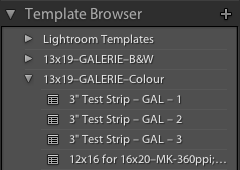
Test Strip Presets in Lightroom
How am I judging this, you ask? Am I printing out full sheets each time? Absolutely not! Remember, I’m a stingy troll from the wet darkroom era – I use the venerated test strips. That’s right – remember them? But I’ve modified the concept for digital printing. In Lightroom I’ve created a set of presets for printing a 3″ strip of the photo I’m working on. After judging the photo based on the first strip, I make the necessary corrections in the Develop Module then, in the Print Module, I select the Test Strip 2 preset which prints a 3″ strip of the same portion of the photo right beside the first. Now I can compare the two directly and chart my next set of changes.
With my first print on the Epson, I ended up using 6 strips – a full sheet. Now I’m down to 3 before making a full-sized print, mostly because I’m still learning about the amount and type of sharpening needed. For the more recent prints, I’m down to 3 test strips before making a full-sized print. From my perspective, that’s pretty darn good and I’m convinced that a monitor profiler would not change this. While some of the changes I make are colour related, most of them have to do with local contrast and sharpening which is outside of the parameters of monitor adjustments.
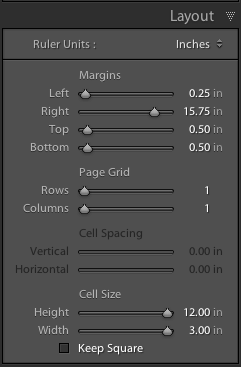
Test Strip 1 Layout in Lightroom
I’ve created separate test strips for different paper sizes and for colour and black-and-white. Seems like a lot of work, but setting it up ahead of time saves oodles of time (and paper) later on. Using presets means I don’t need to remember to change paper settings or invoke or turn off Advanced Black-and-White mode (more on this as I explore it).
Setting up the Presets is simple enough:
- In the Print Module, open the Page/Print Set-up window and set your printer and paper size;
- In the Print Settings window, select the Page Setup and Media Type and save those as a Preset within the Epson driver;
- In the Layout palette of LR’s Print Module set a left margin of .25″, add on the 3″ for the test strip (= 3.25″) then subtract from 19″ to get 15.75″ for a right margin; I’ve chosen top and bottom margins of 0.5″ as the widest print I want on a 13″ page is 12″;
- At this point, you may need to navigate to the Image Settings palette and select “Zoom to Fill”
- Back into Layout palette, maximize the cell size (at the bottom) to 12″ x 3″
The next test strip preset “Test Strip 2″ will use Margins of (L) 3.25″; (R) 12.75″. For each successive test strip , the left margin increases by 3″ with the right margin decreasing by 3”. Simple – once you’ve done it a few times. At first I began with just one test strip and altered th margins each time as needed. I quickly realized the advantage of setting up each Preset.
I must admit that with all these presets, fine art printing begins to sound more like push-button, assembly-line printing, but let’s face it, if all these details can be handled through presets,my limited brain power is then freed up for concentrating on the task at hand: creating prints that truly convey the nuances I saw and felt when I first exposed the image out in the field. After all, that’s what it’s all about!
 luxBorealis Blog