More prints from the Epson Pro 3880
I can’t describe how fulfilling it is to be “back in the darkroom” creating fine prints. There’s something magical about bringing the creative process through to its final steps. To paraphrase Ansel Adams, taking the picture is like writing the score, printing is the performance. And for me, that’s what it’s all about: conveying, through the print, all the nuances of my experiences in the field when I first made the exposure.
I’ve done about half a dozen images now including one black-and-white which I’ll describe in a later post. Due to cost issues, I have not profiled my monitor, yet I am getting very consistent and reliable results. I know what I am saying is taboo amongst fine art printers, but there is the reality of being on a limited budget – do I buy paper or do I buy a monitor profiler? [Aside: Most of the time I specifically do not purchase extended warranties – for the Epson I did, and spent the extra $149 to extend the warranty from 1 year to 4 years. Printers can be finicky. There are a lot of moving parts which must all line up to to micro-millitre. When the minimum repair bill is $200, it makes sense to buy a $149 warranty.]
Back to monitor profiling. I decided against it for 4 reasons:
- As I said previously, the extra $200+ to get one that was truly worth having (i1Display Pro or Spyder 3 Pro – both do projectors as well), just wasn’t in the budget;
- If I was as working on a cheap $150 monitor, I would definitely get a profiler, but I’m not. The machine I use exclusively is a MacBook Pro. Apple does not scrimp when it comes to displays, even in their laptops – they are state of the art;
- Every Mac system has an excellent display calibrator that takes you through 6 or 8 steps of calibration – it’s not perfect, but, judging from my prints, it’s pretty darn close if you do it well (like anything, practice makes perfect!)
- I have worked in photography and darkrooms, including colour darkrooms, for about 30 years. When printing colour Cibachromes I would use these viewing filters to help decide what colour shift is needed: ±5 magenta or ± 5 yellow. My eyes quickly learned what to look for. This, in itself has been a huge advantage to me when colour printing today.
What I am finding is that I tend to view and process the photos slightly darker for the screen than is needed for a print. That makes sense: a computer display is backlit so the light is pouring through the pixels colouring them brilliantly. With a paper print the light is reflecting off the paper so not as much light is transmitted to your eye. So for most images I have already processed, I am increasing the exposure or brightness (depending on the image) by about 30 to 50%. The image still looks great on screen, just brighter than I might have done for screen viewing or projecting.
I am also finding that I am boosting the highlight half of the histogram up a bit. Basic processing tells us to bring the pure whites to just at or shy of clipping and I’ve always done that. Now I find that a print looks better with the top 1/4 of the highlights a little brighter while maintaining the same clipping. Typically, I make these adjustments using the Tone Curve palette in Lightroom.
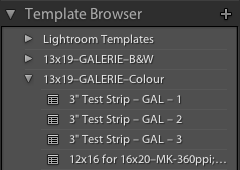
Test Strip Presets in Lightroom
How am I judging this, you ask? Am I printing out full sheets each time? Absolutely not! Remember, I’m a stingy troll from the wet darkroom era – I use the venerated test strips. That’s right – remember them? But I’ve modified the concept for digital printing. In Lightroom I’ve created a set of presets for printing a 3″ strip of the photo I’m working on. After judging the photo based on the first strip, I make the necessary corrections in the Develop Module then, in the Print Module, I select the Test Strip 2 preset which prints a 3″ strip of the same portion of the photo right beside the first. Now I can compare the two directly and chart my next set of changes.
With my first print on the Epson, I ended up using 6 strips – a full sheet. Now I’m down to 3 before making a full-sized print, mostly because I’m still learning about the amount and type of sharpening needed. For the more recent prints, I’m down to 3 test strips before making a full-sized print. From my perspective, that’s pretty darn good and I’m convinced that a monitor profiler would not change this. While some of the changes I make are colour related, most of them have to do with local contrast and sharpening which is outside of the parameters of monitor adjustments.
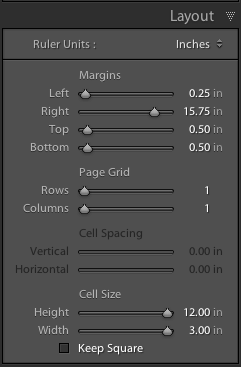
Test Strip 1 Layout in Lightroom
I’ve created separate test strips for different paper sizes and for colour and black-and-white. Seems like a lot of work, but setting it up ahead of time saves oodles of time (and paper) later on. Using presets means I don’t need to remember to change paper settings or invoke or turn off Advanced Black-and-White mode (more on this as I explore it).
Setting up the Presets is simple enough:
- In the Print Module, open the Page/Print Set-up window and set your printer and paper size;
- In the Print Settings window, select the Page Setup and Media Type and save those as a Preset within the Epson driver;
- In the Layout palette of LR’s Print Module set a left margin of .25″, add on the 3″ for the test strip (= 3.25″) then subtract from 19″ to get 15.75″ for a right margin; I’ve chosen top and bottom margins of 0.5″ as the widest print I want on a 13″ page is 12″;
- At this point, you may need to navigate to the Image Settings palette and select “Zoom to Fill”
- Back into Layout palette, maximize the cell size (at the bottom) to 12″ x 3″
The next test strip preset “Test Strip 2″ will use Margins of (L) 3.25″; (R) 12.75″. For each successive test strip , the left margin increases by 3″ with the right margin decreasing by 3”. Simple – once you’ve done it a few times. At first I began with just one test strip and altered th margins each time as needed. I quickly realized the advantage of setting up each Preset.
I must admit that with all these presets, fine art printing begins to sound more like push-button, assembly-line printing, but let’s face it, if all these details can be handled through presets,my limited brain power is then freed up for concentrating on the task at hand: creating prints that truly convey the nuances I saw and felt when I first exposed the image out in the field. After all, that’s what it’s all about!
Epson Pro 3880 – First Print
It’s 10:06pm and I am cranking out my first full-page print – a 12×16 printed on 13×19…

Wild Ginger, Spring, Bruce Trail
My original goal was to have the first print by dinner time today, but I was being rather ambitious than realistic.
I picked up the printer this morning (thanks Lan at Vistek, Mississauga!) and spent some time looking through the various papers they had in stock. Before going, I had done my research and had settled on three papers:
- Ilford GALERIE Gold Fibre Silk – a beautiful, silky smooth baryta paper, reminiscent of the glory days in the darkroom with Galerie paper;
- MOAB Entrada Natural – a gorgeous rag fine art paper that will be great for the more artsy shots;
- Canson Infinity Platine Fibre Rag – yet another beautiful paper with a long history.
Each of these papers have a few things in common. Since I am looking at longevity and fine prints, I figured I should do it right with 100% cotton rag substrate and no Optical Brightening Agents (OBAs). No RC, no photo glossy, no alpha cellulose – just the best paper possible. Not the most expensive (Hahnemuhle is a fortune!) but every bit as good as the most expensive. As well, each of the papers came with excellent recommendations:
- GALERIE Gold Fibre Silk: A favourite of Michael Reichman and Mark Dubovy amongst others
- MOAB Entrada Natural: Andy Biggs uses it
- Platine Fibre Rag: Mark Dubovy and Charlie Cramer
Choosing a photo printer – OMG what a challenge!
It’s now well past the time for me to get some serious printing done. For the last number of years, I’ve printed small stuff on my HP PhotoSmart (does quite a good job actually) and larger stuff using PosterJack.ca – really good prints, but I feel I can do better – oh how I miss the darkroom! In particular, I would love to explore some of the fine art papers for my “Platform” portfolio and some new shots of moving landscapes (more on that later).
So where to start? First of all, I needed to define exactly what type of printer I wanted. Modern fine art standards dictate:
- pigment inks since they have much greater longevity (over a century for colour and 200+ years for B&W) than the dye inks common in inkjet printers
- wide carriage – 13″ will produce beautifully sized prints (although 17″ would be preferred, it might be more printer than I can handle financially right now).
BTW, I should point out that I’m not approaching this as someone who has money to burn as we too often read about in the reviews and blogs, but rather as someone who, like most people, must count every penny!
- more pros whom I respect using them;
- there are a greater variety of models available in stock at, for e.g. Vistek;
- if the printers are more common, then the inks will also be easier to obtain.
March Newsletter is here!
- Photo Editing: Lightroom – Sat. Apr 16th
- Photo Editing: Photoshop – Sat. Apr 23rd
-
Spring Nature Photography Workshop: All day Saturday, May 7th
- Point & Shoot Photography: Sat. May 14th
- DLSR Photoaphy: Sat. May 21st
- Evening Photo Talks I: Learning Photography – 6:30 to 8:30pm each Tuesday in May from 6:30 to 8:30pm
- Evening Photo Talks II: Focus on Nature and the Outdoors – each Wednesday evening in May + June 1st from 6:30 to 8:30pm
- Discover the Grand Day: An all-day workshop in various locations along the Grand River, Saturday, June 4th
Spring 2011 Photography Workshops
With the cardinals calling and our first robin sighting, spring is in the air which means a whole new season of images awaits us. I have a tentative line-up of workshops in different formats coming up. If you’re interested in any of them send me an email to reserve your spot (terry@luxborealis.com)or give me a call at 519-265-4151. Note: Photo Editing courses are held at my home studio. All other locations are still to be finalized, but will be “live on-location” in the Guelph, Ontario region.
Photo Editing: Lightroom – Sat. Apr 16th $45 each or take both for $80
- Intro to Lightroom: 9 to 11:30am
- Advanced Lightroom: 1 to 3:30pm
Photo Editing: Photoshop – Sat. Apr 23rd $45 each or take both for $80
- Intro to Photoshop Elements
- Advanced Elements
Spring Nature Photography Workshop: All day Saturday, May 7th; Location TBA;
This is a full-day advanced field experience concentrating on nature and outdoor photography close-ups, landscapes, lighting, composition, reading histograms and working on a tripod; $85
Point & Shoot Photography: Sat. May 14th $45 each or take both for $80
- Starter: 9 to 11:30am;
- Advanced: 1 to 3:30pm
DLSR Photoaphy: Sat. May 21st$45 each or take both for $80
- Starter: 9 to 11:30am
- Advanced: 1 to 3:30pm
Evening Photo Talks I: Learning Photography – 6:30 to 8:30pm each Tuesday in May; $35ea; or pre-register for $30 each or take all 5 for $135
- Getting to Know Your Camera: May 3rd
- What is Correct Exposure? – May 10th
- Making Best Use of your Lenses – May 17th
- Dynamic Lighting – May 24th
- Creative Composition – May 31st
Evening Photo Talks II: Focus on Nature and the Outdoors – 6:30 to 8:30pm each Wednesday in May + June 1st; $35ea; or pre-register for $30 each or take all 5 for $135
- Nature Basics: Exposure – May 4th
- Nature Basics: Lighting – May 11th
- Creative Composition – May 18th
- Close-up & Flower Photography – May 25th
- Living Landscapes – June 1st
Discover the Grand Day: An all-day workshop in various locations along the Grand River, Saturday, June 4th; Travel to various great locations along the Grand River for a full-day advanced field workshop concentrating on landscape and nature photography, dynamic lighting, creative composition and working on a tripod; $85 per persson
 luxBorealis Blog